Page 51 of 78
6.9.3 Matrix Switching
1 From the Inputs column, select the desired source’s thumbnail. This will highlight the
thumbnail with an orange border to indicate the selection was made.
2 From the Outputs grid, select the desired output(s) to route the selected source to. This will
highlight the output(s) with an orange border to indicate the selection was made.
3 Switching commands will now be sent to the source’s encoder and the output’s decoder(s),
and the selected source’s signals will now be present on the selected output(s).
IMPORTANT:
The AC-MXNET-1G-EV2 and AC-MXNET-1G-DV2 devices may coexist alongside
MXNet first-generation encoders and decoders within previously installed
systems or pending system deployments. However, they are required to be
used exclusively in EVO II transmitter-to-EVO II decoder(s) pairings only. For
example, you cannot route signals from a first-generation encoder/decoder
to a second-generation encoder/decoder.
6.9.4 Matrix Presets
This feature provides an alternative to manually selecting and routing inputs to outputs, allowing
switching commands to be saved and recalled as a preset, along with the ability to name each
saved preset.
Keep in mind that when saving and activating matrix presets, settings will be applied to all current
switching configurations on all the encoders and decoders.
6.9.5 Creating a Preset
1 First, select the desired inputs and switch them to the desired output(s) by using the previous
steps above.
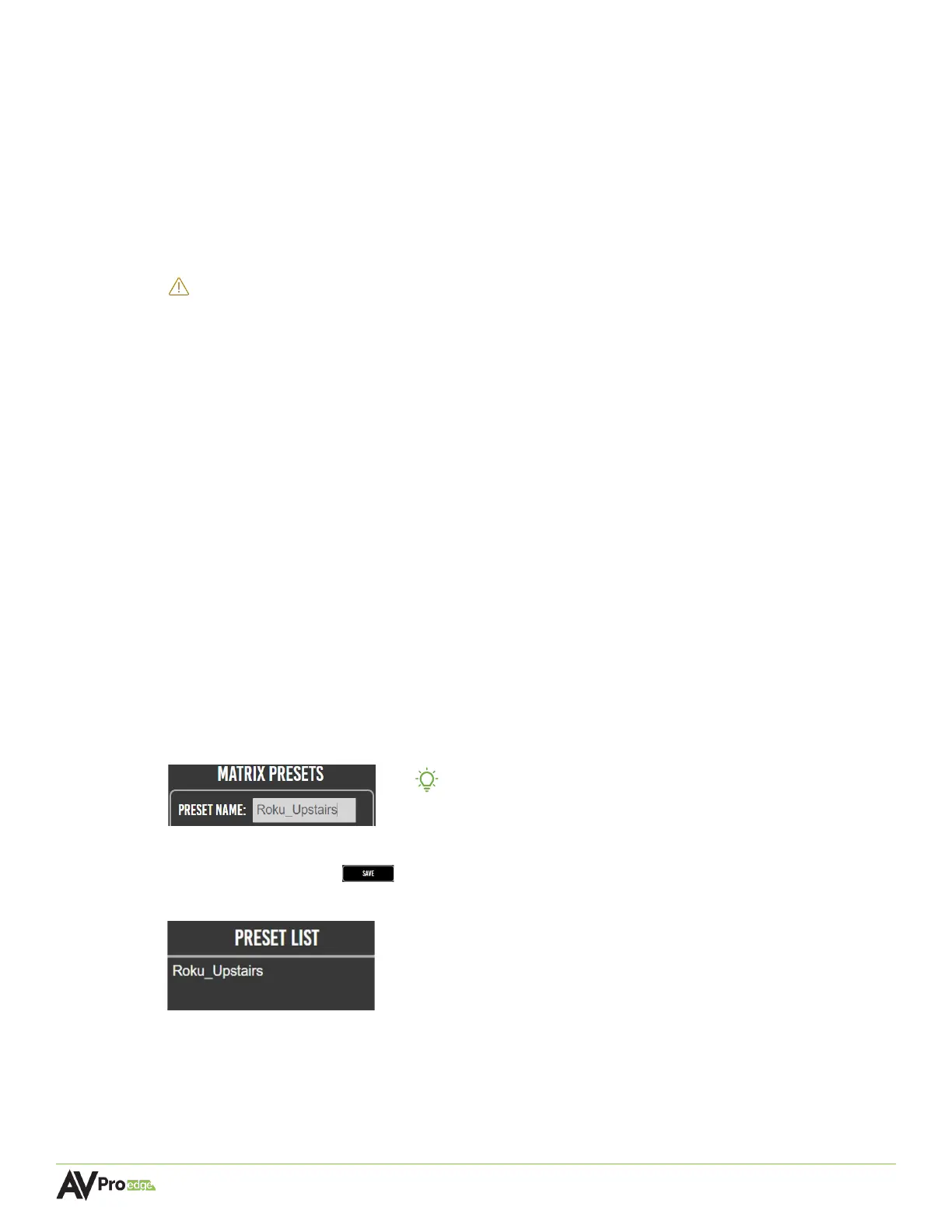
2 Under the Matrix Presets section, enter in the name of the current switching configuration into
the preset name field.
TIP:
No spaces are allowed when entering text into this field.
Individual words can be separated with a hyphen (-) or
underscore (_).
3 Select the save button to save all of the current switching configurations as a matrix
preset under the Preset List, along with its assigned name.



 To Next Page