Page 44 of 78
6.4.1 Inputs/Encoders/Sources
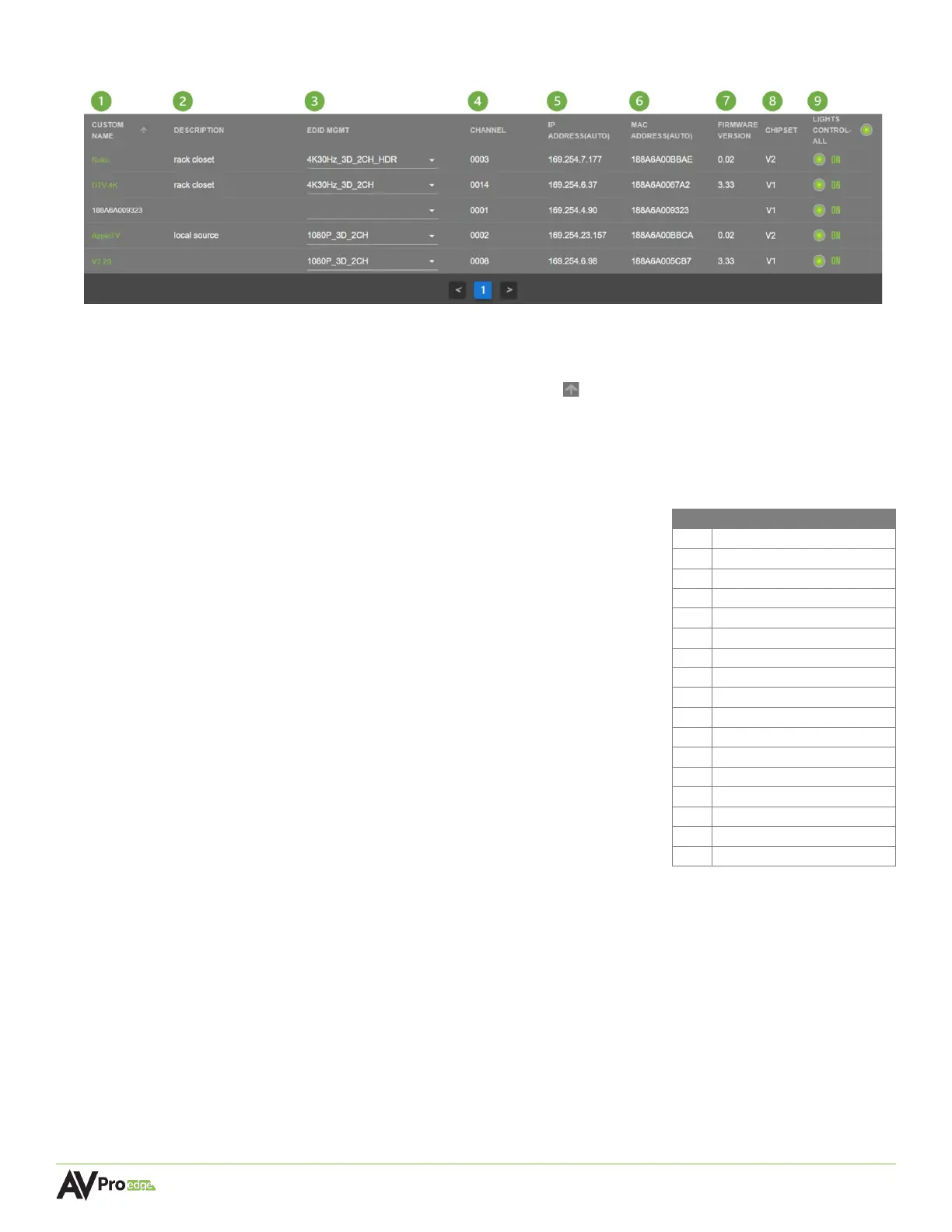
1 CUSTOM NAME (default MAC address)
Text field, limit of 12 characters. Type in a custom name and hit Enter to apply it. Custom
names can be sorted by clicking on the arrow button to toggle between ascending and
descending alphanumerical order.
2 DESCRIPTION
Text field, limit of 12 characters. Type in a custom description and hit the Enter key to apply it.
3 EDID MGMT
Dropdown menu containing 14 EDID presets and one User EDID
slot for a custom EDID or a copied EDID either from the
encoder’s HDMI Loop Out (16), or from a display’s decoder (17).
Click on the dropdown arrow to select an EDID for the source.
4 CHANNEL
Shows the multicast/broadcast channel number of the encoder.
This is automatically generated by MXNet and contains the
video, audio, IR, USB, and control signals of the encoder.
Switching to a source allows the decoder to subscribe to the
encoder’s channel in order to receive the encoder’s signals.
5 IP ADDRESS (auto)
Shows the link-local IP address of the encoder. The network
switch will automatically assign this to the encoder once a
connection has been made.
6 MAC ADDRESS (auto)
Shows the MAC address of the encoder. This is a factory setting that cannot be changed.
7 FIRMWARE VERSION
Shows the version of firmware currently installed on the encoder. This can be updated on the
System Utilities page under the MXNet Encoders (Tx) Updates section.
11 CHIPSET
Shows the current chipset version of the encoder.
12 LIGHTS CONTROL
Toggle button, allows for control of the front panel LEDs on the encoder, and can be done on
all or individually selected encoders. Click to toggle between FLASH, OFF, and ON.
2 1080P 3D 2CH



 To Next Page