42-101-01175_01178 Revision D Page | 8
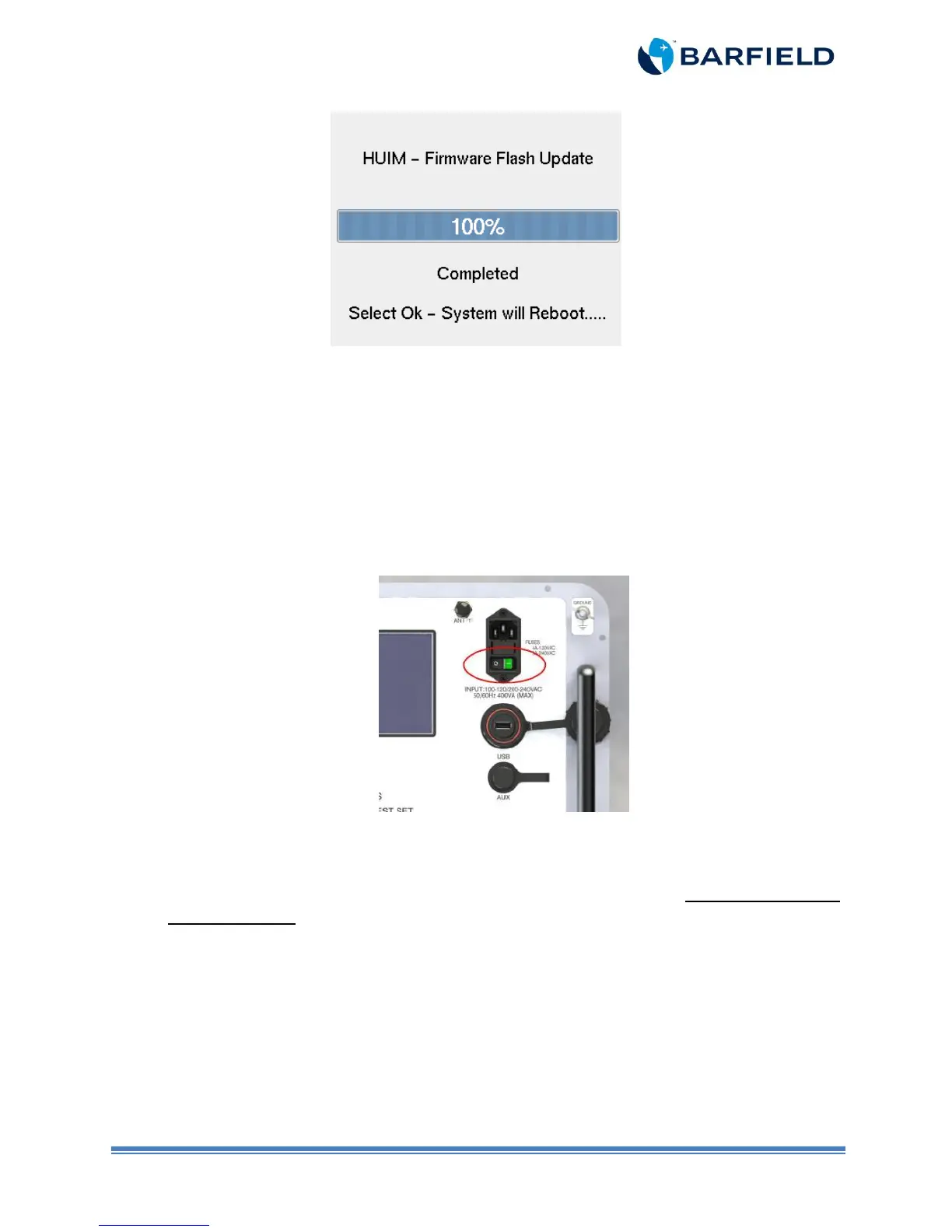
Figure 1.10 HUIM Update Progress
12. Once installation is completed, the unit will prompt you with the following message:
“Completed, Select Ok – System will Reboot….”. Select “OK”. The system will reboot
and the updated HUIM firmware will now be operational.
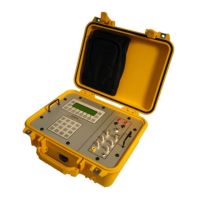
Note: When updating older HUIM firmware (1.0, 1.1), the unit won’t automatically reboot
after selecting “OK”. You will have to power cycle the Test Set OFF/ON after “100%”
status bar is displayed (Figure 1.11). This step is required for the updated HUIM
firmware to be operational.
Figure 1.11 Power OFF/ON button
13. Remove the USB Flash Drive.
14. Once the unit has booted up, if a PCM Firmware is not required, do not proceed with
PCM installation. The system will perform its normal initialization; take note of the
Initialization Log window to confirm both the HUIM Ver (x.x.x) and the PCM Ver (x.x)
version(s) are as expected. The firmware update is completed and the unit is ready for
use.


 To Next Page