42-101-01175_01178 Revision D Page | 11
SECTION 2 – ESTABLISHING WI-FI CONNECTION WITH TEST SET AND UPDATING TO
LATEST FIRMWARE*
Warnings:
Ensure unit is NOT CONNECTED to any aircraft and is NOT in Control Mode or
any process that requires it.
Ensure the tablet battery is above 20% to prevent the tablet from powering off
and stopping the updating process, which can crash and damage the unit.
During the updating process, do not move too far from the unit. Remain within
the recommended range signal, which is between 2 and 5.
Do not stop the App during the updating process.
The DPS1000/1811NG should be completely initialized before starting the
updating process.
Ensure the Unit’s name in the “updating window” is identical to the one in the app
title bar.
A. For Android
1. Establishing Wi-Fi Connection
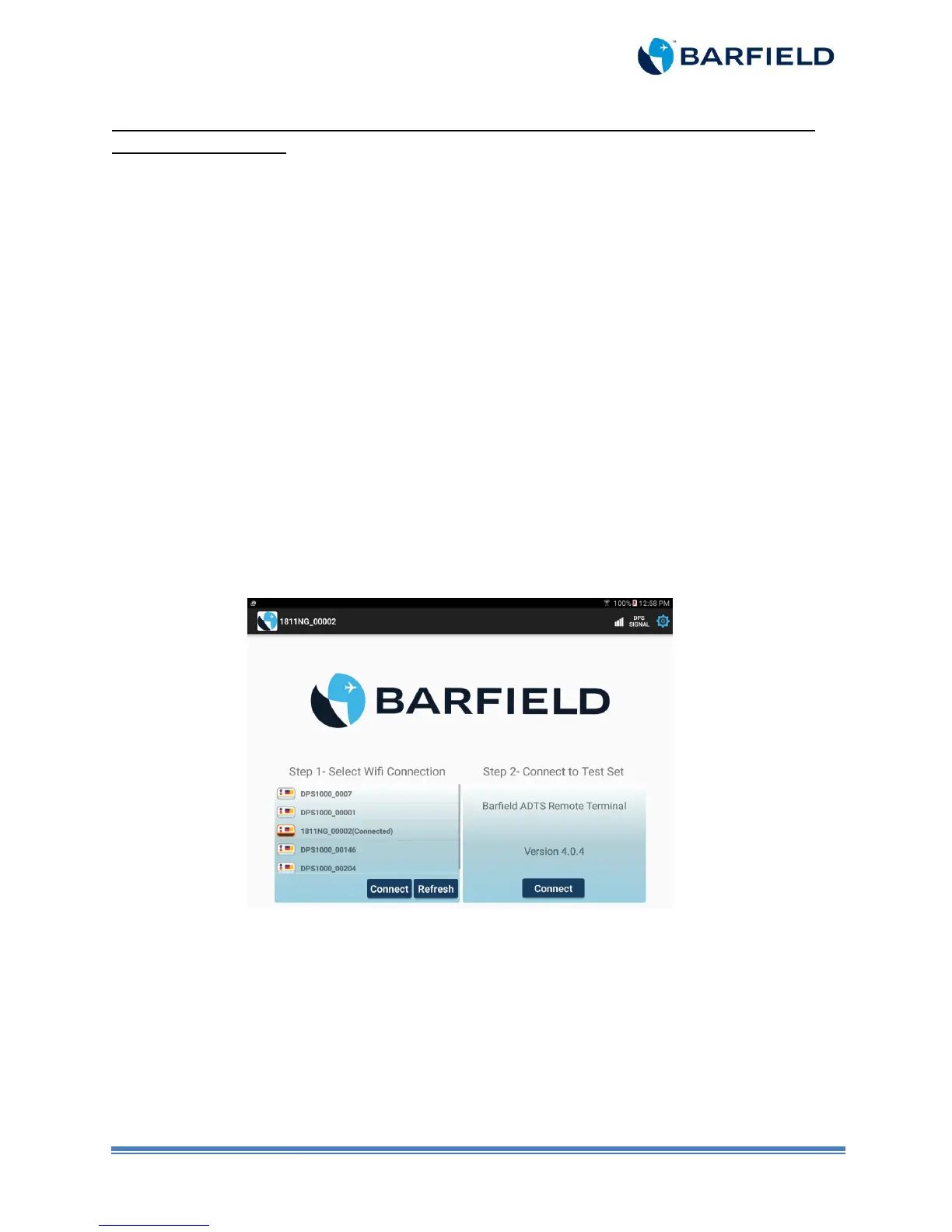
a) Launch the “Barfield ADTS” app. The “Connect” screen appears (Figure 2.1).
Figure 2.1 Connect Screen
b) Connect to available DPS1000/1811NG Wi-Fi in Step 1. If DPS1000/1811NG Wi-Fi is
not displayed, click the “Refresh” button.
c) Select DPS1000/1811NG Wi-Fi to establish connection before proceeding to Step 2.
You will be prompted to enter a password if it is the first time you are connecting to the
unit.
d) Enter password. The password is “barfield”. Proceed to Step 2.
*Patent Pending


 To Next Page