9-3
TotalAlert Innity™ HTM Medical Gas Notication System
4107 9016 60.01
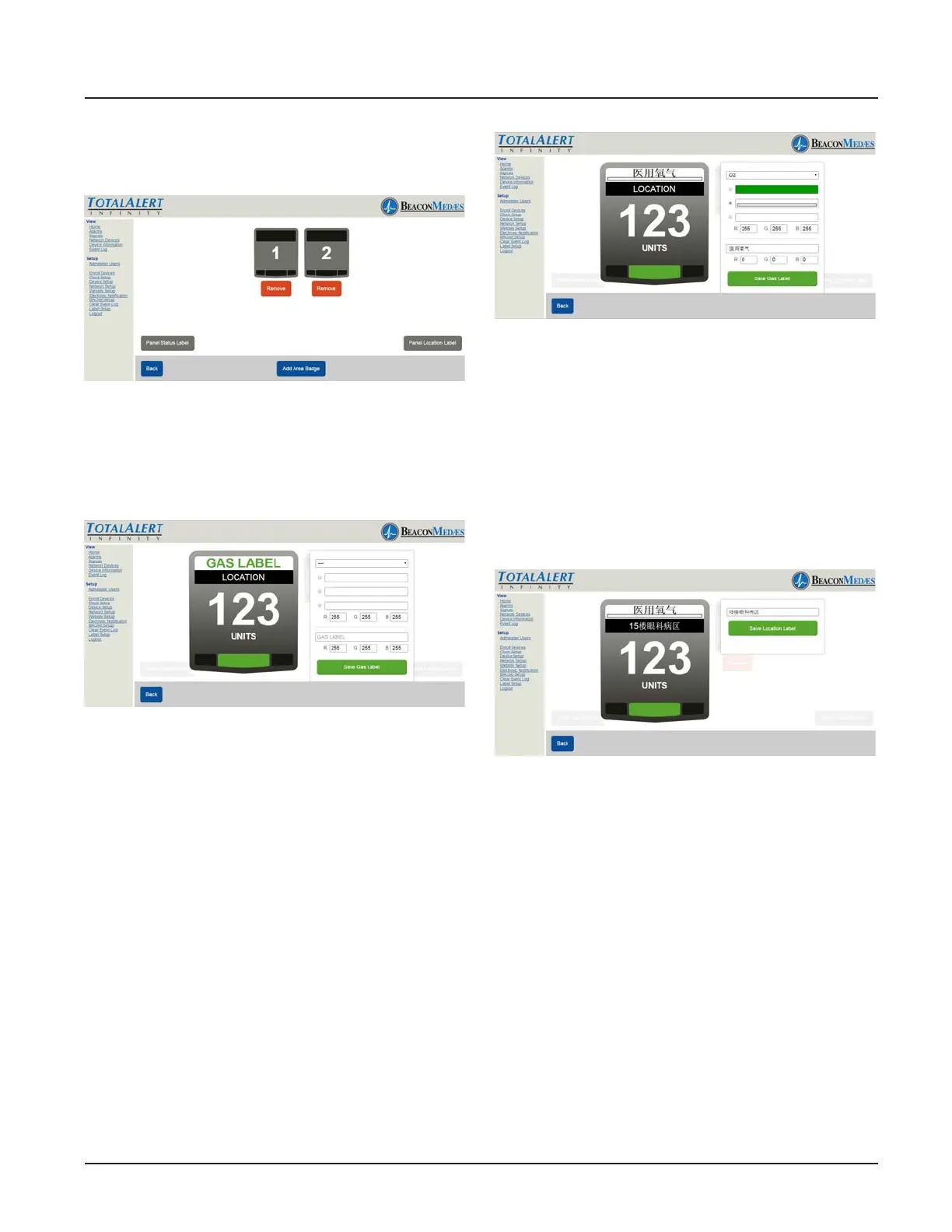
how many area alarms are displayed on the
alarm’s LCD. (See Figure 239)
Figure 239
6. From home screen, Click on the area
badge to setup non-latin language param-
eters. (See Figure 240)
Figure 240
7. Starting at the top of the Area Badge par-
meter box, select gas type from pull down
menu (Gas color options will be updated by
default). Then select the Gas color, based
from the required standard (NFPA, HTM,
ISO). Custom colors can also be added by
entering the RGB numbers.
The non-latin language input eld (located
at the bottom of the parameter tab) de-
faults in English with the gas previously se-
lected. Enter the non-latin language in this
eld. The badge will update with the new
input on the website page. (See Figure 241)
8. To save, select “Save Gas Label” button.
Figure 241
9. To setup location of gas monitored,
select Location tab on badge (located just
under the gas label). Enter non-latin lan-
guage characters for the location of gas
being monitored. (See Figure 242)
10. To save, select “Save Location Label”
button.
Figure 242
The TotalAlert Innity alarm allows for set-
ting up custom Units which is typically done
for 4-20mA devices. Units have to match
the pressure or vacuum numerical values.
11. To setup units of measure (other than
the defaults on the alarm) select UNITS tab
on badge. Enter non-latin language charac-
ters for the Units of Measure of gas being
monitored. (See Figure 243)
12. To save, select “Save Units of Measure
Label” button.


 To Next Page