1 695 600 968 2019-01-28| Beissbarth GmbH
94 | MT ZERO 6 LCD | Operation
7. Operation
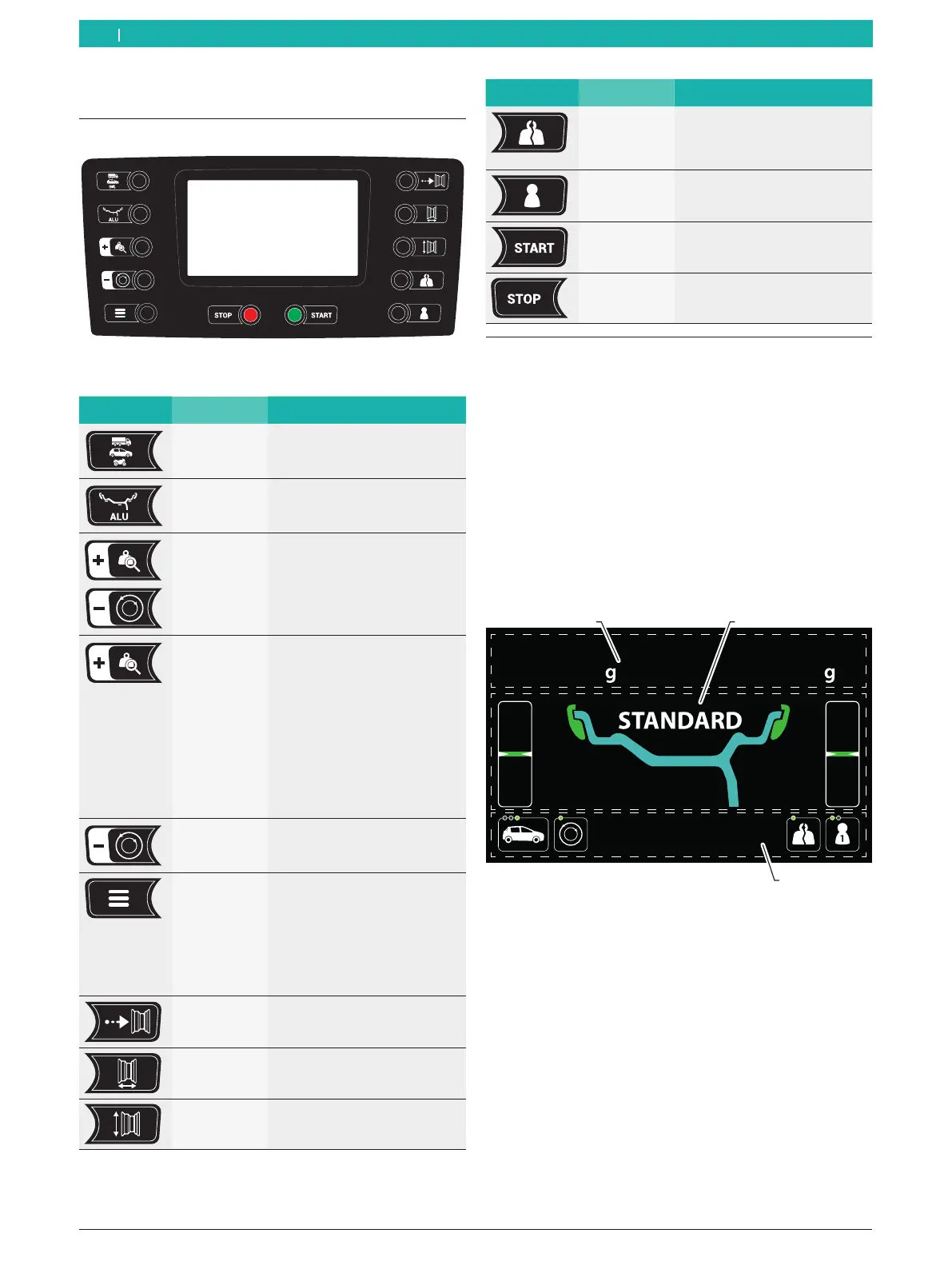
7.1 Control keys
pannello di comando_BM
Fig. 57: Digital control panel
Key Denomination Description
<VEHICLE> Selects the vehicle type: Truck,
passenger car or motorcycle
<ALU> Opens the balancing program,
select by means of <-> or <+>.
<+>
<->
R Changes the values
R Selects the balancing program
<END> With the OSD function active
(standard):
After the key is pressed,
selection of static and dynamic
imbalance optimization is
displayed based on the type of
vehicle to be balanced.
With the OSD function inactive:
Display of the exact, non-
rounded imbalance value
measured.
<OPT> When displaying the imbalance:
Opens the match program
(minimize imbalance).
<MENU> R Accesses the setting menus.
R Accesses the calibration
menus.
R Access to the submenus.
R Concluding confirmation of
the selected setting.
R Confirms completion of the
phases for calibration, "OPT".
<RIM
DISTANCE>
R Displays the distance
of the rim from the
MT ZERO 6 LCD.
<RIM WIDTH> R Displays the rim width.
<RIM
DIAMETER>
R Displays the rim diameter.
Key Denomination Description
<SPLIT> R Opens the SPLIT program.
R Cancels the SPLIT program
mode.
<USER> R Change of user.
<START> R Starts the measurement pro-
cess.
R Selects the balancing plane.
<STOP> R Ends measurement.
R Ends the menu.
7.2 Display
The wheel balancing machine is equipped with a
TFT display on which the information regarding the
balancing parameters is displayed. The displays will
vary depending on the working phase.
The position of the content on the most important
screens is shown in the following. The following
sections contain a detailed description of the device's
operation.
After the MT ZERO 6 LCD is switched on, the basic
screen for balancing appears.
7.2.1 Basic balancing screen
3
Fig. 58: Basic balancing screen
1 Display of the weights required for balancing
2 Display of the balancing procedure for the assigned program
3 Status area with display of possible functions
en



 To Next Page