58 Biodex Medical Systems, Inc. © 2017
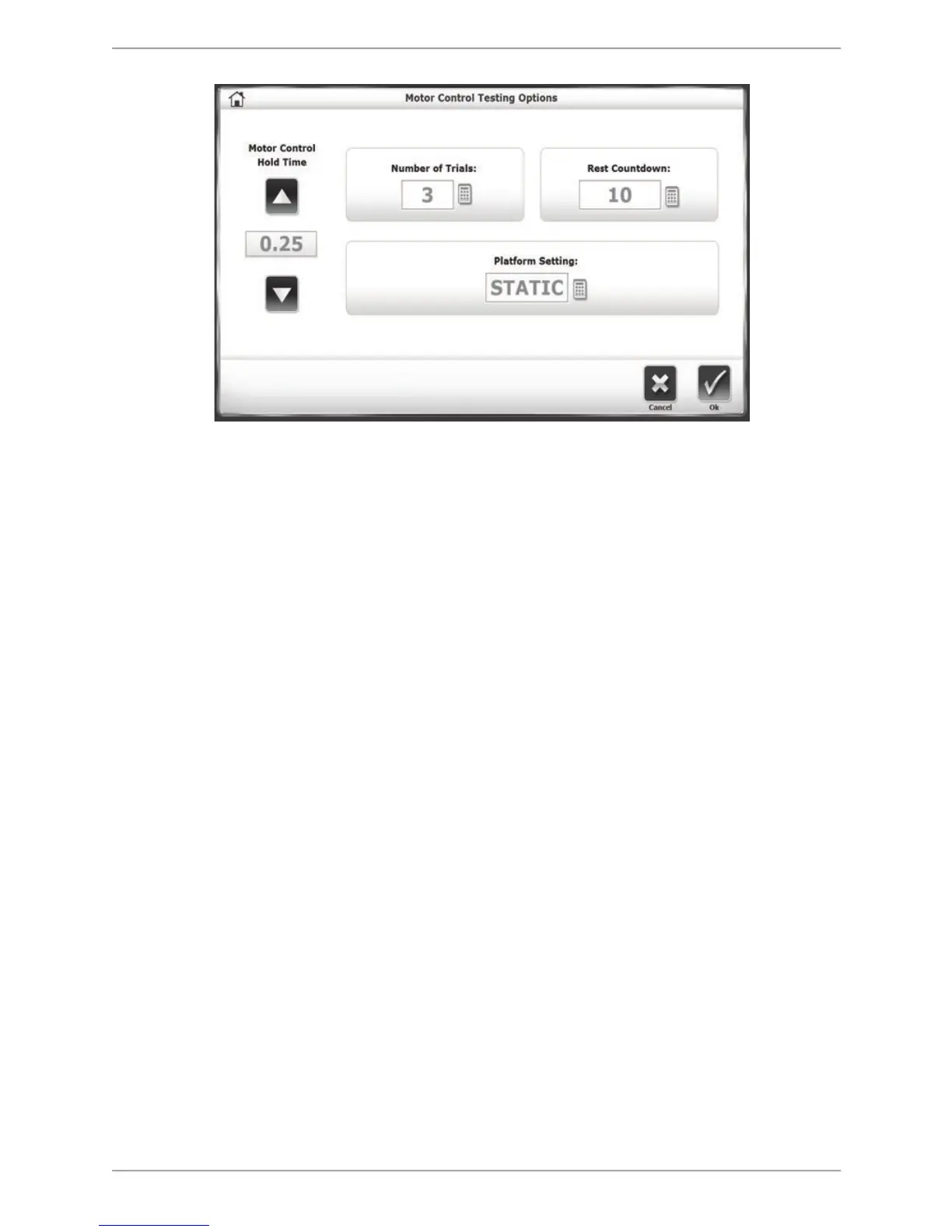
Figure 7.13. The Motor Control Testing Options screen.
6. Touch <Next> to display the Position Patient screen. The dot on the Position Patient screen
represents the patient’s Center of Gravity. Have the patient stand in a natural stance,
slightly adjusting his or her foot placement until the dot is on or close to the center axis.
Using the four keypads, enter the patient’s left foot, left heel, right foot and right heel
positions using the midline of the foot and the platform grid as reference points. As a
reference, use Table 6.1 in the Percent Weight Bearing Training Mode section.
7. Touch <Next> to advance to the Motor Control Testing screen.
8. At the Motor Control Testing screen, touch the blue <Pattern> button to toggle between
Full, Left, and Right target orientations.
9. Touch the <Skill Level> icon to toggle between Easy, Moderate, or Difficult target
orientations (with the most-spread-out targets being the most difficult).
10. If desired, touch the <Show Tracing> icon (the left-most icon under Tracing). Press the
<Clear Tracing> eraser icon (the right-most icon under Tracing) to remove any tracing that
is left from a previous training session.
11. Press <Start> to activate the Motor Control Test screen.
12. With the patient ready to begin the test, touch <Collect Data>. The screen will display a
three-second countdown before beginning each test trial. The display screen will include
Test Trial Time, the Score, what number Trial is occurring, and the Platform Setting. If
desired, touch the <Magnifying Glass> icon to enlarge the grid circle.
NOTE: The Score in a Motor Control test is derived from how straight a path the patient
moves the cursor between the targets. For more information on this calculation, refer to
Appendix A.
NOTE: To stop a test in progress at any time and return the platform to a locked position,
touch <Stop>.
13. When the first trial is finished, the screen will display ‘Trial 1 Complete,’ and a ten-second
rest countdown will begin for the second trial. (ten seconds is the default time; this can be


 To Next Page