64 Biodex Medical Systems, Inc. © 2017
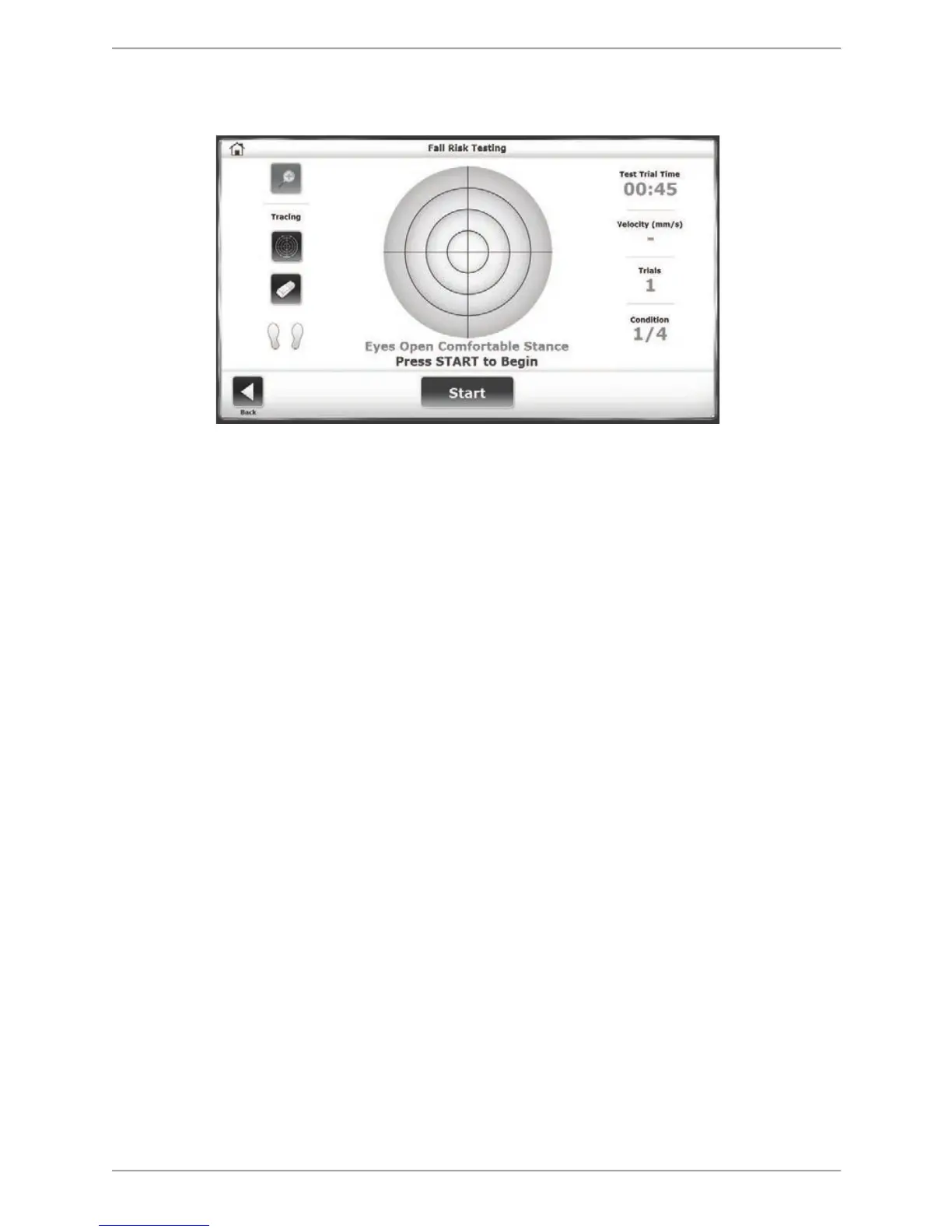
Condition that is being tested. If desired, touch the <Magnifying Glass> icon to enlarge the
grid circle.
Figure 7.17. Fall Risk Testing screen.
9. For tests in a narrow stance, patients should be positioned with a 7.5cm separation between
feet. Each foot should be placed two blocks away from the AP midline with the navicular
tubercle over the ML midline.
NOTE: To stop a test in progress at any time, touch <Stop>.
10. When the first condition is finished, the screen will display ‘Trial 1 Complete / Prepare
for Condition 2’ and a rest countdown will begin for the second condition. Touch
<Collect Data> to begin the second condition and continue in the same manner to
complete subsequent conditions.
11. When the first trial is finished, the screen will display ‘Trial 1 Complete.’
12. After completing all trials, a ‘Test Complete’ message is displayed. Touch <Results>
to advance to the Fall Risk Test Results screen.
13. At the Fall Risk Test Results screen, touch <Print> to automatically generate a printed
report if desired.
14. To save the test data from the Results screen, touch <Save Results> and touch <OK> in
response to the ‘Save Results for later reporting or export?’ prompt. The system will display
‘Save Results Completed’ after the results are saved. If a patient identifier was not entered
at the start of the session (i.e., a name or an ID number), it will need to be entered now in
order to save the results of the session. If the test result is not saved and <Back> or
<Home> is touched, the system will prompt the user for confirmation because of the
possible loss of data for the test just performed.
15. Touching <Codes/Comments> allows the user to add additional information pertaining to
the test. CPT, ICD, G-Codes or comments regarding the test can be added at the conclusion
of the test or at a future time.
16. To return to the Opening Menu from the Fall Risk Test Results screen touch the <Home>
icon in the upper left corner.


 To Next Page