68 Biodex Medical Systems, Inc. © 2017
5. When <Export PDF> is touched, the report will automatically be exported as a PDF file to a
generated folder titled BioReports on a USB flash drive. An error message is displayed if a
USB flash drive is not inserted in one of the USB ports on the device’s display.
6. From the Stored Test Results screen, the user has the option of viewing a Progress Report,
initiating a repeat of the same test, or editing the various codes and comments (e.g., CPT,
ICD, G-Code) associated with the patient.
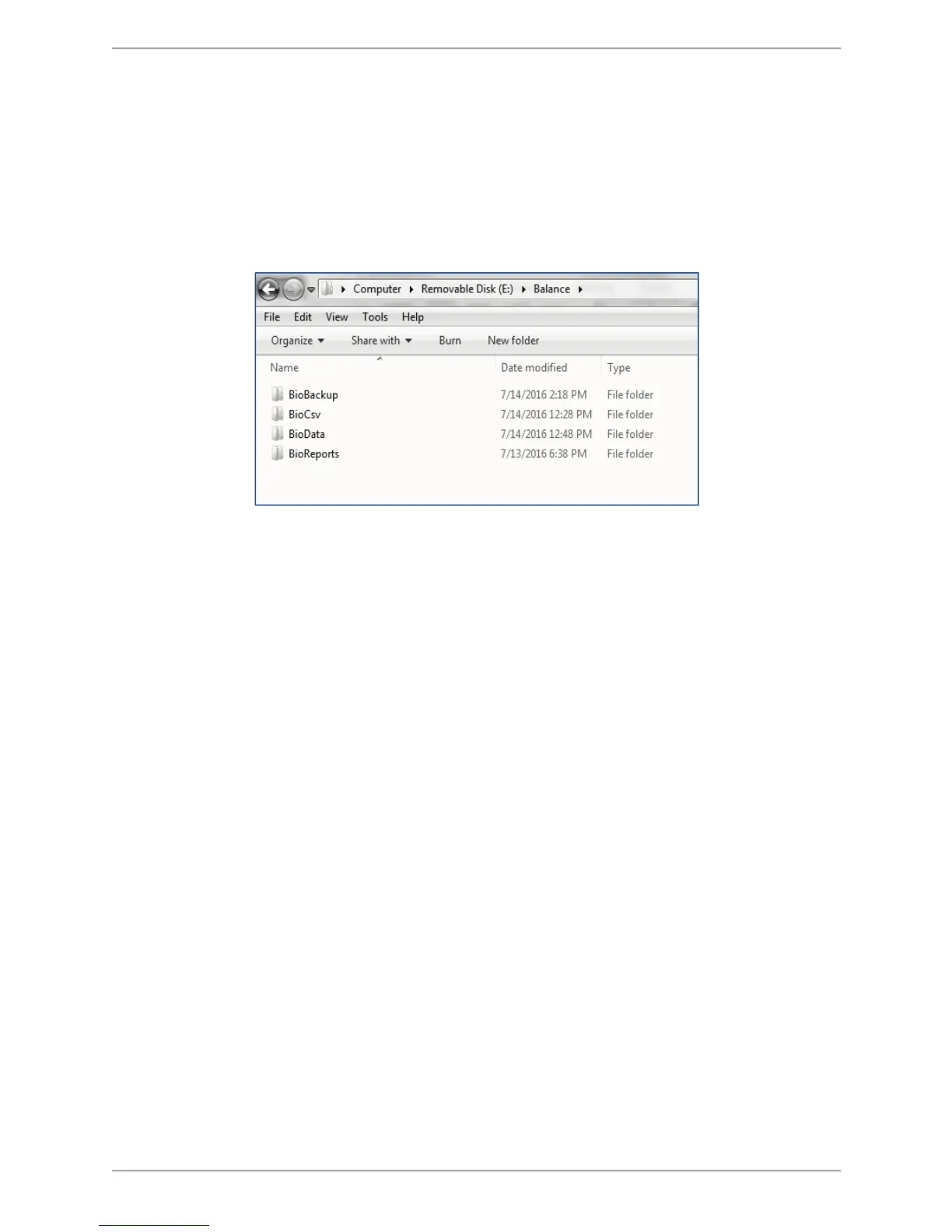
Figure 8.7. Location on Hard Drive in which the <Export PDF> File is Saved.
As illustrated in Figure 8.7, the BioReports folder is just one of several subfolders that are
automatically generated in the main directory. The following is a list of the subfolders, along
with the types of files contained:
! BioBackup: The backup of system settings with database.
! BioCsv: Both individual CSV file and multi data CSV files.
! BioData: The patient test results as a Binary file.
! BioReports: The reports in PDF format.
Sample reports:
Biodex Balance System SD offers reports for each of the test modes. The data presented from
balance testing is common on different reports. Reports can be generated to reflect single leg,
both legs and bilateral comparison testing protocols. Report formats include Postural Stability,
Bilateral comparison, Limits of Stability, Motor Control, Fall Risk, Sensory Integration which
includes the CTSIB and BESS Test.
Sample reports are illustrated below. For detailed information on the various reports refer to
Appendix B.


 To Next Page