411829-L, Data Administration April 2012 Page 2-2
2
2.2 Administrate the Cartridge List
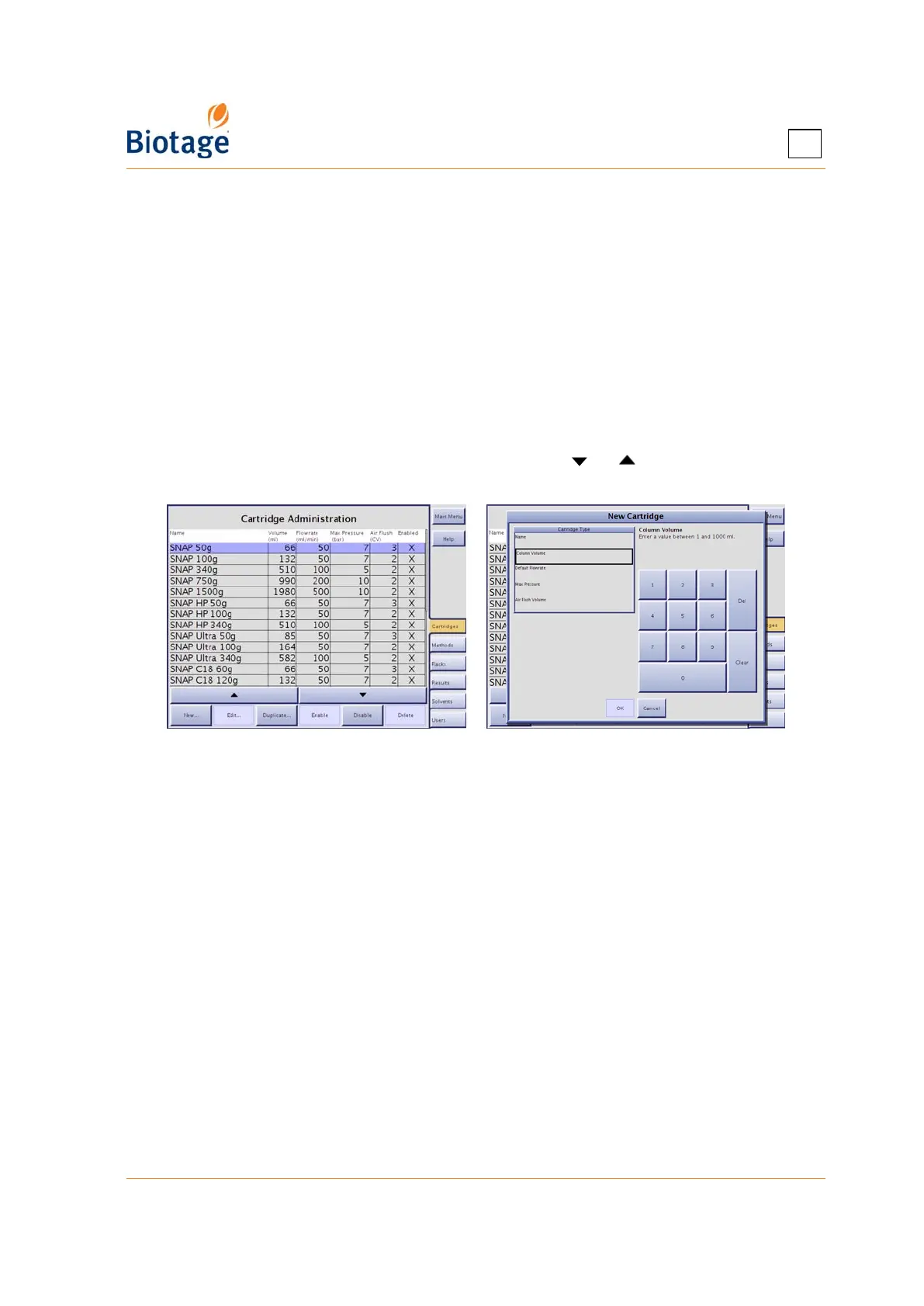
The software comes with a preconfigured list of cartridges and their settings. At the Cartridges
tab, in the software’s Data Administration mode, you may add other cartridges to this list, and
select the cartridge types that will appear in the cartridge selection list when setting up a method in
the Chemistry mode. It is also possible to edit and delete user defined cartridge types.
NOTE
The preconfigured Biotage cartridges cannot be edited or deleted.
SNAP and SNAP Ultra 10g to 30g and Biotage ZIP 5g to 45g cannot be used
on Isolera LS. SNAP 1500g is not recommended for use on Isolera Prime,
Isolera One, or Isolera Four. SNAP 750g, Flash 75S, Flash 75M, and Flash
75L are not recommended for use on Isolera Prime.
To scroll a list down or up, press or .
Figure 2-2. Cartridges Tab (Isolera LS Shown)
2.2.1 Add a Cartridge Type
1. Press New... or, if you want to base the new cartridge type on an existing one, select the
cartridge and press Duplicate... at the Cartridges tab. The New Cartridge dialog opens.
2. Enter the cartridge settings. (A setting can be entered when the corresponding text box has
been selected.) The cartridge parameters are:
• The name of the cartridge type.
• The column volume (CV) in ml.
• The default flow rate in ml/min.
• The maximum pressure in bar or psi (see “Set the Pressure Unit” on page 3-4). If the
maximum pressure is exceeded during a purification, the run will be paused and the
system has to be purged until an acceptable pressure level is reached.
• The air flush volume in CV.
3. To save the new cartridge type, press OK.
2.2.2 Delete an Unused Cartridge Type
1. Select the cartridge that you want to delete at the Cartridges tab.
2. Press Delete. The Confirm Delete dialog opens.
3. To confirm delete, press Yes.



 To Next Page