411829-L, Data Administration April 2012 Page 2-5
2
2.4 Administrate the Rack List
The software comes with a preconfigured list of racks and their settings. At the Racks tab, in the
software’s Data Administration mode, you may add other racks to this list, and select the rack types
that will appear in the rack selection list when setting up a method in the Chemistry mode. It is also
possible to edit and delete user defined rack types.
NOTE
The preconfigured Biotage racks cannot be edited or deleted.
The funnel rack kit from Biotage can only be used with Isolera LS.
To scroll a list down or up, press or .
2.4.1 Add a Rack Type
1. Press New... or, if you want to base the new rack type on an existing one, select the rack and
press Duplicate... at the Racks tab. The New Rack dialog opens.
2. Enter the rack settings. (A setting can be entered when the corresponding text box has been
selected.) The rack parameters are:
• The name of the rack type.
• The vessel volume in ml.
•
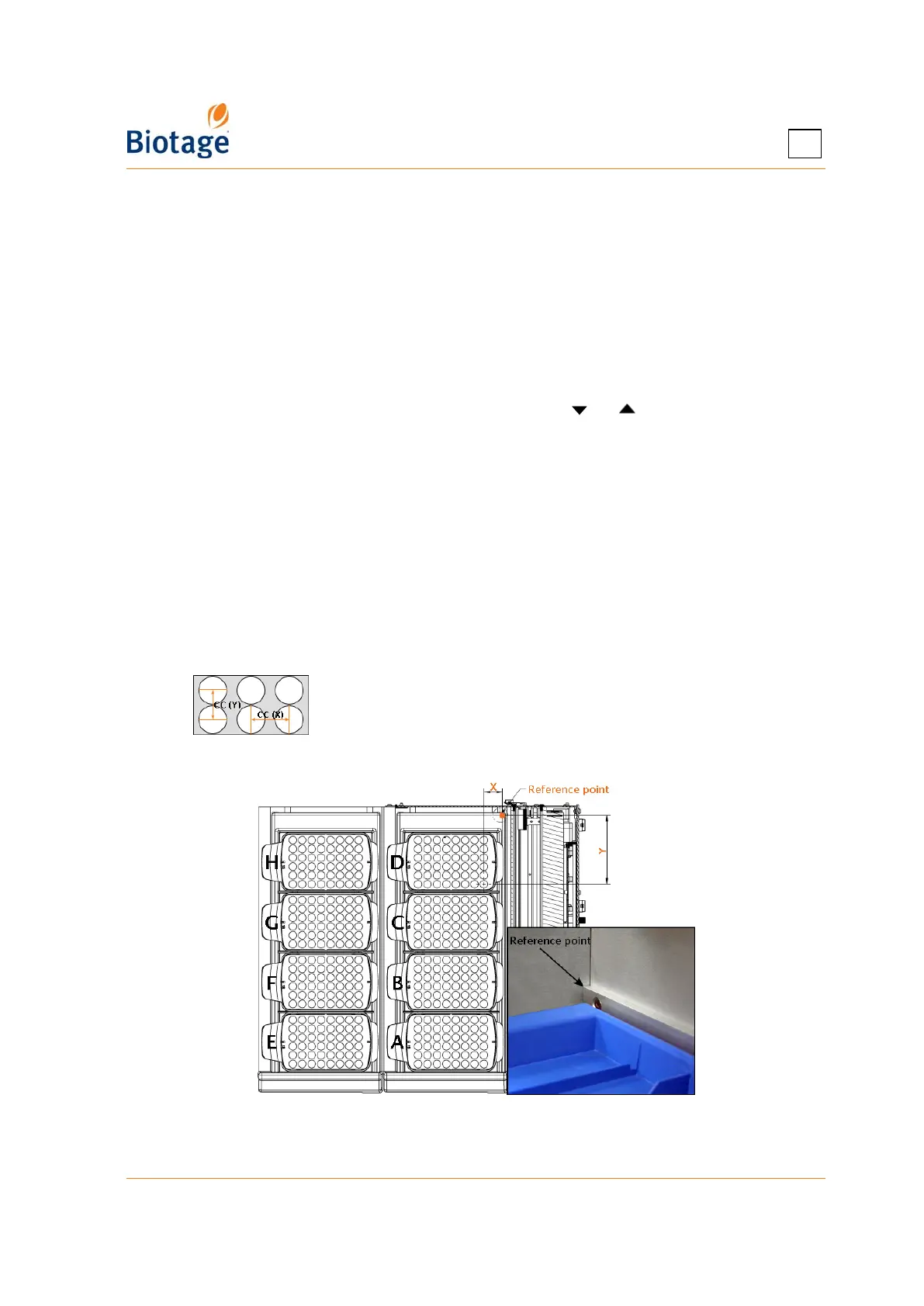
The number of columns and rows of vessels in a rack. For example, the racks in Figure 2-4
have six (6) rows and eight (8) columns each.
• The maximum number of racks that can be loaded onto a system with two collection
trays. Can be either two or eight, i.e. one or four racks per tray.
•
The CC distance between vessel positions along the x-axis and the y-axis; see image below.
• The x- and y-coordinates for the first vessel position of each rack on the collection area;
see Figure 2-4.
Figure 2-4. X- and Y-Coordinates for Rack Position D
3. To save the new rack type, press OK.



 To Next Page