411829-L, Operation April 2012 Page 4-13
4
4.4.3 Create a Method Using the Method Wizard
The method wizard will guide you step-by-step through the setup of a purification with a gradient
including up to three steps using two solvents.
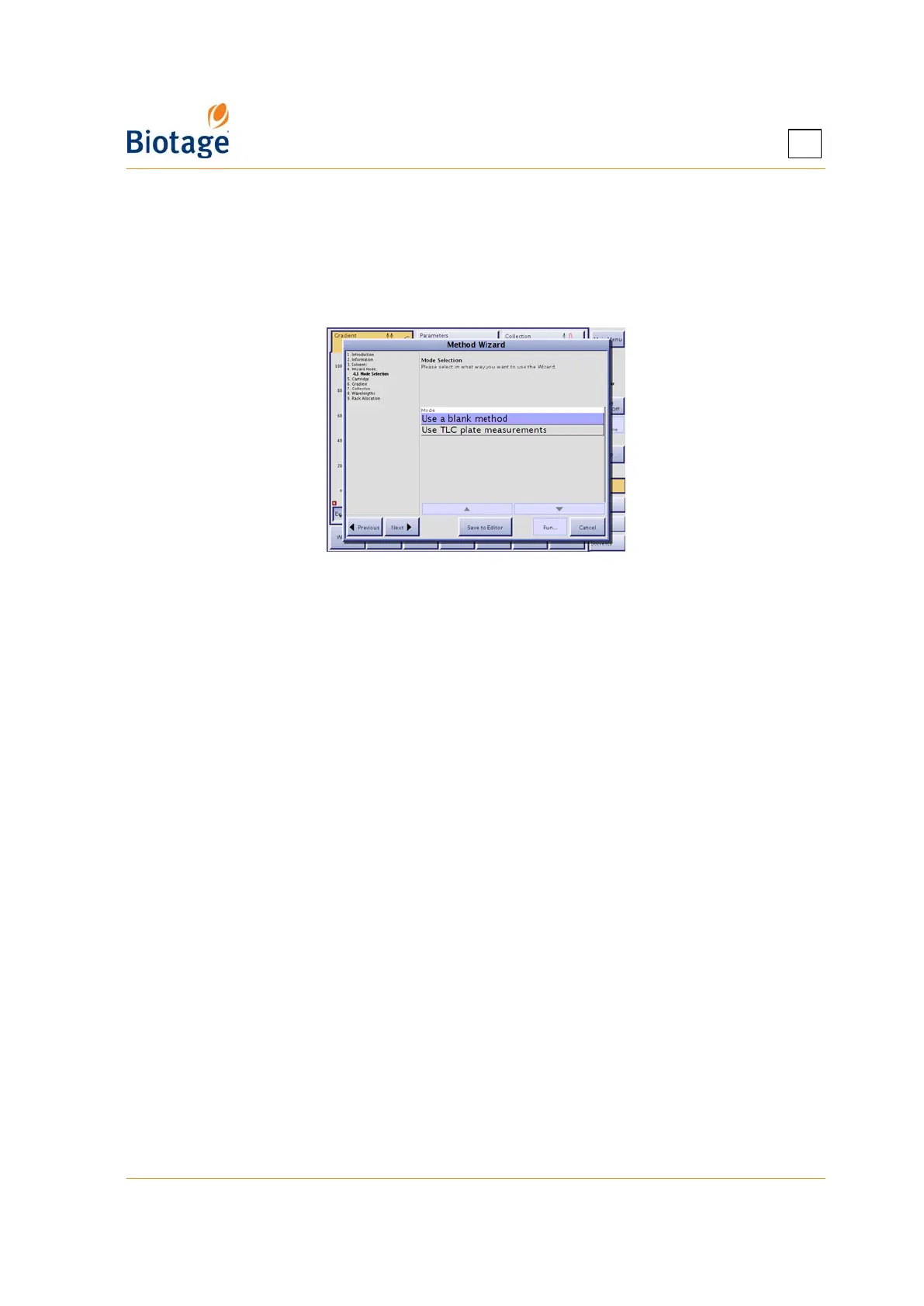
1. Select the Method tab in the right-hand panel.
2. Press Wizard.... The method wizard opens.
Figure 4-8. Method Wizard
3. Read and follow the instructions that appear on the screen. (See Table 4-1 on page 4-7 for
guidance in selecting rack type.)
4. If you want to save the method and reuse it in the future:
a. Press Save to Editor.
b. Enter a unique method name by selecting the Method Name text box at the
Parameters tab.
c. Press Save. If your user account is password-protected, the Password dialog opens.
Enter your password, using the keypad, and press OK.
5. To run a purification using the method, press Run....
6. Prepare the system as described on page 4-15.
7. Proceed with step 5 in “Run a Purification” on page 4-19.
4.4.4 Gradient Optimization
Linear gradients can be automatically optimized by converting them to step gradients which
reduces solvent use.
NOTE
Gradients that are optimized on an Isolera Prime, Isolera One, or Isolera
Four system cannot be run on an Isolera LS system due to the different
system volumes used for the calculation, and vice versa.
Clear separation between the peaks is required to receive a relevant result.
1. Select the Results tab in the right-hand panel.
2. Select the run at the Result Selection tab. For information on how to find the desired run, see
“Search for Records” on page 4-28.
3. Press Optimize.... The Gradient Optimization dialog opens.



 To Next Page