411829-L, System Settings April 2012 Page 3-4
3
To disable Biotage Leak Detector:
1. Select the Detector tab in the right-hand panel.
2. Select the Enabled text box in the Leak Detector field and select No.
3.3 Change General Settings
3.3.1 Set the Date and Time
Setting the date and time correctly ensures an accurate date and time stamp for your result records
and can help you search for specific records.
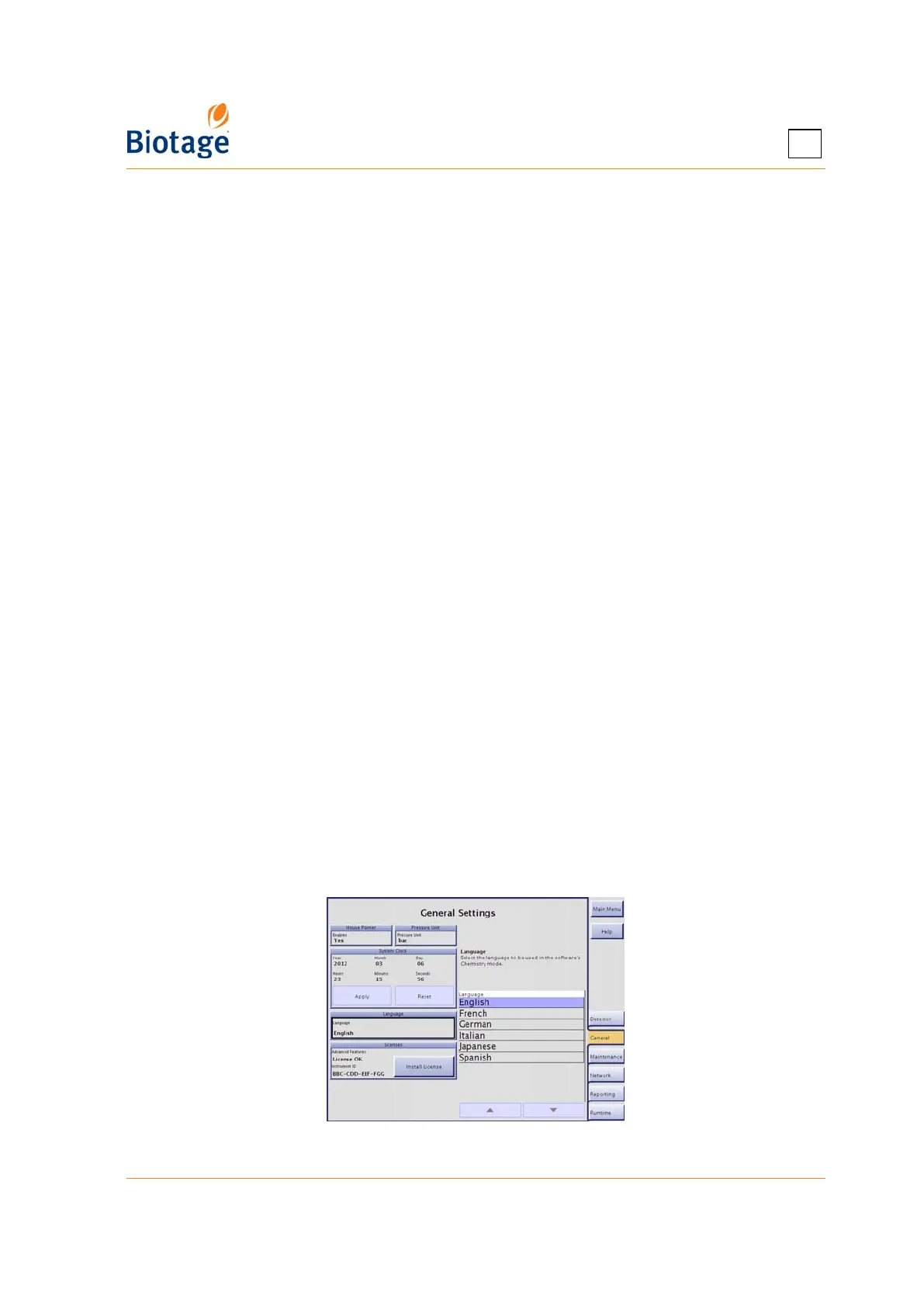
1. Select the General tab in the right-hand panel.
2. Edit the date and time settings in the System Clock field by selecting the corresponding text box.
3. To apply your new settings, press Apply.
4. For the settings to take effect, restart the system:
a. Press Main Menu.
b. Press Shut Down.
c. When the message It is now safe to turn off the system appears on the screen, turn off
the system. The power switch is located underneath the touch screen.
d. Turn on the system.
3.3.2 Enable or Disable Mouse Pointer
When connecting a mouse to the MOUSE or USB port at the rear of the system, you need to enable
the mouse pointer.
1. Select the General tab in the right-hand panel.
2. To enable or disable the mouse pointer, select the Enabled text box in the Mouse Pointer field
and select Yes or No.
3.3.3 Set the Pressure Unit
1. Select the General tab in the right-hand panel.
2. Select the Pressure Unit text box and select the unit to be used by the system, bar or psi.
3.3.4 Set the Language Used in the Chemistry Mode
1. Select the General tab in the right-hand panel.
2. Select the Language text box and select the language to be used in the software’s Chemistry mode.
Figure 3-5. General Tab



 To Next Page