411829-L, System Settings April 2012 Page 3-6
3
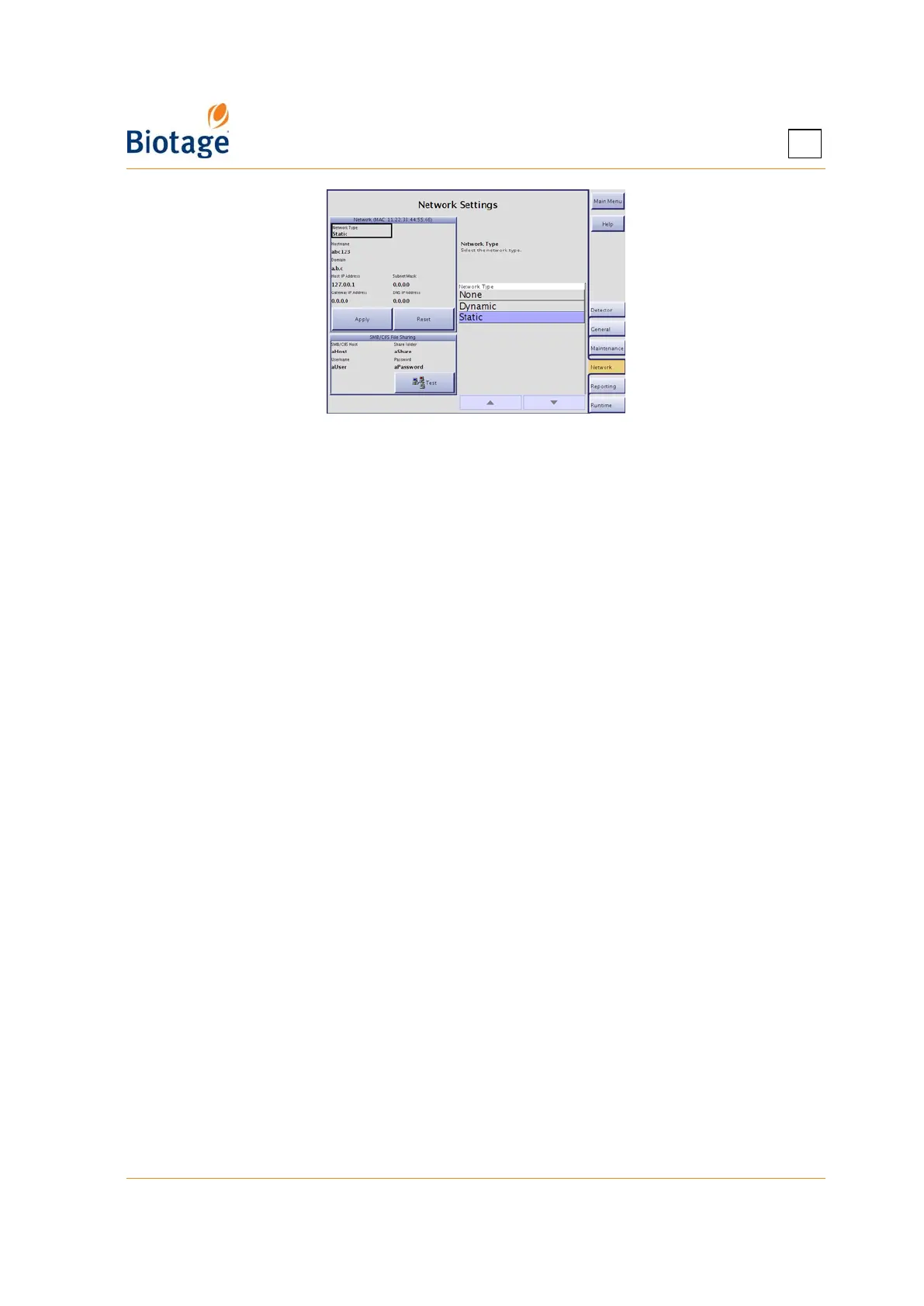
Figure 3-6. Network Tab
To configure the network connection:
1. Connect a shielded category 5 TP cable to the ETHERNET port.
2. Select the Network tab in the right-hand panel.
3. Select the Network Type text box and select Dynamic or Static.
4. Edit the network settings in the Network field. For more information, contact your IT
administrator. (To reset changes that have not been applied, press Reset.)
5. To apply your new settings, press Apply.
6. For the network configurations to take effect, restart the system:
a. Press Main Menu and then Shut Down.
b. When the message It is now safe to turn off the system appears on the screen, turn off
the system. The power switch is located underneath the touch screen.
c. Turn on the system.
To access the Isolera Remote Viewer:
1. Enter the URL http://MACHINENAME in a web browser (where MACHINENAME is the hostname
or the host IP address entered in the Network field above). Tip! You can also find the
hostname and host IP address in the About dialog at the main menu.
2. Press ENTER and the Isolera Remote Viewer web page is loaded. The page is automatically
updated every five seconds.
3.5 Change Report Settings
3.5.1 Set Up a Printer and Auto Print of Reports
If you want reports to be automatically printed when a purification has been completed, select the
Auto Print Reports text box at the Reporting tab and select Yes.
NOTE
If connecting a network printer, only printers with postscript
support can be used with the system.
To connect a USB printer to the system:
1. Connect your printer to the USB port at the rear of the system.
2. Turn the printer on.
3. Select the Reporting tab in the right-hand panel.
4. Select the Printer Type text box and select Local.



 To Next Page