411829-L, System Settings April 2012 Page 3-7
3
5. Select the Printer Model text box. The Printer Setup Wizard opens.
6. Read and follow the instructions that appear on the screen. Tip! If the Isolera system does not
have a matching printer driver for the connected printer, select Generic in the wizard’s
manufacturer list and check if there is a printer protocol available that is supported by your
printer (check the printer user manual).
7. When you have completed the printer setup using the wizard, select the Paper Size text box
and then select the desired paper format.
8. To test the connection, press Test in the Printer field. If a test page is printed, the connection
is working properly.
To connect a network printer with postscript support to the system:
1. Configure the network connection; see instructions on page 3-5.
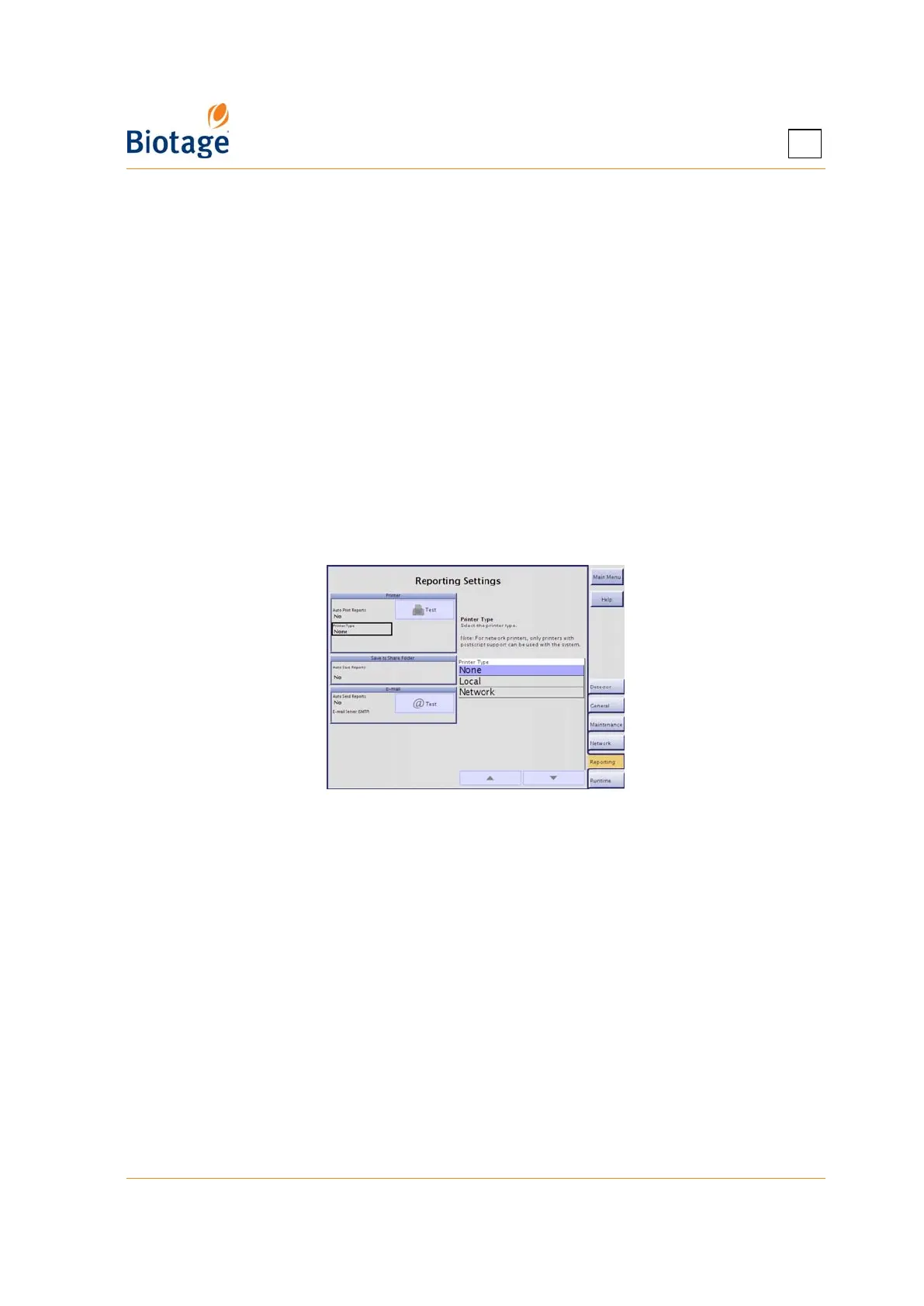
2. Select the Reporting tab in the right-hand panel.
3. Select the Printer Type text box and select Network.
4. Enter the correct Network Printer Name and Network Printer Port by selecting the
corresponding text box. Contact your IT administrator for more information.
5. Select the Paper Size text box and then select the desired paper format.
6. To test the connection, press Test in the Printer field. If a test page is printed, the connection
is working properly.
Figure 3-7. Reporting Tab
3.5.2 Set Up File Sharing and Auto Save of Reports
If the Auto Save Reports option is enabled, a report is saved in a share folder on your network when
a purification has been completed. The report is saved as a PDF and/or a XML file (a text file
including all raw data).
1. Configure the network connection; see instructions on page 3-5.
2. Select the Network tab in the right-hand panel.
3. Enter the correct hostname, name of the share folder, user name, and password by selecting
the corresponding text box in the SMB/CIFS File Sharing field. Contact your IT administrator
for more information.
4. To test the connection, press Test in the SMB/CIFS File Sharing field.
5. If you want a report to be automatically saved in the specified share folder when a purification
has been completed:
a. Select the Reporting tab in the right-hand panel.
b. Select the Auto Save Reports text box and select the desired report format, PDF, XML
(text files including all raw data), or PDF and XML.



 To Next Page