411829-L, Data Administration April 2012 Page 2-3
2
2.2.3 Edit a Cartridge Type
1. Select the cartridge that you want to edit at the Cartridges tab.
2. Press Edit.... The Edit Cartridge dialog opens.
3. Edit the cartridge settings. (A setting can be edited when the corresponding text box has been
selected.)
4. To save the changes, press OK.
2.2.4 Select Cartridge Types to List
1. If you want a cartridge type to appear when setting up a method in the Chemistry mode, select
it at the Cartridges tab and press Enable.
2. If you do
not want a cartridge type to appear when setting up a method in the Chemistry mode,
select it at the Cartridges tab and press Disable.
2.3 Administrate the Method List
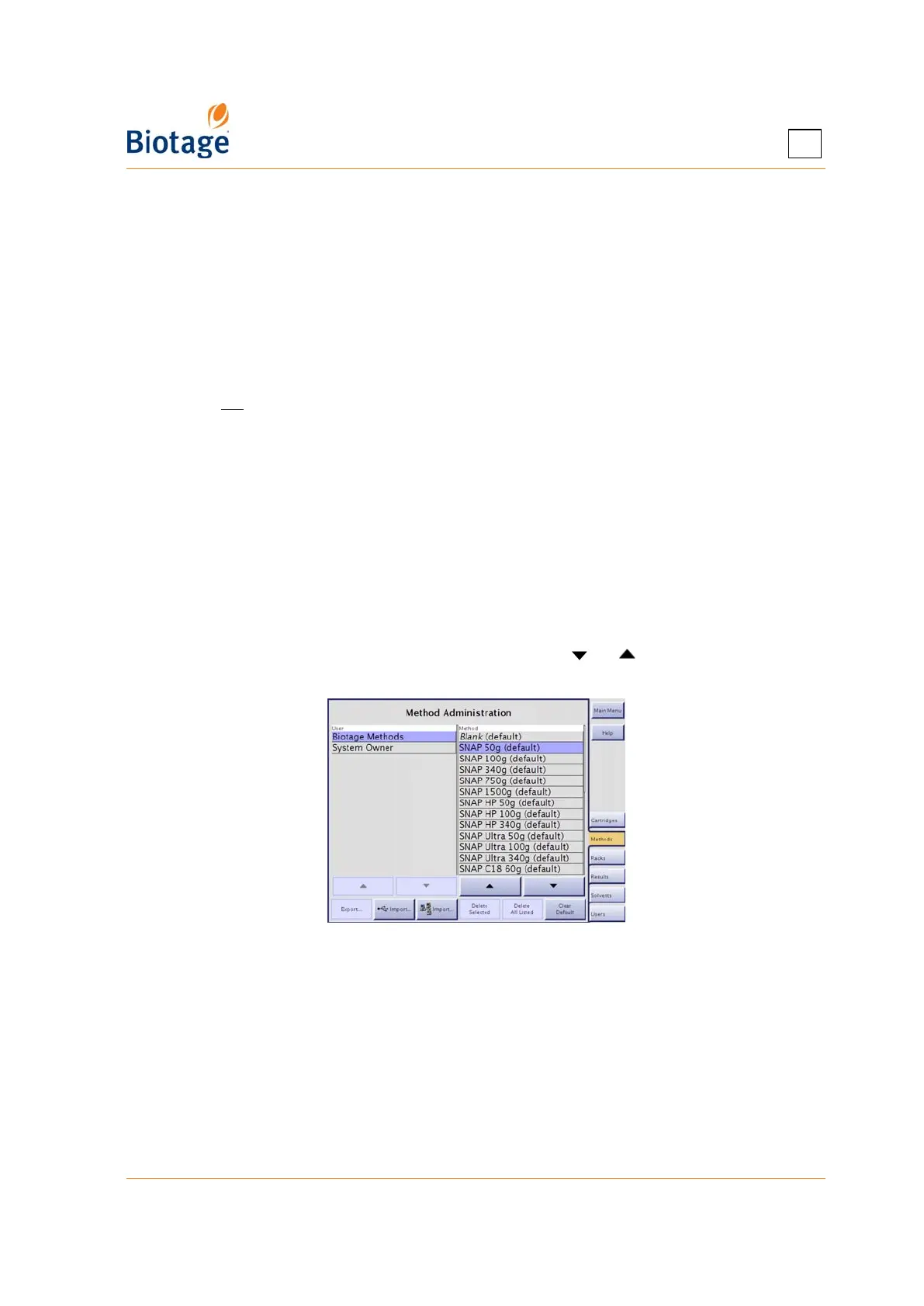
At the Methods tab, in the software’s Data Administration mode, all saved methods are listed. You
can export, import, and delete methods. It is also possible to set default methods, i.e. a list of
methods that the users can choose from when setting up a new method in the Chemistry mode.
(If the user wants to base a new method on a method that is not set as a default method, the user
will have to browse for the method.)
NOTE
The preconfigured Biotage methods cannot be exported or deleted.
To scroll a list down or up, press or .
Figure 2-3. Methods Tab (Isolera LS Shown)
2.3.1 Delete Methods
You can either delete a single method or all methods of a user.
1. Select the owner of the method(s) in the user list at the Methods tab.
2. If you want to delete a single method, select the method and press Delete Selected.
3. If you want to delete all methods of the selected user, press Delete All Listed.
4. To confirm delete, press Yes in the Confirm Delete dialog.



 To Next Page