411829-L, Data Administration April 2012 Page 2-8
2
2.6 Administrate the Solvent List
The software comes with a preconfigured list of solvents and their settings. At the Solvents tab, in
the software’s Data Administration mode, you may add other solvents to this list, and select the
solvents that will appear in the solvent selection list when setting up a method in the Chemistry
mode. It is also possible to edit and delete user defined solvents.
The solvent parameters are:
• The solvent name.
• The solvent strength value, a value between 0 and 1.
1,2
• The maximum speed at which the solvent can be drawn into the pump during the fill stroke,
in ml/min. The valid range is 1 to 200 ml/min when using an Isolera Prime, Isolera One or
Isolera Four system and 50 to 500 ml/min when using an Isolera LS system. If this
parameter is turned off, the system’s maximum fill rate will be used (i.e. 200 ml/min or
500 ml/min).
1
Neue U. D. HPLC Columns Theory, Technology, and Practice, Wiley-VCH (1997).
2
Dean J. A. Lange’s Handbook of Chemistry, 15
th
edition, McGraw-Hill (1999).
NOTE
The preconfigured solvents cannot be edited or deleted.
To scroll a list down or up, press or .
2.6.1 Add a Solvent
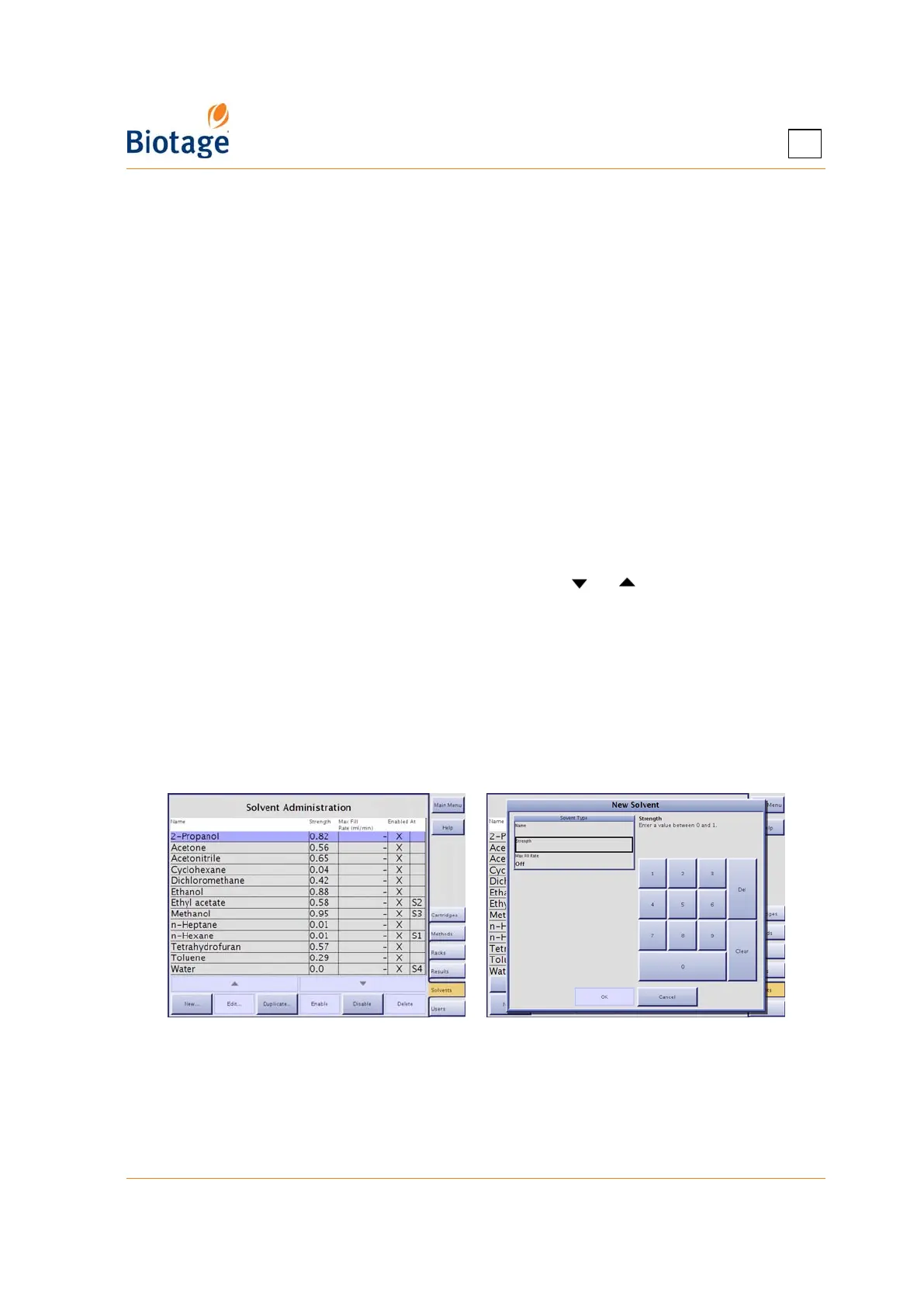
1. Press New... or, if you want to base the new solvent on an existing one, select the solvent and
press Duplicate... at the Solvents tab. The New Solvent dialog opens.
2. Enter a unique solvent name, the solvent strength, and the maximum fill rate (i.e the maximum
speed at which the solvent can be drawn into the pump during the fill stroke) by selecting the
corresponding text box. To turn off the maximum fill rate and use the system’s maximum fill
rate, select the Max Fill Rate text box and press Off.
3. To save the new solvent, press OK.
Figure 2-7. Solvents Tab (System with Four Solvent Inlets Shown)
2.6.2 Delete an Unused Solvent
1. Select the solvent that you want to delete at the Solvents tab.
2. Press Delete. The Confirm Delete dialog opens.
3. To confirm delete, press Yes.



 To Next Page