411829-L, Operation April 2012 Page 4-31
4
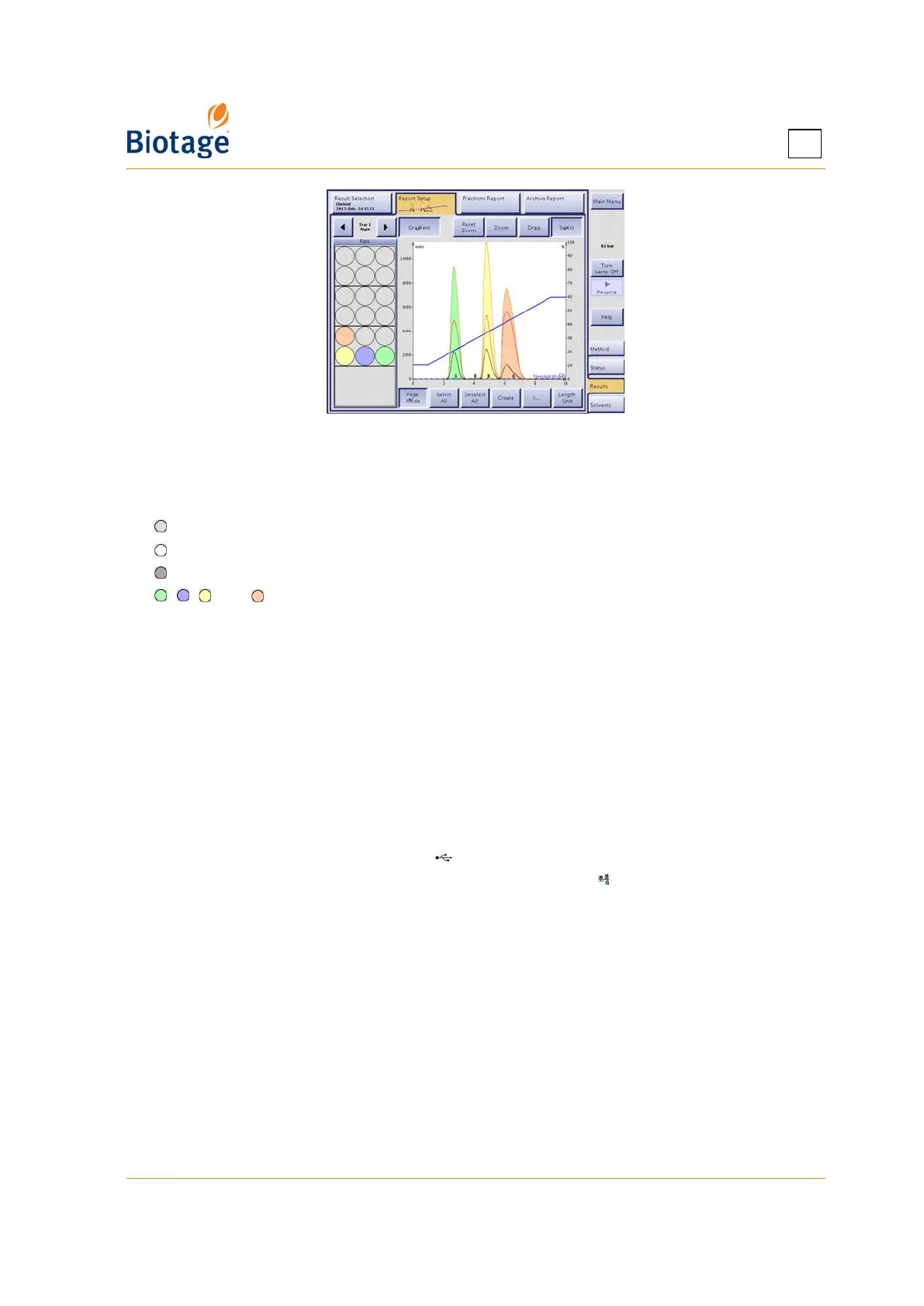
Figure 4-25. Report Setup Tab
Color Legend
The colors used at the Report Setup tab are:
= The vessel has not been used for the viewed purification.
= The vessel is deselected.
= The vessel is selected and contains flush liquid.
, , , and = The vessel is selected and contains a fraction. (The vessel color corresponds
with the fraction color in the chromatogram.)
If fractions are collected through the waste channel (i.e. the Bypass Tray mode is enabled), the
fractions are colored in magenta in the chromatogram and numbered W1, W2, and so on.
4.9.3 Save Records on a USB Memory Device or the Network
Purifications that are processed on the system are stored as individual records in the system’s
database. The records can, if desired, be saved by the user as XML files (text files including all raw
data) on a USB memory device or in a share folder on the network. The XML files can be opened on
any Isolera system with the same or newer version of the software.
1. Select the Results tab in the right-hand panel.
2. Select the desired record. (If the record is not listed, see “Search for Records” on page 4-28.)
3. To save the record on a USB memory device, connect the device to the USB port located
underneath the touch screen and press Save.
4. To save the records in the share folder on your network, press Save. (If the button is
disabled, no file sharing has been set up. See “Set Up File Sharing and Auto Save of Reports” on
page 3-7.)
4.10 View System Status and Results from Your Office
See “Access the Isolera Remote Viewer” on page 4-35.



 To Next Page