411829-L, Operation April 2012 Page 4-26
4
4.8 Unload a Purification
When the purification is finished (check that the cartridge’s status is “Finished” at the Status tab),
unload the cartridge and rack(s) as described below.
1. If necessary, empty the cartridge of remaining solvents and pressure by using the air flush and
purge features at the Solvents tab. See “Flush a Cartridge with Air” below and “Purge a
Cartridge” on page 4-27. Note that the Air Flush feature is not available with Isolera Prime.
2. If using an Isolera Four system and the system is processing, press Pause.
3. Unload the cartridge. To avoid leakage, plug the cartridge’s inlet and outlet fittings and couple
the inlet and outlet tubes together.
4. Unload the rack(s) used by the run. Allocated racks are listed at the Allocated heading at the
Status tab.
5. If using an Isolera Four system with
automatic rack allocation enabled, load
new, empty racks of the same type.
6. To clear the cartridge and rack
positions in the software, press
Remove.
7. To resume processing of queued runs*,
press Resume....
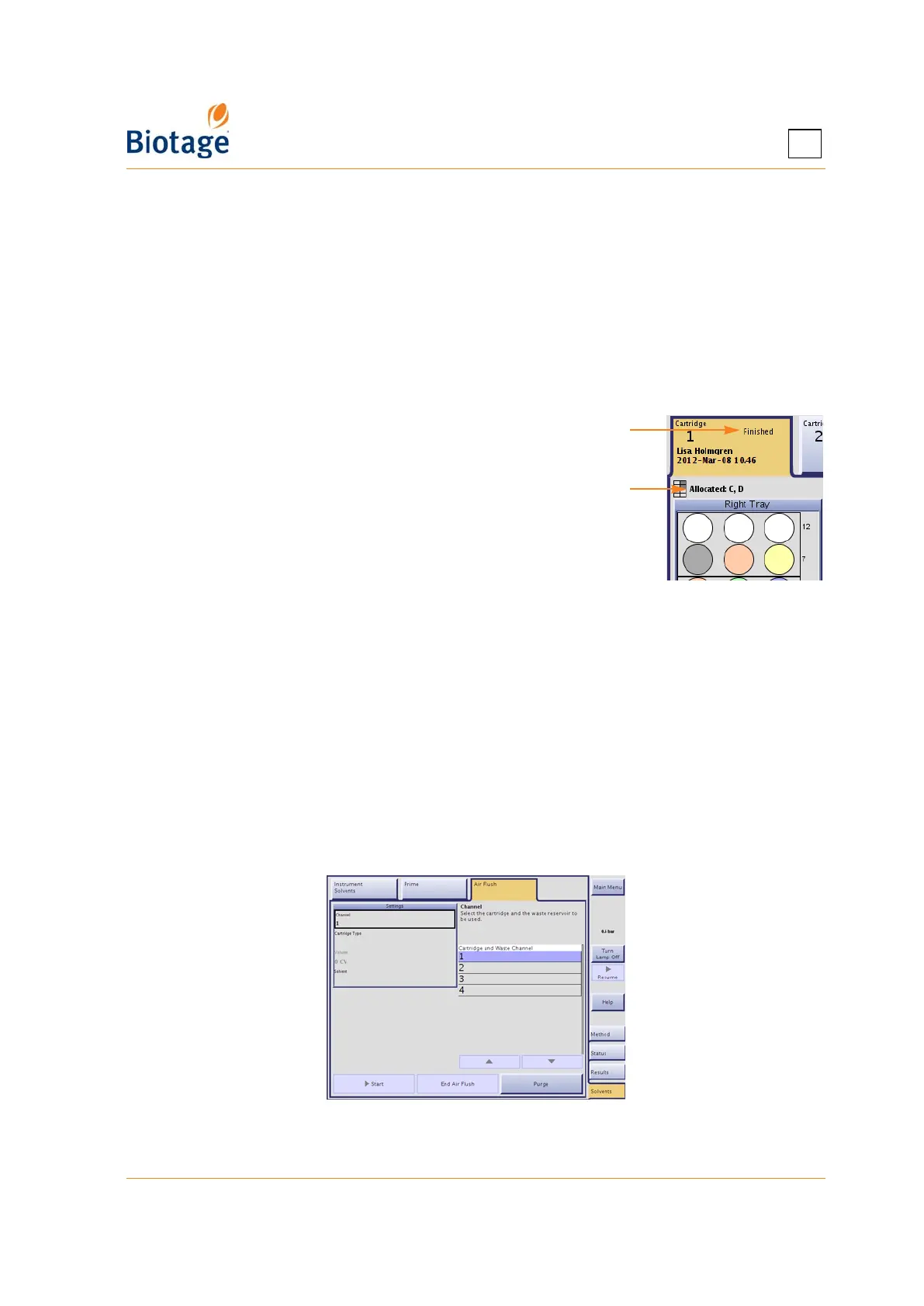
Figure 4-20. Cartridge Status and Allocated
Racks (Isolera Four EXP Shown)
* Purifications can be queued up when using an Isolera Four system.
4.8.1 Flush a Cartridge with Air
NOTE
It is not possible to flush a cartridge with air when using an Isolera Prime
system.
Empty the cartridge of remaining solvents using the Air Flush feature. If you want the system to
automatically perform an air flush at the end of a purification, enable the Air Flush option (see
“Specify How Flushes Are Performed” on page 3-10).
Figure 4-21. Air Flush Tab (Isolera Four Shown)
Allocated racks
Cartridge status



 To Next Page