411829-L, Operation April 2012 Page 4-23
4
4.7 Monitor and Control a Purification
4.7.1 Monitor the Purification in Progress
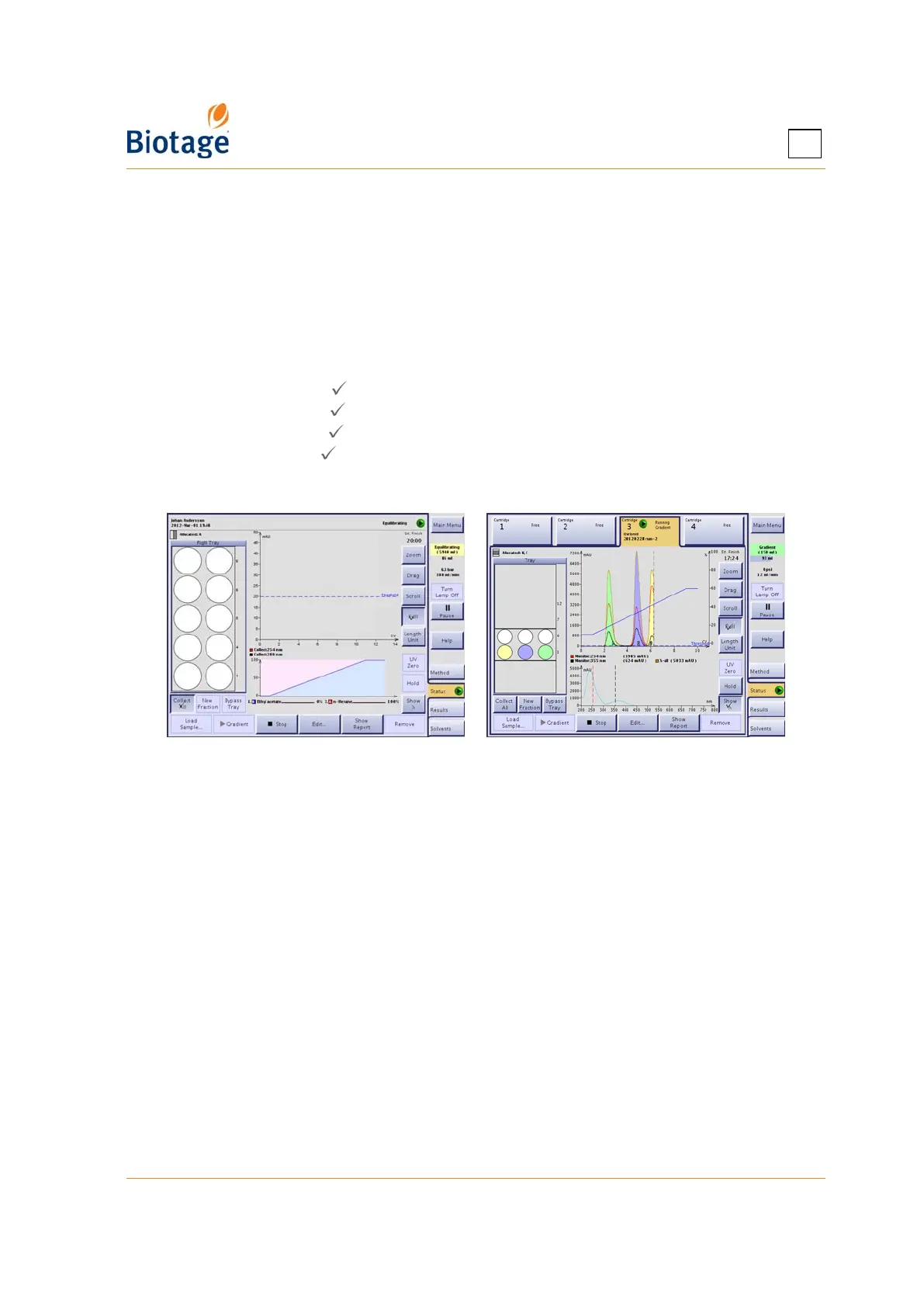
Select the Status tab in the right-hand panel. While a purification is running, one graph displays
the programmed gradient and the other a dynamic chromatogram. If a Spektra license has been
installed on your system, an absorbance spectrum for the whole detector range can be viewed in
the gradient view by pressing the Show λ button. The gradient is then displayed in the
chromatogram.
You can adjust the chromatogram view by using the following buttons:
• Zoom: When enabled ( ), you can select a region of the chromatogram to magnify (zoom in).
• Drag: When enabled ( ), you can drag the chromatogram to the desired position.
• Scroll: When enabled ( ), the present reading +1 CV and -3 CV is shown on the horizontal axis.
• Full: When enabled ( ), all readings on the horizontal axis are shown.
• Length Unit: Toggle the horizontal axis unit between CV, minutes, and milliliter.
• UV Zero: Used to set the current UV level to 0 (zero) AU.
Figure 4-18. Status Tab (Isolera LS and Isolera Four EXP
with Spektra License Shown)
Cartridge Status and Color Legends
See page 1-13 for a description of the colors used in the tray overview, chromatogram, gradient
graph, and absorbance spectrum (requires a Spektra license).
See page 1-12 for a list of the different status of a cartridge.
4.7.2 Bypass the Automatic UV Lamp Warm-up Period
You can bypass the automatic UV lamp warm-up period by pressing Skip Warm Up in the right-
hand panel. However, if the UV lamp has not reached operating temperature, purification results
may not be optimal.
4.7.3 End Initial Waste and Start Collecting Fractions
If you want to end an Initial Waste phase prematurely and start collecting fractions, press Start
Collect at the Status tab.



 To Next Page