411829-L, Data Administration April 2012 Page 2-7
2
2.5.1 Export and Delete Result Records
You can either export a single or all listed records to a USB memory device or to a share folder on
your network (if file share has been set up; see page 3-7). The records can be exported as CSV files
(text files including all detector data), PDF files, or XML files (text files including all raw data). CSV
files can be imported into Microsoft Excel or other applications that can handle comma-delimited
text files.
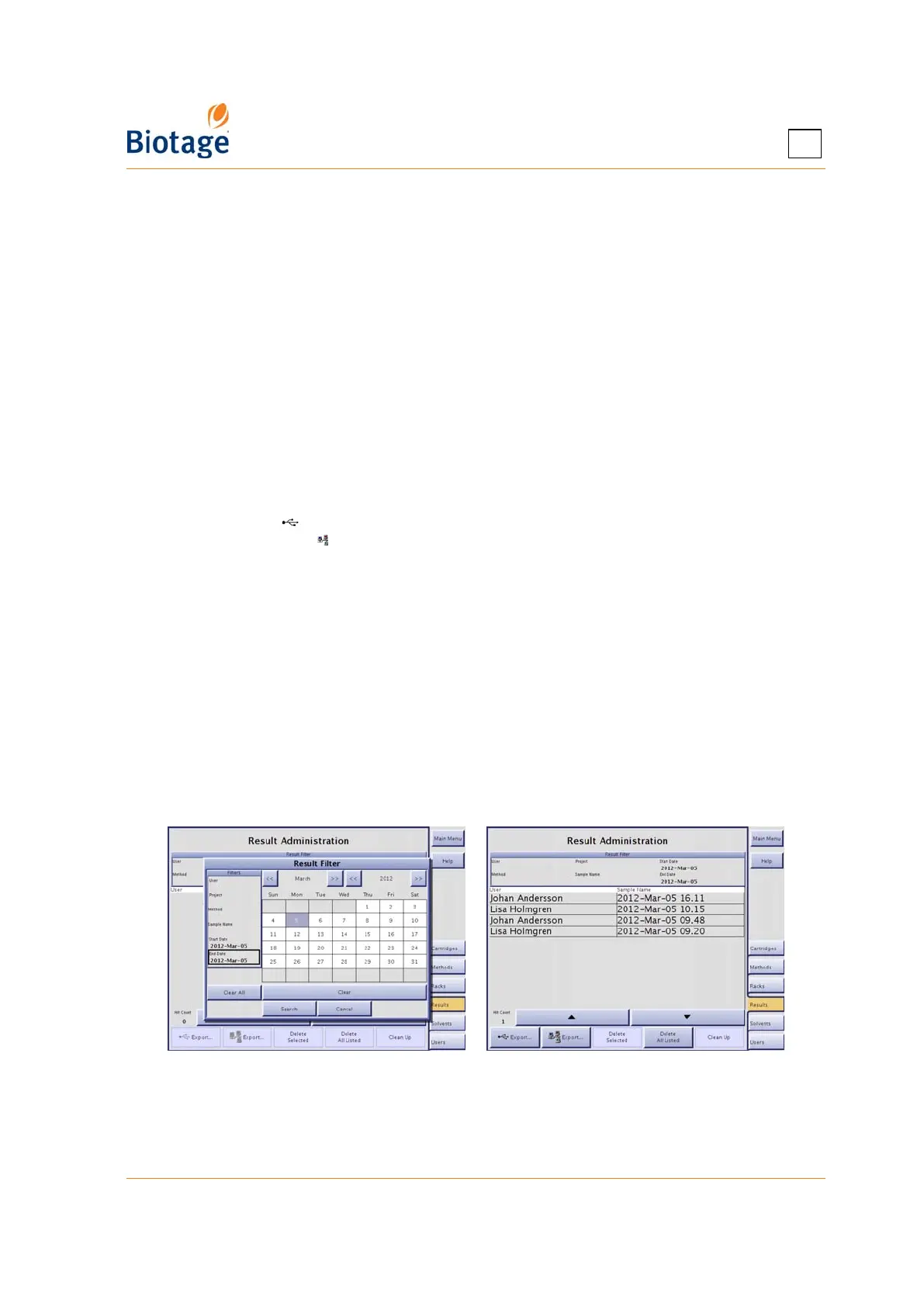
1. All records that fit the specified filter settings are listed at the Results tab. If a record that you
want to export or delete is not listed, change the filter settings:
a. Press the Result Filter field. The Result Filter dialog opens.
b. Specify the search criteria. (If you want to list all result records, press Clear All.)
c. To search, press Search. If there are records matching your filter settings, they are listed
in chronological order at the Results tab. Note that the result filter is case sensitive.
2. To export a single or all listed records as a CSV file (comma-delimited text file), PDF file, or a
XML file:
a. If you want to export the record(s) to a USB memory device, connect the memory device
to the USB port located underneath the touch screen.
b. If you want to export a single record, select it.
c. Either press Export... to export the record(s) to the USB memory device connected in
step 2a, or press Export... to export the record(s) to the specified share folder. The
Export Results dialog opens.
d. Select the desired export option, Selected or All Listed.
e. Press Export CSV, Export PDF, or Export XML.
3. To delete a single or all listed records:
a. To delete a single record, select it and press Delete Selected.
b. To delete all the listed records, i.e. delete all the records that fit the settings of the result
filter, press Delete All Listed.
c. To confirm delete, press Yes in the Confirm Delete dialog.
2.5.2 Clean Up the System’s Database
If the Clean Up button is enabled, there are one or more purifications available in the database
that cannot be displayed at the Results tab, likely due to power failure during a purification. To
remove the purification(s), press Clean Up.
Figure 2-6. Results Tab



 To Next Page