Preset buttons
The button icons along the bottom of your URSA Mini's 'preset' menu correspond with the
following functions.
Add Load Update Manage Delete
Saving and loading presets
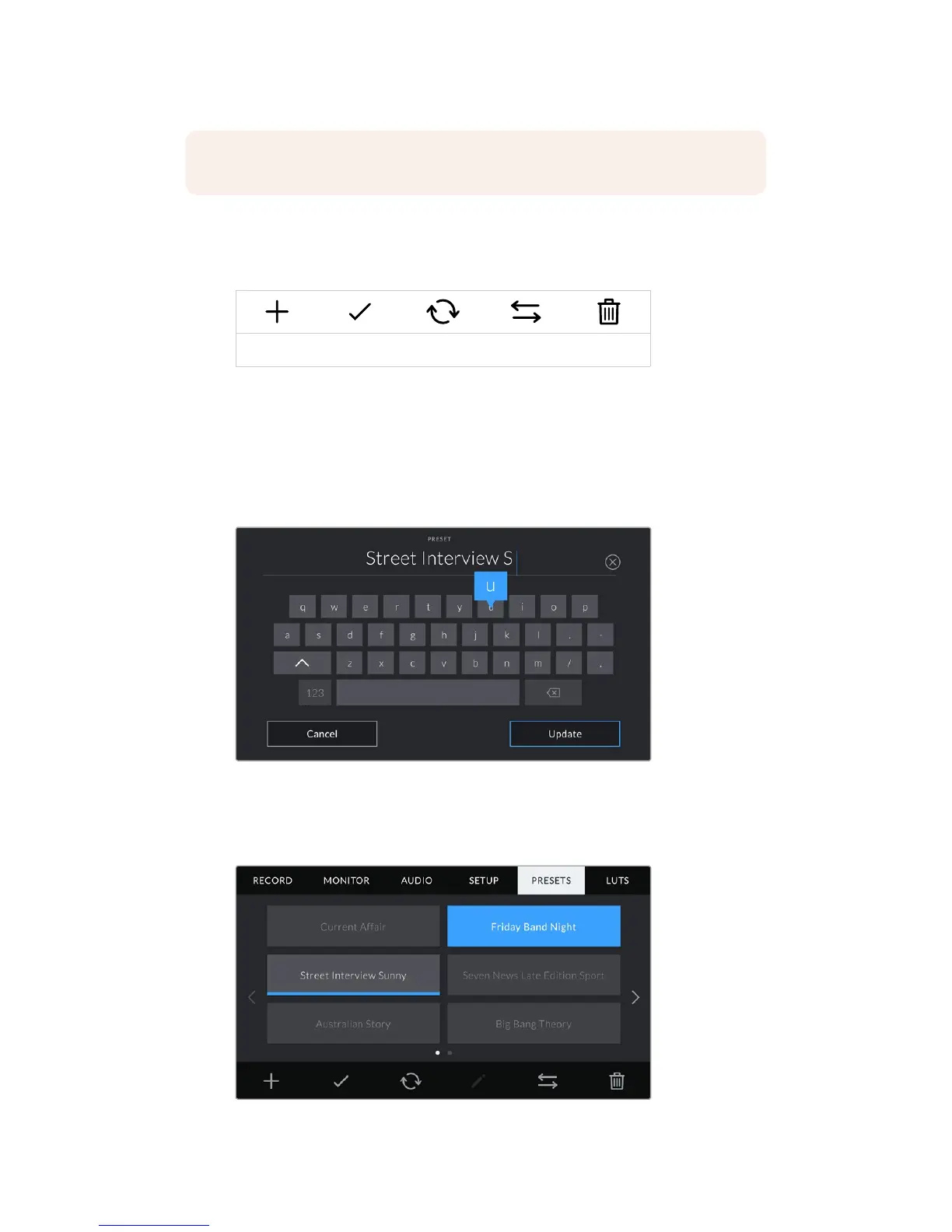
To create a new preset, tap the ‘add’ icon. This will bring up a touch keyboard on your
LCDtouchscreen where you can name your preset. Once you’ve typed in the name, tap
‘update’ tosave all of your URSA Mini’s current settings to that preset.
If your URSA Mini already has a preset loaded with the same name, you will be prompted to
overwrite the existing preset or keep both.
Enter a name for your preset by tapping the 'add' icon in
the preset tab and using the touch keyboard
Once you have a preset saved, tap its name in the preset menu to select it.
To load it tap the ‘load’ icon.
Select a preset and tap the 'load' icon to load it. Selected presets will appear solid
blue, while currently loaded presets have a blue line along the bottom of their icon
NOTE Your URSA Mini can save up to twelve presets to its internal memory.
121Settings










 To Next Page