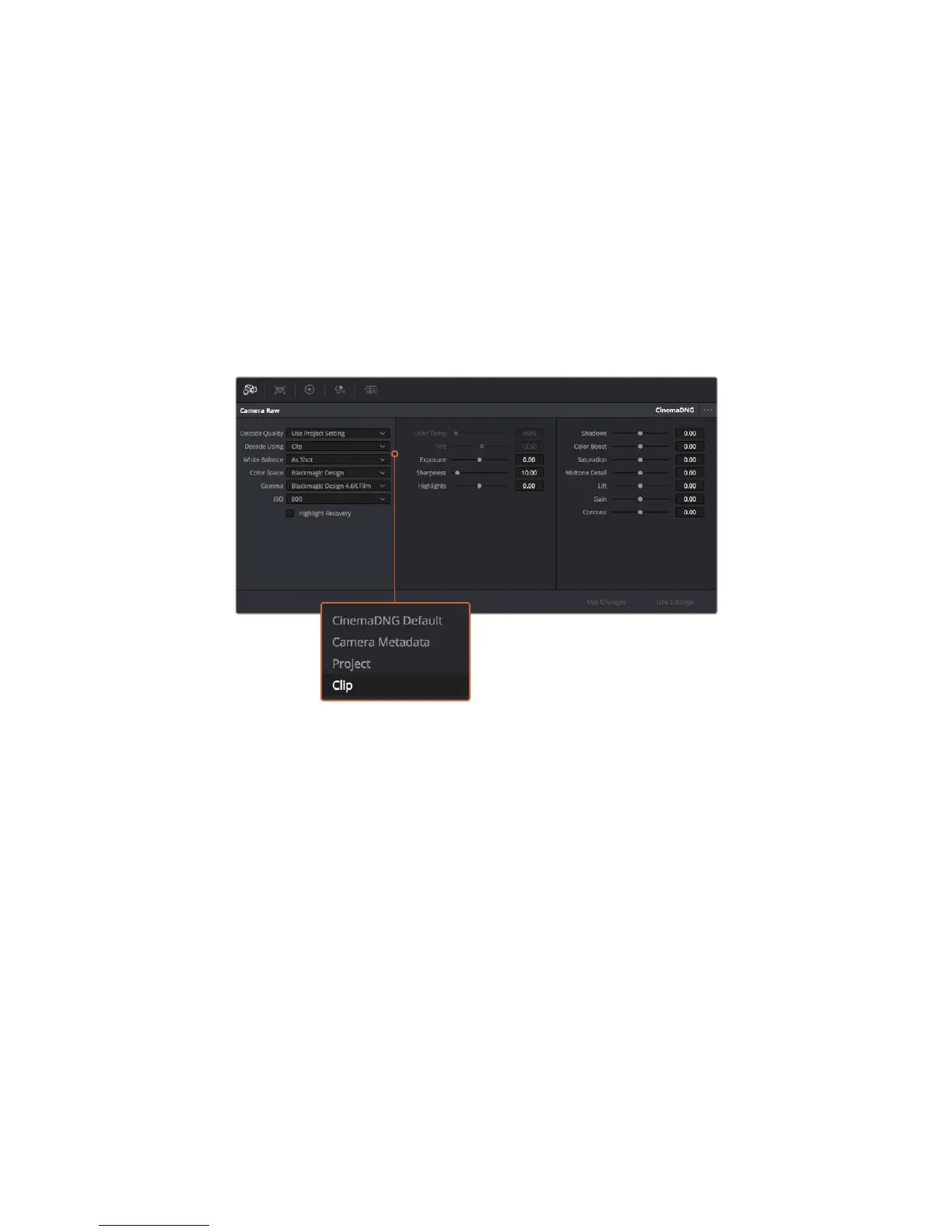
Clip RAW Settings
Once your RAW clips are loaded into the media pool, you can drop them on a timeline in the
edit page and then make adjustments to each clip in the color page.
To make individual adjustments to RAW settings on a per clip basis:
1 Open the ‘edit’ page, then drag and drop your selected clips into a new timeline.
2 Open the ‘color’ page and click on the camera raw icon in the lower left window to
open the ‘camera raw’ palette.
3 Select ‘clip’ from the ‘decode using’ dropdown menu.
For CinemaDNG, you can now modify the settings with changes to shadows, exposure,
midtone and more.
Select ‘clip’ from the ‘decode using’ dropdown menu, tomake
adjustments to RAW settings for individual clips
Blackmagic RAW
When shooting Blackmagic RAW on the URSA Mini Pro 4.6K, part of the RAW processing
isremoved from the software and calculated real time in camera. This improves the post
production process with faster transfer speeds, smaller file sizes and better read speeds of
RAW clips. Blackmagic RAW is an intelligent format, understanding the characteristics of your
camera and sensor. In addition to the other metadata your camera files contain, DaVinci
Resolve can read your selected dynamic range, so your clips will automatically display in
DaVinci Resolve with ‘film’, ‘extended video’ or ‘video’.
If you’ve selected ‘film’ or ‘extended video’ as your dynamic range in camera, you can
customize these settings by adjusting the saturation, contrast and midpoint, as well as the
highlight and shadow rolloff. Any adjustments can then be saved as a sidecar file, so the
changes can be seen by anyone else working with the files in post. You can always return to
the original camera metadata at any time.
This also means you can copy your media for another DaVinci Resolve user and they will have
access to your modified gamma settings automatically on import.
In addition, by clicking the ‘export frame’ option, you can export a single frame from
your RAW clip.
213Using DaVinci Resolve










 To Next Page