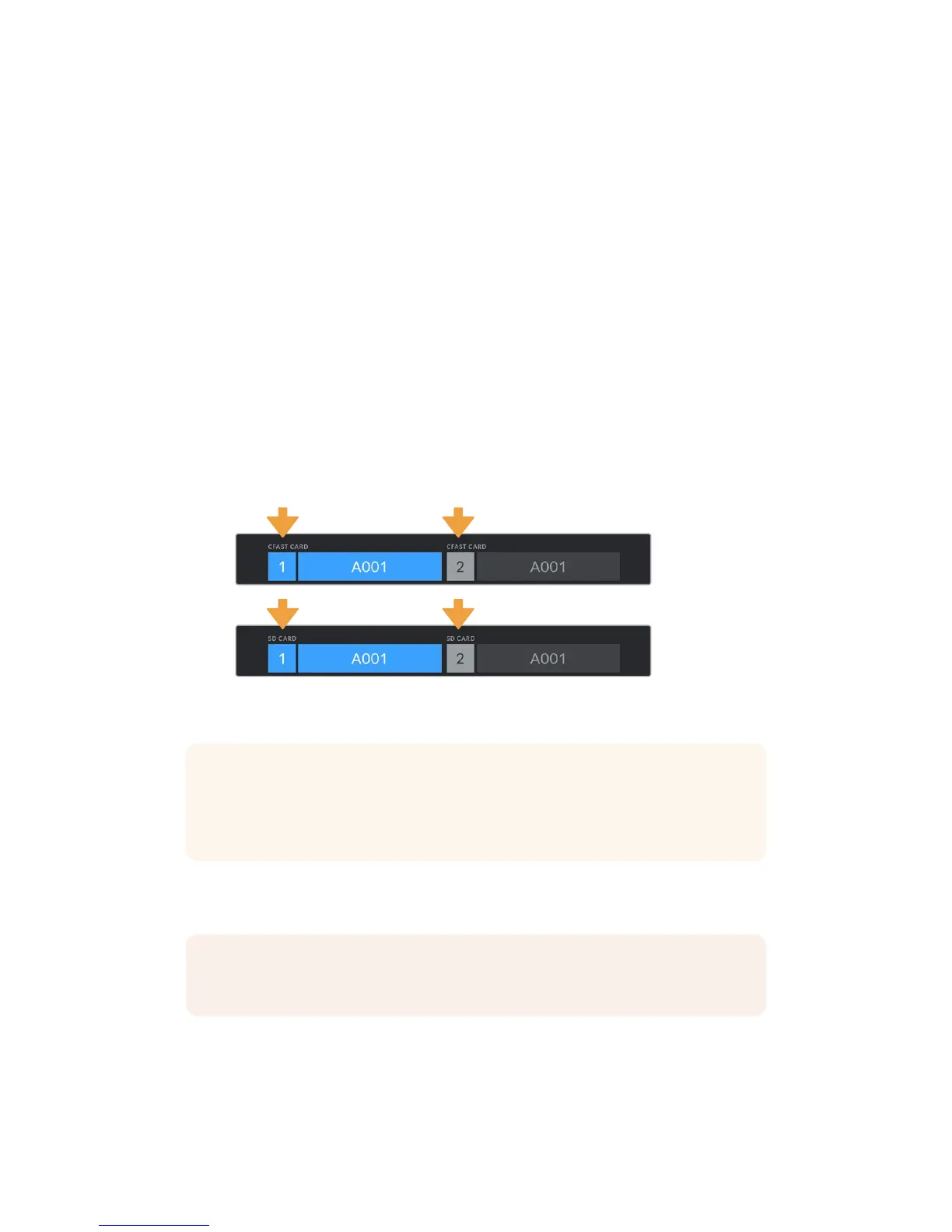
When formatting CFast cards, SD cards or SSD's using the storage manager, your URSA Mini
will use the Camera ID from the slate and reel number to name the card. Your URSA Mini
automatically increments reel numbers each time you format. Ifyou need to manually enter a
specific reel number, tap the 'edit reel number' and enter the number you want to format
the card as.
When you start a new project, reel numbering will reset to 1 when you tap on ‘reset project data’
in the 'project' tab of the slate.
When URSA Mini SSD Recorder is connected and an SSD is loaded, the recorder takes over
from URSA Mini's number '2' storage slot and you’ll see an 'SSD'indicator over slot 2 on your
camera’s storage manager.
Preparing Media on Blackmagic URSA Mini Pro 4.6K
The process for preparing storage media on your URSA Mini Pro 4.6K is exactly the same as the
URSA Mini process outlined above. The only difference is the added option to format SD cards
in addition to CFast cards and SSD's. It's worth mentioning that if your camera's media storage
switch is set to SD or CFast, only the selected card type will be formatted when you tap 'format
card'. When using URSA Mini SSD Recorder with URSA Mini Pro, the SSD will appear in slot 2
regardless of the position of the media storage switch.
The storage manager on your camera will indicate whether you
are currently managing CFast, SD or SSD media
For information on switching between CFast and SD storage see the 'SD Cards' section earlier
in this manual.
TIP If your URSA Mini Pro 4.6K is set to record to SD cards and you have inserted
alocked card, you will be unable to format that card. A padlock icon will appear next to
the card's name in the storage manager. Simply unlock thecard to format and record.
For more information on locking SD cards, see the 'SDcards' section of this manual.
NOTE If you have the optional URSA Mini SSD Recorder connected, an "SSD" indicator
will appear over storage slot 2.
29Storage Media










 To Next Page