Playback Control Buttons
The playback buttons let you start and stop playback, plus skip to the next or previous
clip. OnBlackmagic URSA Mini EF, the forward and reverse skip buttons can also be
used to openor close the iris when using compatible lenses. Refer to the ‘playback’
section for more information on how to use the playback buttons.
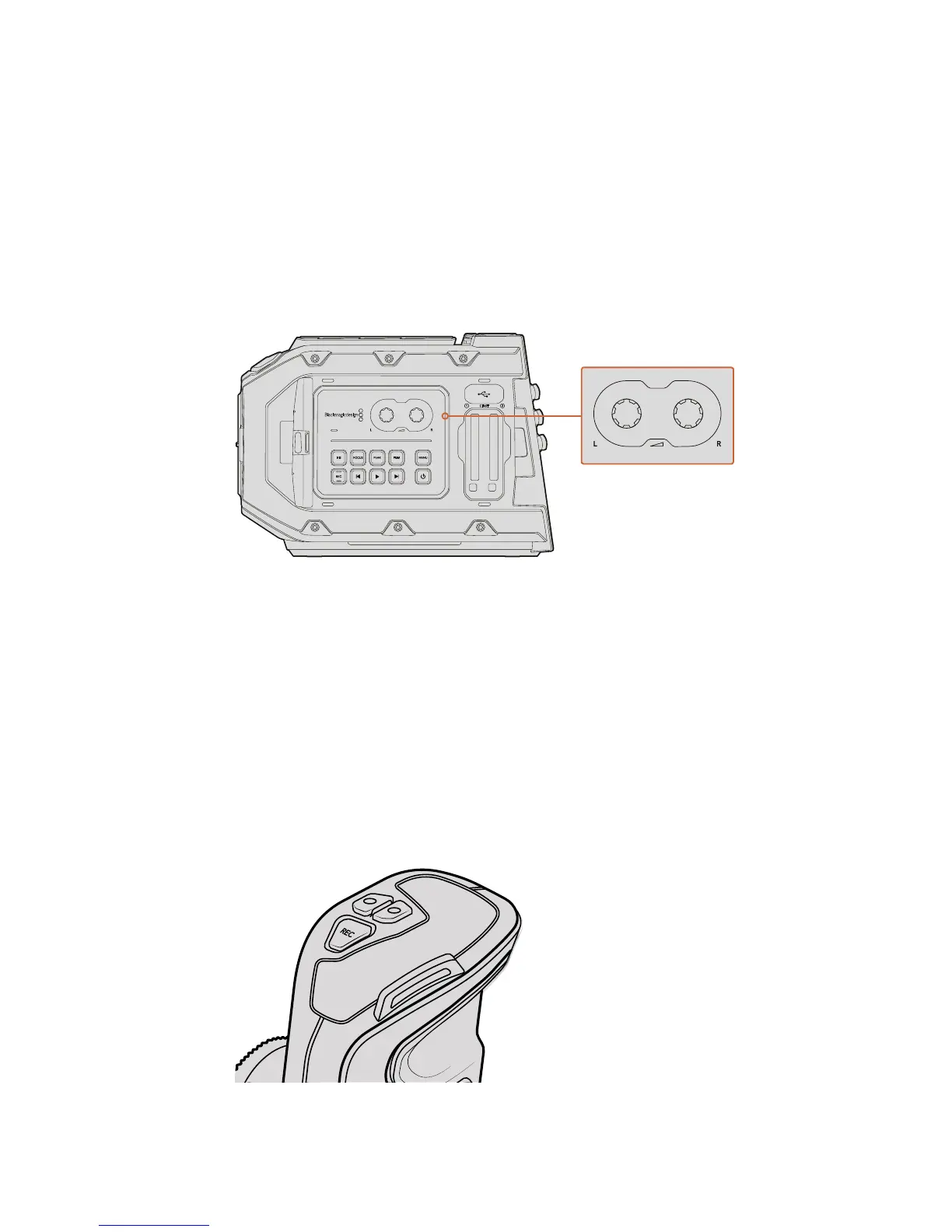
Audio Level Adjustment Knobs
Use the built in adjustment knobs to set the recording levels for audio channels 1 and 2.
Turn each knob clockwise or counterclockwise to increase or decrease the recording
level for each channel of audio. Monitor the corresponding on screen audio meters as
you adjust each knob so you can see the best level to set it to.
Turn the audio level adjustment knobs clockwise or counter
clockwise to increase or decrease your audio recording levels
Function Buttons
On the outside of Blackmagic URSA Mini’s LCD there are two ‘function’ buttons marked
F1 and F2. You can map these to your choice of a variety of commonly used functions
using your URSA Mini's 'setup' menu. For more information, see the 'setup settings'
section of this manual.
Side Handle
Your Blackmagic URSA Mini ships with a side handle that provides a comfortable, secure grip
for the camera. The side handle also lets you trigger auto iris and focus on compatible
EFlenses, plus start or stop recording with the simple press of a button. To enable these
functions, you must connect the included LANC cable and connector between the camera and
the side handle.
Control buttons on the side handle let you controlyour Blackmagic
URSAMini via the dedicated LANC port on theside of your camera
1
2
CFAST










 To Next Page