Working with Files from SSDs
To import your clips from a SSD:
1 Remove the SSD from URSA Mini SSD Recorder.
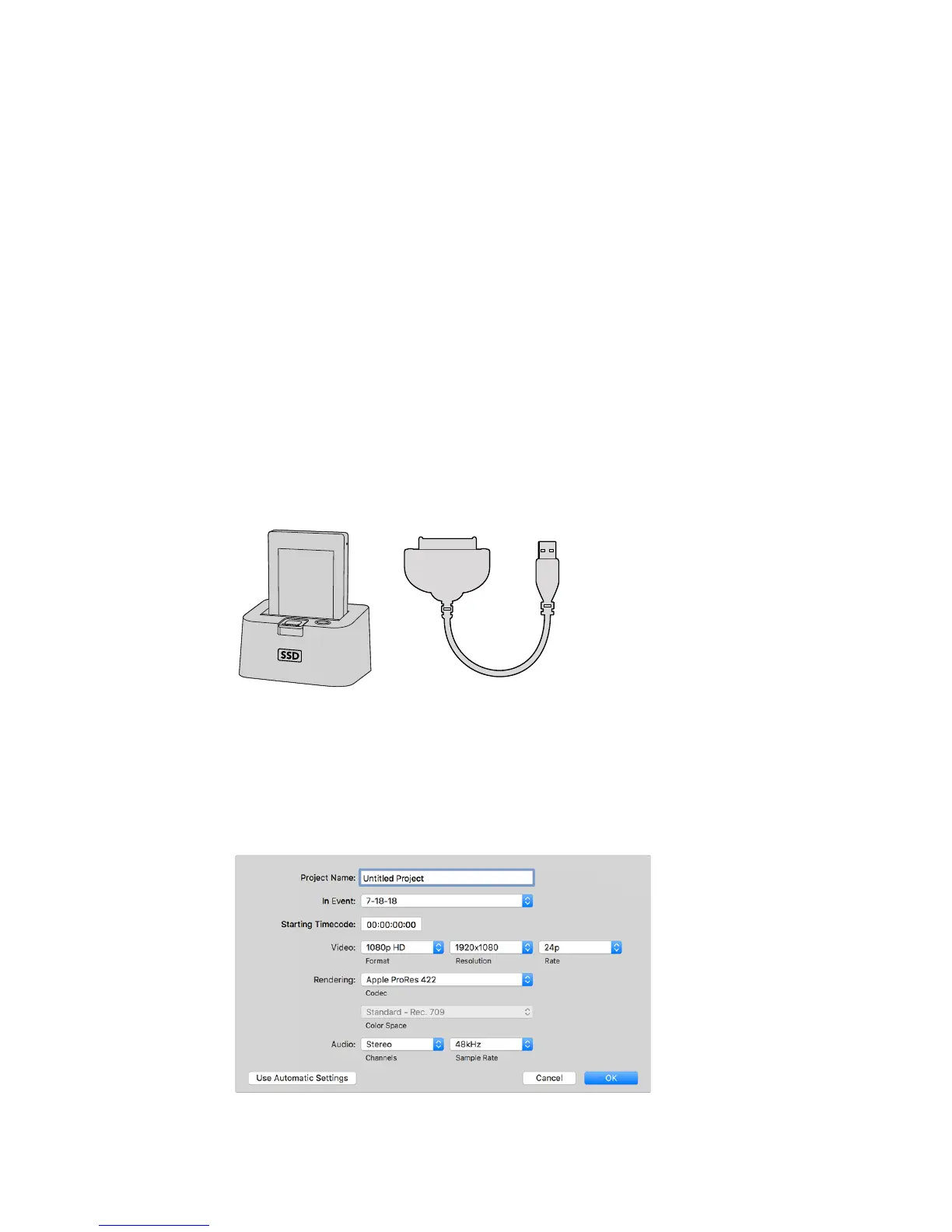
2 You can mount the SSD to your Mac OS X or Windows computer using either an eSATA
or Thunderbolt dock, for example Blackmagic MultiDock. You can also use an eSATA to
USB adapter cable to plug the SSD straight into a USB port on your computer. USB 3.0
is preferable as USB 2.0 is not fast enough to edit video in real time.
3 Double click on the SSD to open it and you should see a list of QuickTime movie files
or folders that contain your CinemaDNG RAW image files. Depending on the format
you chose to record in, you might have a mixture of files, but they will all use the same
naming convention.
4 Now you can simply drag the files you want from the SSD onto your desktop or another
hard drive, or you can access the files straight from the SSD using your NLE software.
CinemaDNG RAW files are saved to the SSD as separate DNG images for each frame.
This is an open format and you can use many software applications to view your RAW
images as a video sequence.
5 Before you unplug the SSD from your computer, it is important to eject the SSD safely
using either Mac OS X or Windows first.
Edit directly from the SSD by removing it from your camera and mounting it
on your computer using an eSATA Thunderbolt dock or USB 3.0 docking cable.
Using Final Cut Pro X
To edit your clips using Final Cut Pro X, you need to create a new project and set a suitable
video format and frame rate. This example uses ProRes 422 HQ 1080p24.
Final Cut Pro X project settings
256Working with Third Party Software










 To Next Page