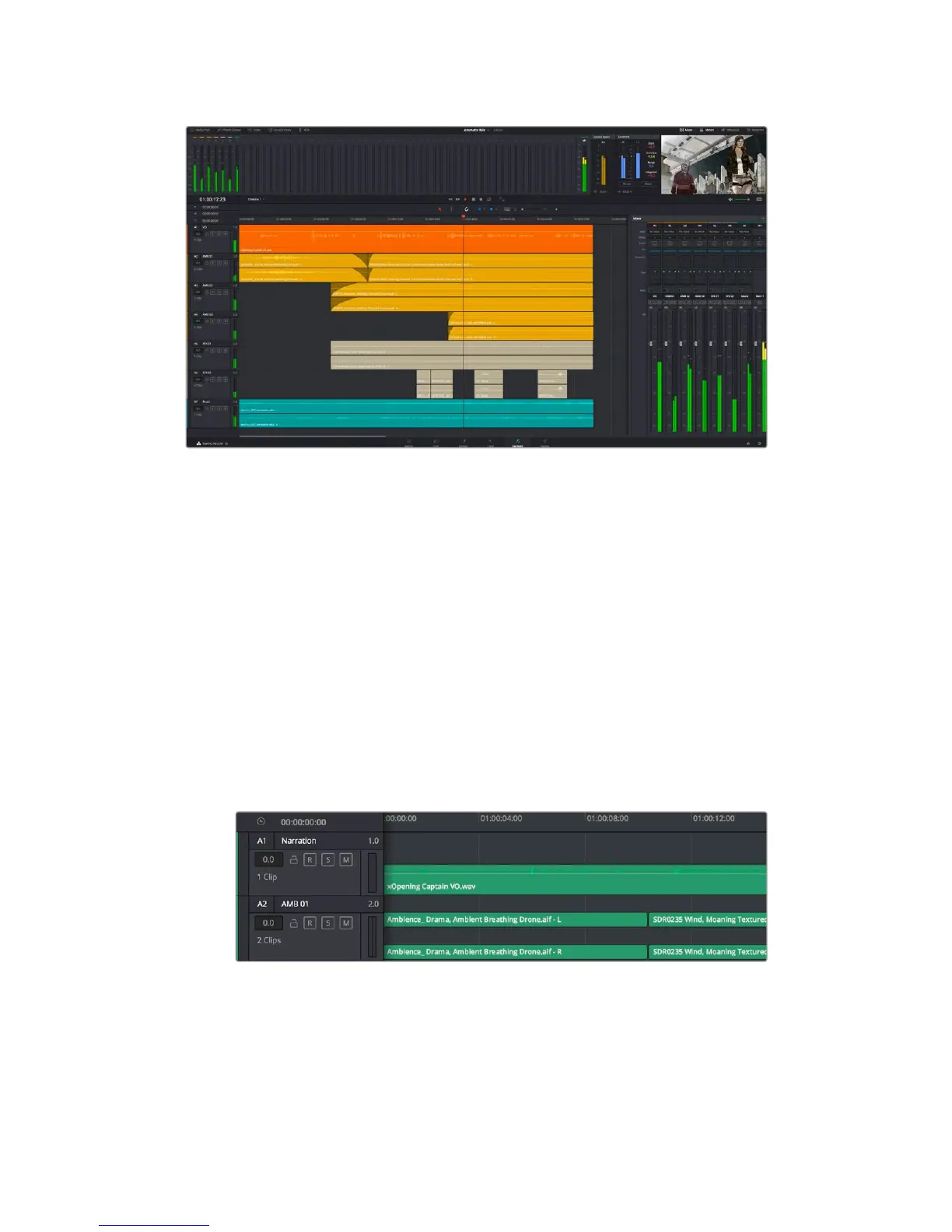
This guide provides a basic overview of the features on the Fairlight page, but to learn more
about all the details for each feature, refer to the DaVinci Resolve manual. The DaVinci Resolve
manual provides details on the purpose of each tool and describes how to use them in easy to
follow steps.
The Audio Timeline
Track Header
At the left of each track is a header area that displays the track number, track name, track color,
audio channels, fader value and audio meters. The track header also contains different controls
for locking and unlocking tracks, plus solo and muting controls. These controls can help to keep
your tracks organized, and let you preview individual tracks one at a time.
Tracks
Each track on the Fairlight page is divided into lanes, which show each individual channel of clip
audio for editing and mixing. The edit page hides these individual audio channels, displaying
only a single clip in the timeline to make it easier to edit multi channel sources without needing
to manage a huge number of tracks.
The track header on track A1 indicates a mono track with a single lane for mono audio,and
the A2 track header indicates a stereo track with two lanes to accommodate stereo audio
What is a Bus?
A bus is essentially a destination channel to which you can route multiple audio tracks from the
timeline, so that they are mixed together into a single signal that can be controlled via a single
channel strip.
228Using DaVinci Resolve










 To Next Page