Clips
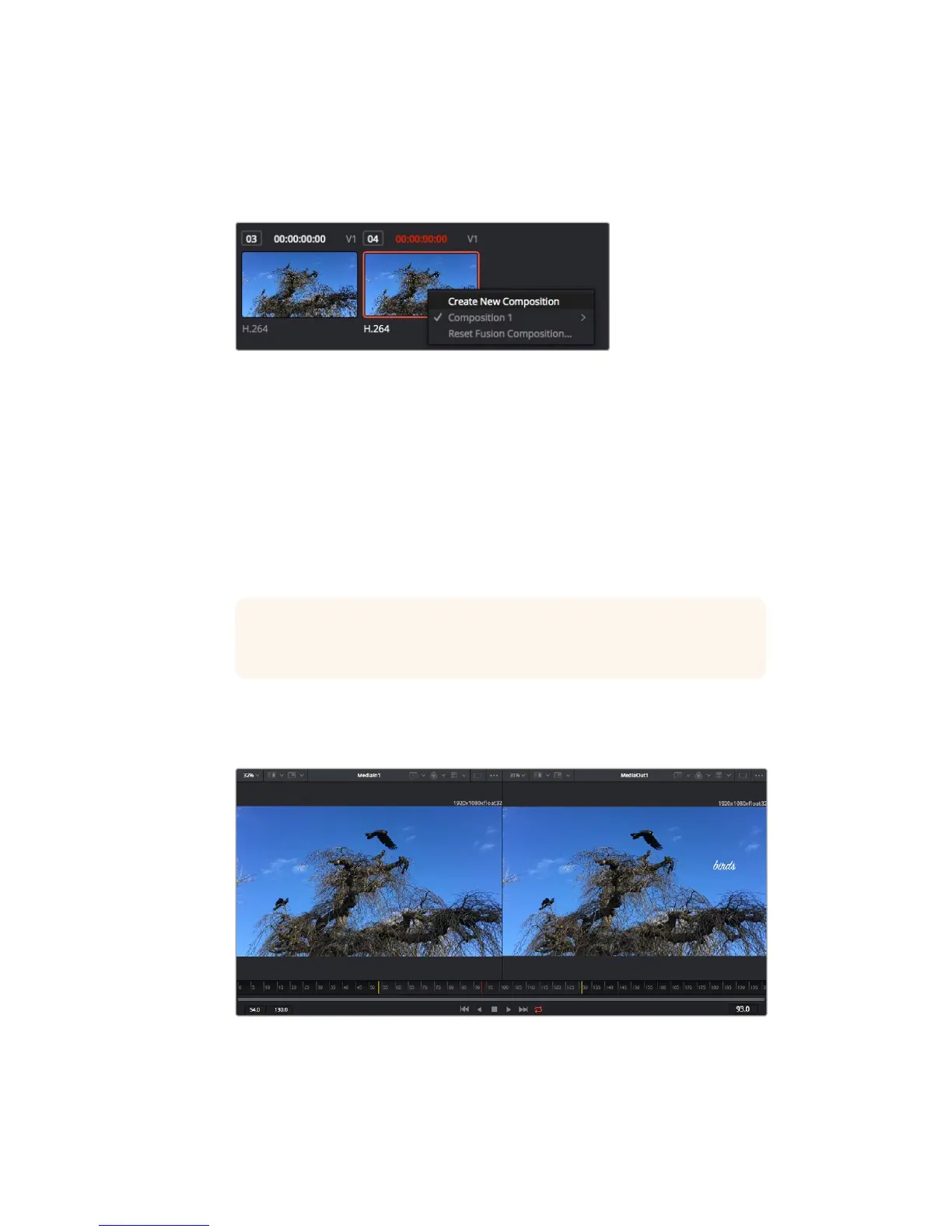
Clicking the clips tab will reveal or hide thumbnails representing clips on your timeline.
The thumbnails are located underneath the nodes editor, letting you instantly navigate
to other clips.
Create a new version of your composition by right clicking
onathumbnail and selecting ‘create new composition’.
Viewers
The viewers are always visible and let you see the different views of your composition,
for example an overall 3D perspective via the merge 3D node, a camera output, oryour
final render output. These viewers also let you see how your changes are affecting
aspecific element.
You can choose which nodes to view by clicking on a node and typing ‘1’ for the left
viewer or‘2’ for the right viewer. White button icons appear beneath the node to let you
know which viewer itis assigned to. If you’re using external video monitoring, there will
be a third button available to route your media to your external video monitor.
TIP You can also assign a node to a viewer by dragging the node into
theviewer itself.
The transport controls underneath the viewers let you skip to the start or end of the
clip, play forward or reverse, or stop playback. The time ruler displays the entire range
of a clip, with yellow marks indicating the in and out points.
The yellow marks on the time ruler indicate your clip’s in and out points on your
timeline. If you are using a Fusion clip or compound clip, the time ruler will only
show you the duration of the clip as it appears on the timeline, without handles.
233Using DaVinci Resolve










 To Next Page