M410 User Manual 7
Setup
Power
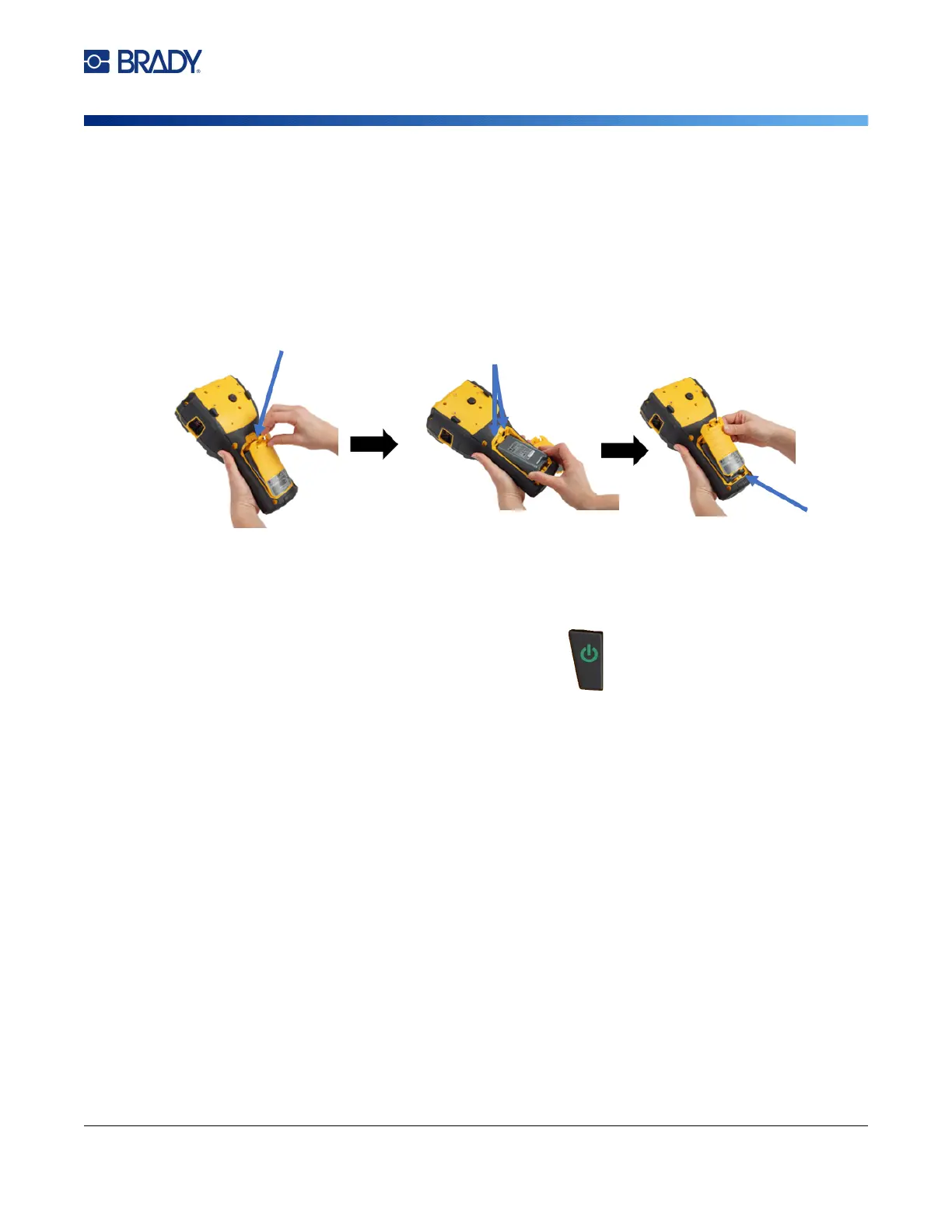
Installing the Battery
Power On
To turn the printer on or off:
1. Press the power button on the front of the printer.
2. The first time you turn on the printer, choose a language in which to display screen items. See
“Printer Settings” on page 8.
Whenever the printer is powered on, the system performs an initialization process. Part of this process
is recognizing the installed cartridge. If the cartridge is not installed, an error message displays. You
can dismiss this error during initial setup or if you wish to continue without the label and ribbon.
The detected cartridge information is used when designing labels. While you can design labels without
installing a cartridge, if you choose not to install any, the label design may not match the cartridge used
to print.
Automatic Shut Down
To conserve energy, the printer automatically turns off after a period of inactivity. Any data on the
screen at the time of auto shutdown is retained and available the next time the power button is pressed
to restart the printer.
To set the inactive time, or to turn off this feature when the printer is plugged in, see “Printer
Configuration” on page 9.
1. On the backside of the
printer, pull the door release
latch downward, then swing
the battery compartment
door up and out. (The door
will come off.)
2. With the battery label facing
outward, insert the battery
pegs into the peg slots at the
top of the compartment; then
tip the battery downward into
place.
3. Re-insert the battery door
hinges at the base of the
compartment and swing the
battery compartment door
closed, snapping it into
place.
door release latch
peg slots
hinges



 To Next Page