M410 User Manual 37
Editing Labels on the Printer
Formatting Text
6. If you want to continue typing without the attribute, press again and turn the
attribute off. For expanded or condensed text, change the percentage to 100% to return to
normal.
When applying the attribute to text as it is being typed, the attribute stays on until it is turned off or until
you move to a new area.
Existing Text
To apply an attribute to previously entered text:
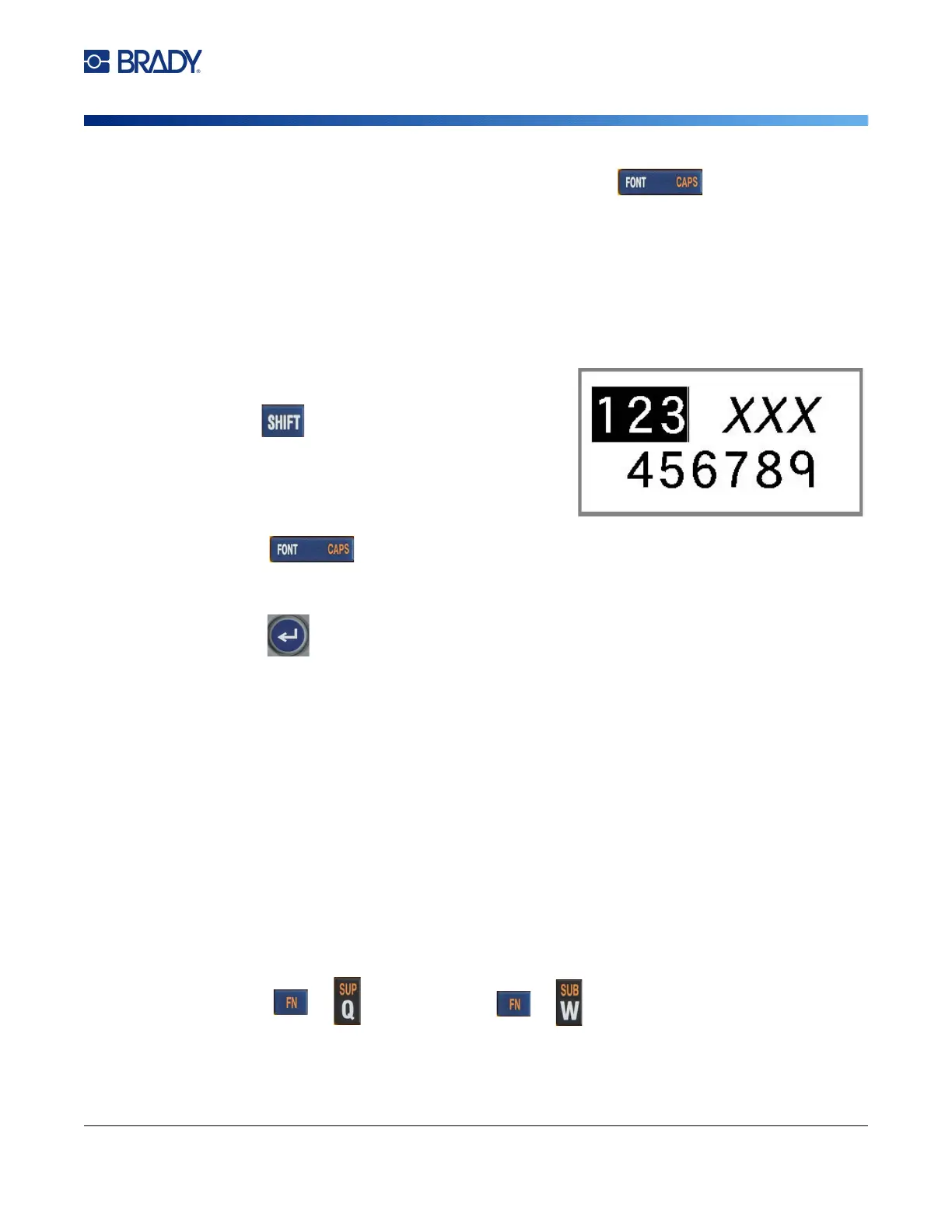
1. Select the text to which you want to apply the
attribute.
Hold while moving the cursor with the
navigation keys across the characters to which
the attribute will be applied.
Note: Highlighting works on a line-by-line basis. You
cannot highlight more than one line at a time.
2. Press .
3. Select the attribute, then select On (bold, italics, and underline) or the percentage of expanded
or condensed text.
4.
Press .
All highlighted text displays the attribute.
To remove the highlighting from the characters, press any navigation key.
To remove an attribute that was previously applied to some text:
Repeat the steps for applying the attribute but select Off instead.
Superscript and Subscript
Superscript places a character slightly above the line of type and subscript places a character slightly
below the line of type. The super- or subscript character also displays slightly smaller than the normal
line of type. Super- and subscript functions are on the numeric keypad. Pressing either key applies that
format to the next character typed. It immediately turns off after the character is entered and you are
returned to the normal line of type.
To apply superscript or subscript to a single character:
1. Position the cursor in the line of text where the superscript or subscript character will display.
2. Press for superscript or for subscript.
3. Type the character to be displayed in superscript or subscript.



 To Next Page