M410 User Manual 43
Editing Labels on the Printer
Formatting Labels and Areas
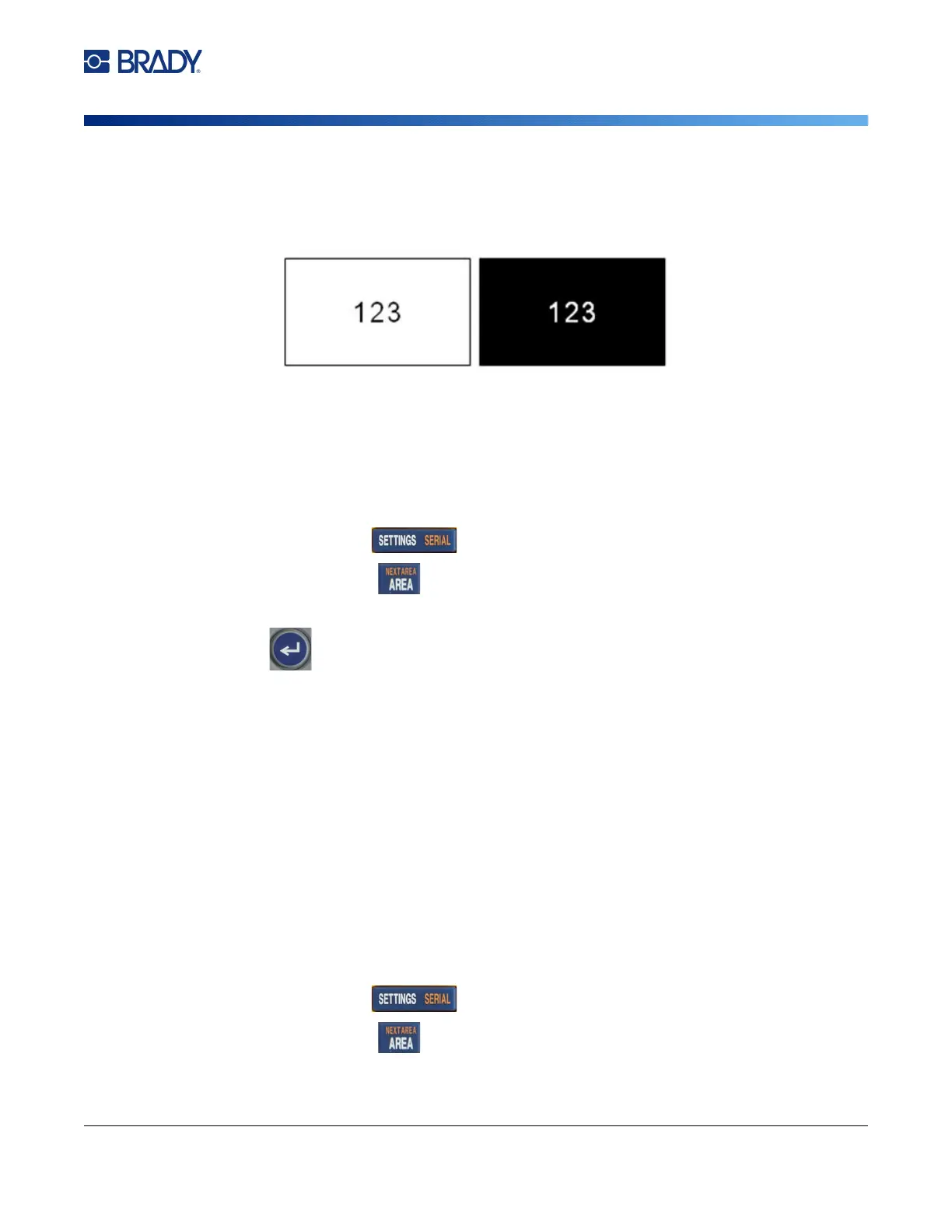
Reverse
The Reverse function switches the foreground and background colors of data on a label, based on the
color of ribbon and label supply in the cartridge. For instance, black lettering on a yellow background, if
reversed, would print yellow lettering on a black background.
You can apply reverse formatting to areas or labels. When adding another area, the reverse function
status carries over.
Note: This feature is only available when the cartridge contains continuous supply. Reverse cannot
be applied to a barcode or to an individual line of text.
To apply or remove Reverse formatting to a label or area:
1. With the cursor in the label or area, open the label or area menu.
• For a label, press .
• For an area, press .
2. Navigate to Reverse, and then choose either On or Off.
3. Press .
Vertical Text
In vertical text, each character drops down a line below the preceding character.
Example: The word “WIRE” as vertical text displays as such:
W
I
R
E
Vertical text can only be applied to an area or a label. It cannot be applied line-by-line.
To format text vertically:
1. If the label has multiple areas, navigate to the area that you want to format. See “Go to Area”
on page 39.
2. Open the label or area menu.
• For a label, press .
• For an area, press .
3. Navigate to Vertical, and then choose On.



 To Next Page