M410 User Manual 30
General Operation
Printing
To print a label that is open on the printer:
1. Press .
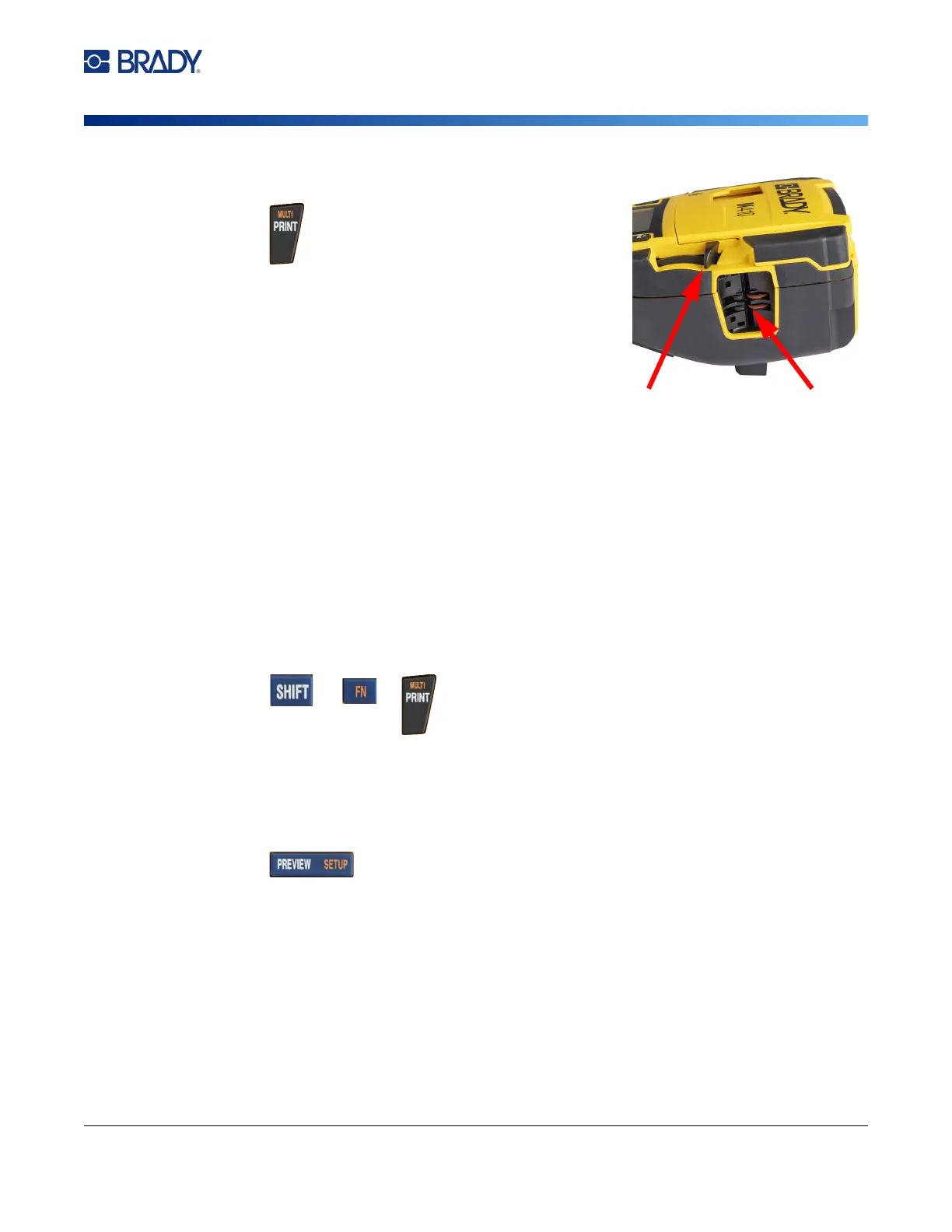
2. When the cut label message displays, pull the cutter
lever forward as far as it will go.
The cut label message remains on the screen until
the label is fully cut through.
Note: If you manually clear the cut label message
and continue to print, the partially cut label will cause
a jam. Make sure the label is completely cut through
before attempting to print again
3. The label exit chute contains rubber grips that hold the label in place after cutting so it will not
fall off. Gently pull the label away from the label exit.
Printing occurs in the background, meaning you can continue to edit or create new labels while the file
is printing.
Cancel Printing
If a print job is interrupted, for instance when labels or ribbon runs out, or you unlock the cartridge, the
system automatically stops the print job and displays a message. Follow the instructions on the display
to resume printing.
To intentionally cancel printing:
1. Press .
Preview
Use the preview to view your label file prior to printing.
Preview the label:
•Press .
Scroll the labels:
• If the label is too long to appear in full on the screen, use the left and right navigation keys to
scroll the label.
• If there are multiple labels or areas, use the up and down navigation keys to scroll through the
labels.



 To Next Page