M410 User Manual 47
Editing Labels on the Printer
Barcode
• Human Readable: Human readable text is the data entered that makes up the barcode.
Because you cannot read bars and spaces, you can display the actual text that makes up
the barcode. Human Readable text can be placed above or below the barcode symbology,
or you can choose to not display it.
If you choose to display the human readable text, a field for the text size becomes
available. Choose a size for the human readable barcode text.
• Width: This changes the thickness of the bars and spaces within the barcode, which in turn
lengthens or shortens the barcode. Set the width, in pixels (dots), of the narrowest bar of a
barcode.
• Ratio: The ratio of a barcode is the relationship of narrow elements to wide elements,
where elements are the bars and spaces.
• Check Digit: A check digit is used for error detection in a barcode. It consists of a single
digit computed from the other digits in the barcode. A check mark in the Check Digit box
turns the function on. This field is only available for Code 39 barcodes.
4. When finished, select OK on the screen and then press .
5. Press to exit the menu.
Add a Barcode
The barcode key acts as a toggle between a barcode and text. Press once to turn it on, press again to
turn it off.
To add a barcode:
1. Make sure the symbology and other barcode settings are the way you want them. See
“Barcode Settings” on page 46.
2. Position the cursor where you want to add the barcode. See “Positioning the Cursor” on
page 34.
3. Press .
4. Enter the barcode value.
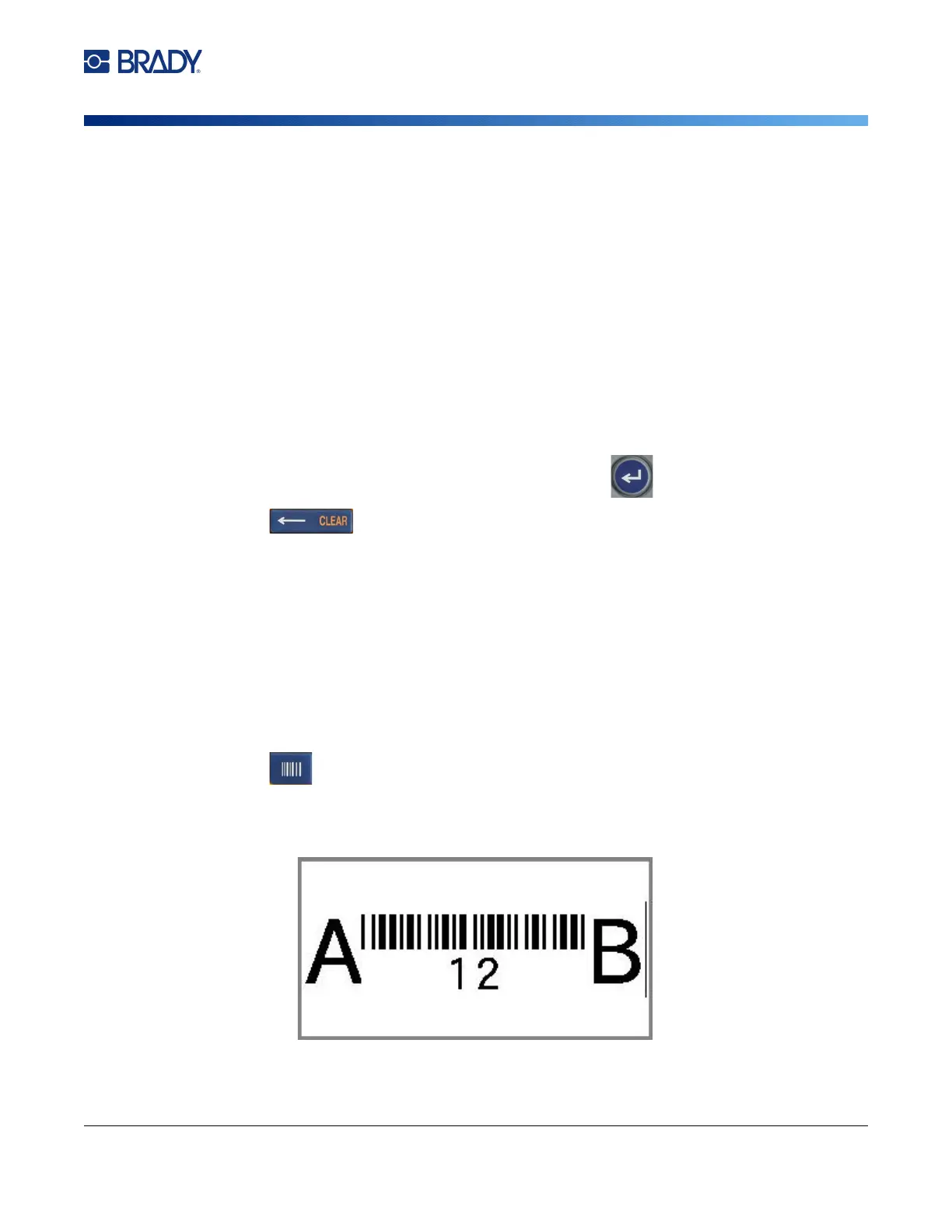
The barcode displays on the screen as the data is being entered.
a. Type the value. The image below shows the barcode placed within a line of text with the
human readable text below the barcode.
If the human readable text were set to None, the barcode value would appear in the
middle of the barcode as you are entering it, but would not be visible once you finished.



 To Next Page