M410 User Manual 56
Label Types
Terminal Block, Patch Panel, 66-Block
2. Select Terminal Block, Patch Panel, or 66-Block and press
.
The printer displays the settings screen for terminal block, patch panel, or 66-Block labels. All
three types contain the same settings.
3. If you are going to set up a sequence to enter data, select Serialize to place a check mark in
the option box and press . If you will manually enter data, leave the box empty.
4. Navigate to the Terminal Repeat field and type the size of the gap between each terminal
(with a minimum of 0.20 inches (5.08 mm)). The leading zero and the decimal point are
provided for you, so just type the two digits after the decimal point.
5. Navigate to the Number of Terminals field and type the number of terminals on the block for
which the label is intended. This field is not available if you selected Serialize. In that case the
sequence values determine how many labels to create.
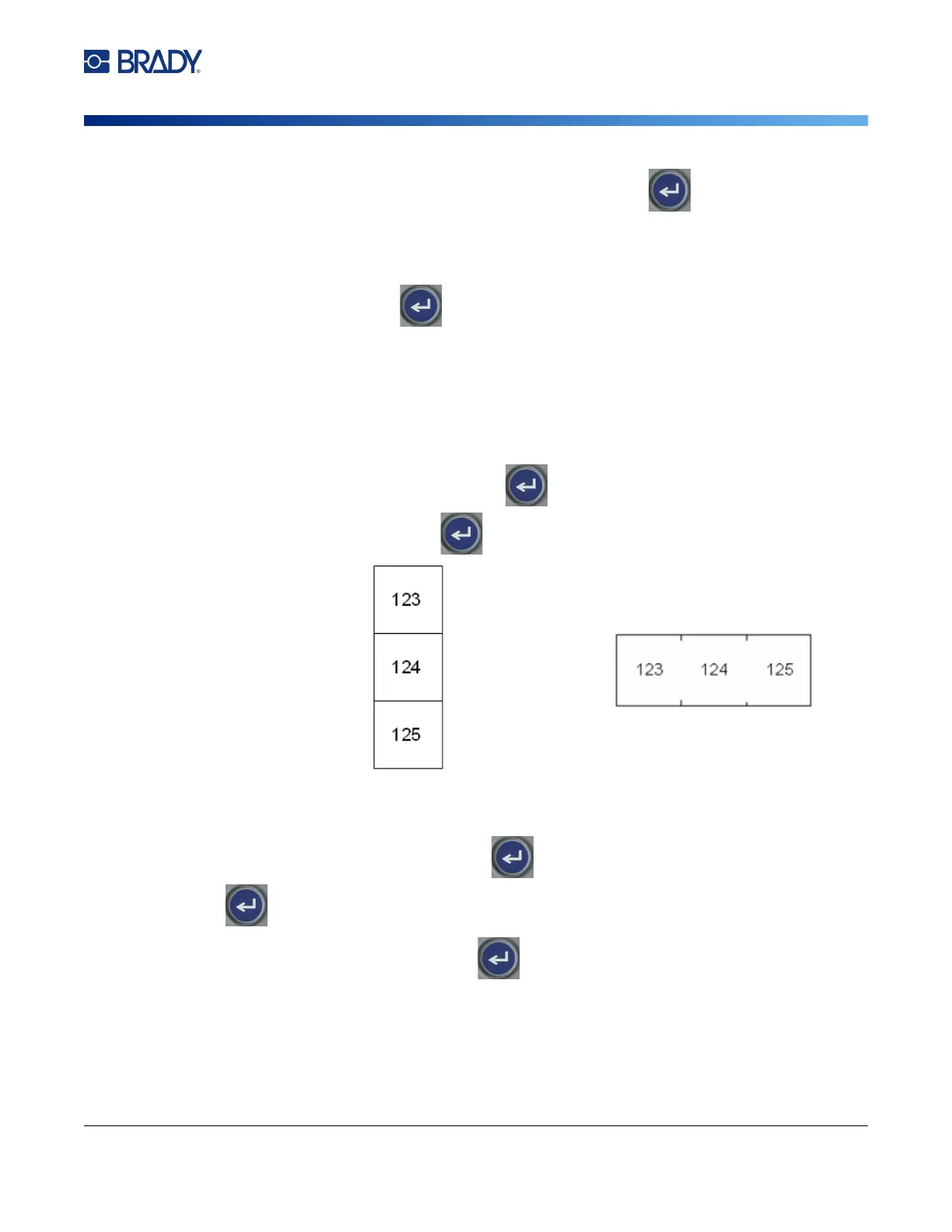
6. Navigate to the Separator list and press . Select None, Tic, or Line to mark the division
between labels and then press .
7. Navigate to the Orientation list, pres
s
,
select either Vertical or Horizontal, and press
again.
See above.
8. When finished, select OK and press
.
9. If the Serialize option box is checked, the settings screen for sequences displays.
a. Set up the sequence or sequences.
For instructions on setting up the sequence, see “Add Serialization” on page 49. For
information about serialization see “Serialization (Sequential Data)” on page 48.
Line Separator, Vertical Orientation Tic Separator, Horizontal Orientation



 To Next Page