153
Connecting to an External Monitor or Recorder
Using the HDMI OUT Terminal
The digital signal that is output from the HDMI
TM
OUT terminal includes the video signal and audio signal. You
can output also the time code signal, recording command and various assistance displays (onscreen displays,
markers, etc.) in order to check them also on an external monitor.
1 Connect the HDMI cable to the HDMI OUT terminal.
2 Select > [
B
System Setup] > [HDMI Output Signal] > Desired option.
3 To output the time code signal, select > [Æ Recording/Media Setup] > [HDMI Time Code] >
[On].
• You can set > [B System Setup] > [Linked to HDMI Monitor] to [On] to automatically change the HDMI
OUT terminal’s output resolution according to the capabilities of the connected monitor. When this setting is
set to [Off], the output resolution is set according to the menu settings and if the connected monitor is not
compatible with the signal output from the camera, HDMI output will stop.
• The HDMI OUT terminal is for output only. Do not connect the camera to another device’s output terminal
using the HDMI OUT terminal as this will cause a malfunction.
• Correct operation cannot be guaranteed when connecting the camera to DVI monitors.
• Video may not be output correctly depending on the connected external monitor/recorder or the HDMI cable
used. In such case, use another terminal.
RAW Video Output from the HDMI OUT terminal
You can output video in RAW format from the HDMI OUT terminal and perform 6K recording with a compatible
recorder. During video output, you can also record video to card B simultaneously.
1 Select > [Æ Recording/Media Setup] > [Sensor Mode] > [Full Frame].
2 Select > [Æ Recording/Media Setup] > [System Frequency] > [59.94Hz] or [50.00Hz].
3 Select > [Æ Recording/Media Setup] > [Frame Rate] > [59.94P] or [50.00P].
• Change the main recording format to a format that allows you to select [Frame Rate] > [59.94P] or [50.00P].
4 Select > [Æ Recording/Media Setup] > [HDMI RAW] > [On].
5 When recording to card B, select > [Æ Recording/Media Setup] > [2nd Card Rec Functions]
> an option other than [Off].
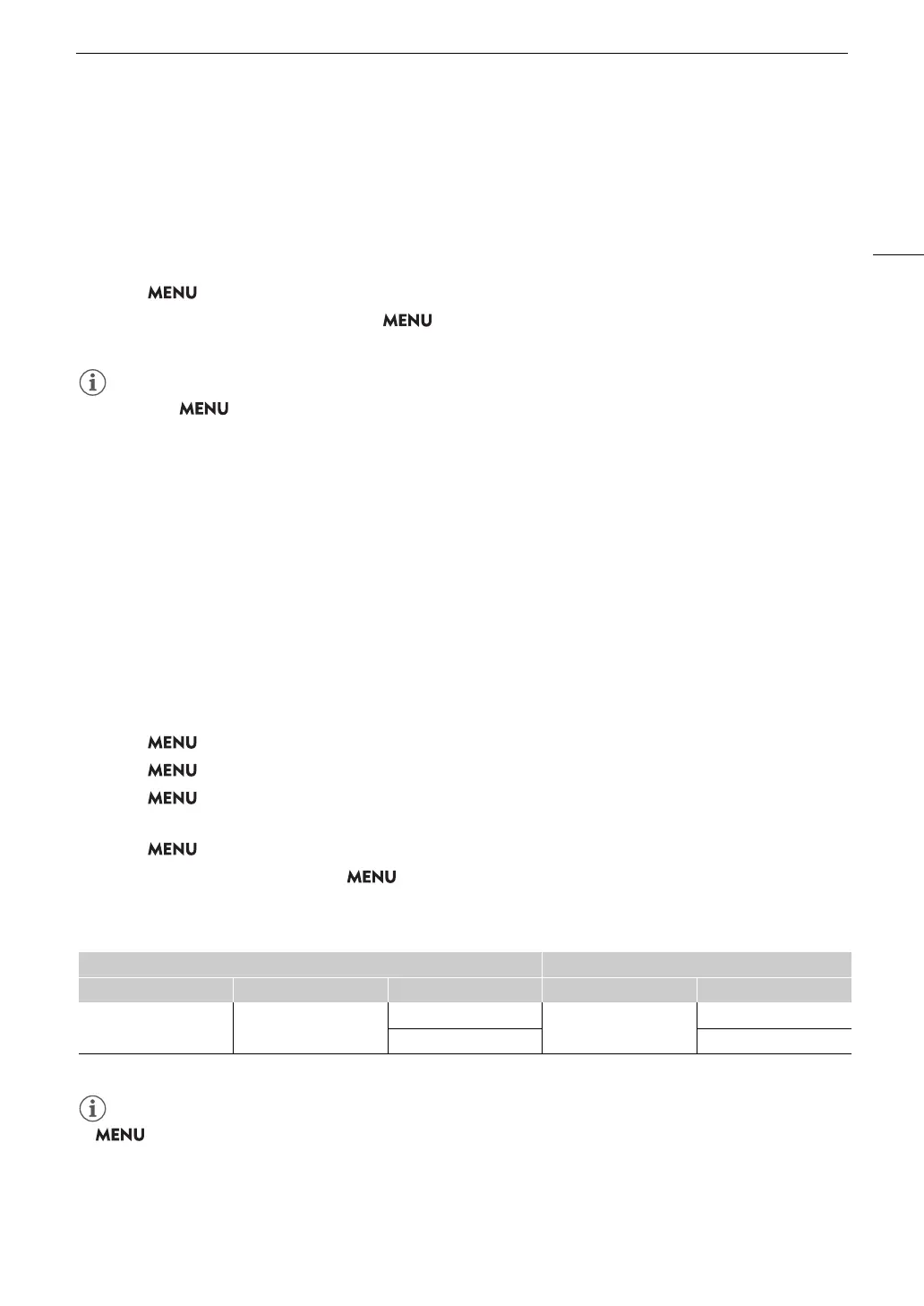
Video Output Configuration
* Bit depth will be 10 bit.
• > [Æ Recording/Media Setup] > [Recording Mode] is set to [Normal Recording].
• Image will not be displayed correctly when connected to a device that is not compatible with the camera's
HDMI RAW output function.
Main recording video configuration HDMI OUT terminal
Main recording format Main resolution* Frame rate Resolution Frame rate
HDMI RAW 6000x3164
59.94P
4096x2160
59.94P
50.00P 50.00P



 To Next Page