73
Aperture
This function is not available when slow & fast motion recording is activated.
1 Select > [
v
Camera Setup] > [Iris Mode] > [Manual].
2 When using a lens equipped with aperture settings, set the lens to
automatic aperture mode (A 71).
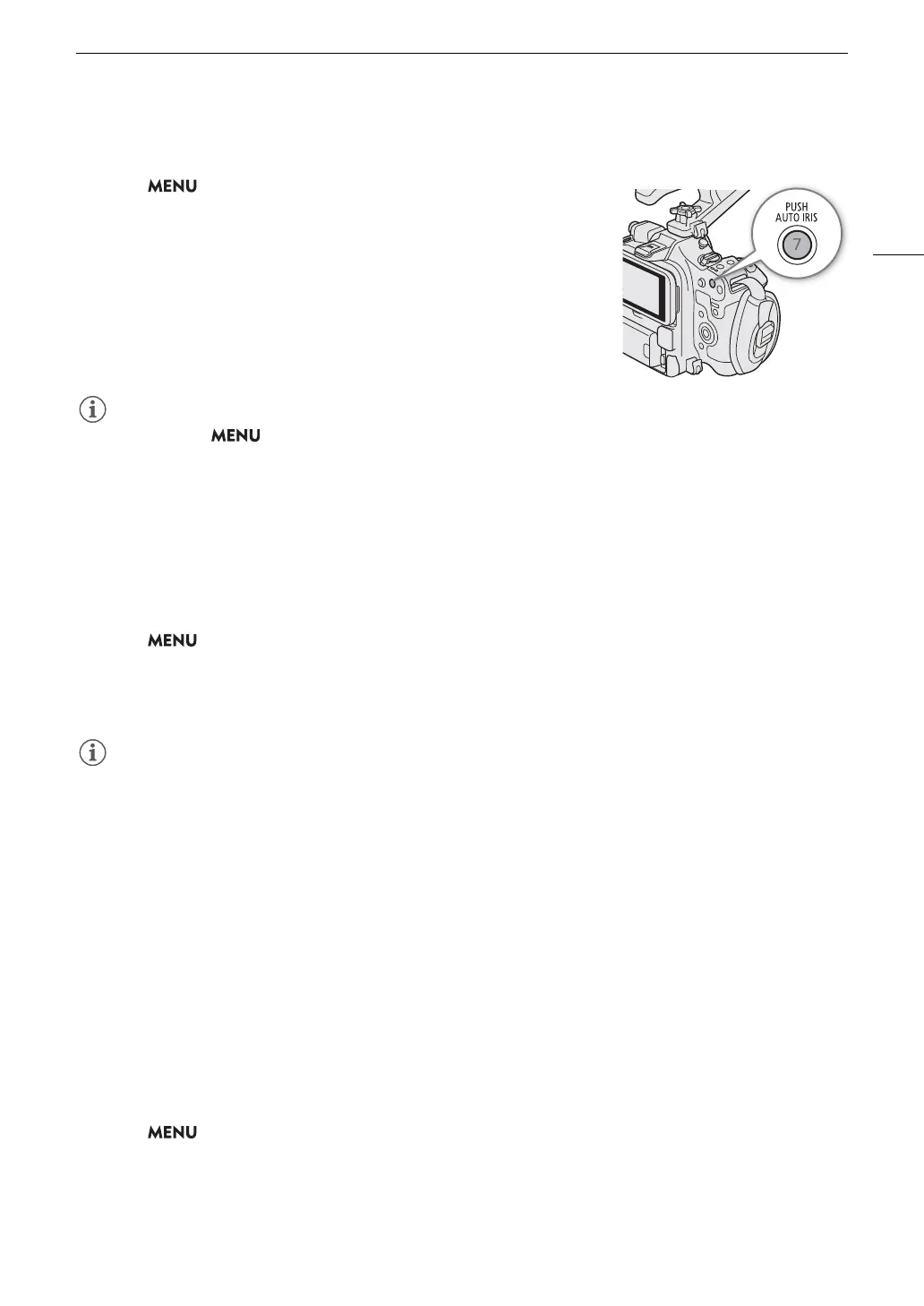
3Press and hold the PUSH AUTO IRIS button.
• The camera will automatically adjust the aperture to obtain optimal
exposure as long as you hold the button pressed down, and
E
will
appear on the screen next to the aperture value.
• When you release the button the aperture value will be set, automatic
aperture mode will end and the
E
icon will disappear.
• You can use the > [
v
Camera Setup] > [AE Response] setting to change how quickly the aperture
changes during automatic aperture mode. This setting has no effect when using an incompatible lens
(A 242).
Automatic Aperture
When a compatible lens is attached to the camera, you can have the camera automatically adjust the aperture.
This function is not available when slow & fast motion recording is activated.
1 Select > [
v
Camera Setup] > [Iris Mode] > [Automatic].
• The camera will automatically adjust the aperture to obtain optimal exposure. The selected aperture value
will appear at the bottom of the screen with an
E
icon next to it.
2 When using a lens equipped with aperture settings, set the lens to automatic aperture mode (A 71).
• If you set an assignable button to [Iris Mode] (A 123), you can press the button to toggle between the
[Automatic] and [Manual] settings.
• The aperture value may change in the following cases.
- While using the built-in extender or iris compensation function of an EF Cinema lens, when you switch from
automatic aperture to manual aperture.
- When the aperture controls on the lens are switched between automatic/manual mode.
• When using EF Cinema lenses that let you adjust the aperture gain, if the aperture gain is set too high, the
aperture adjustment may not be stable (“aperture hunting”), depending on the shooting conditions. In such
case, reset the lens’s aperture gain to its initial value.
Exposure Compensation - AE Shift
Use AE shift to compensate the exposure that was set using automatic aperture, in order to darken or lighten the
image.
You can also perform this function remotely using Browser Remote on a connected network device (A 184).
1 Select > [
v
Camera Setup] > [AE Shift].
2 Select the desired option.
• The camera will attempt to adjust the exposure accordingly.
• You can select one of 17 AE shift levels from –2.0 to +2.0.



 To Next Page