Aperture
74
• If you set an assignable button to [AE Shift +] or [AE Shift –] (A 123), you can press the button to adjust the
AE shift level.
Light Metering Mode
Select the light metering mode to match the recording conditions. Using the appropriate setting will help achieve
a more appropriate exposure level.
1 Select > [
v
Camera Setup] > [Light Metering].
2 Select the desired option.
• The icon of the selected mode ( or ) appears on the screen.
Options
[Backlight]: Suitable when recording backlit scenes.
[Standard]:
Averages the light metered from the entire screen, giving more weight to the subject in the center.
[Spotlight]*: Use this option when recording a scene in which only a certain part of the picture is lit, for
example, when the subject is lit by a spotlight.
* Cannot be selected when a VR lens is attached.
• If [EOS Standard] or [EOS Neutral] is selected for [Select
/
File], the light metering mode cannot be selected.
However, it can be selected if the custom picture file is edited (gamma adjustment, registering a different LUT
as a Look File).
• If you set an assignable button to [Backlight] or [Spotlight] (A 123), you can press the button to toggle
between the respective light metering mode and [Standard].
• Adjust the exposure again if you change the metering mode after adjusting the aperture manually.
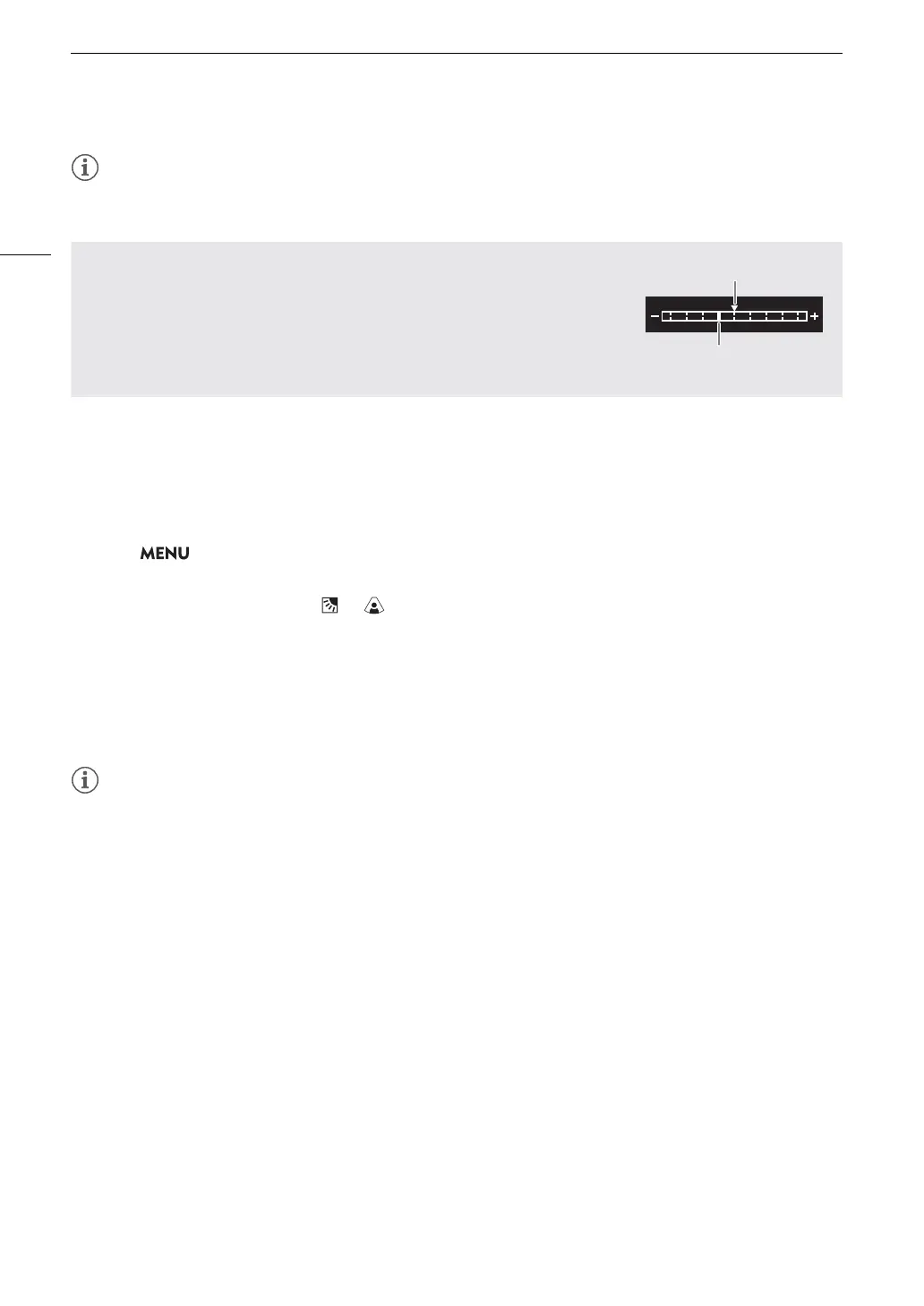
The exposure bar
The
Î
on top of the exposure bar indicates optimal exposure without any shift
(AE±0); the scale markings indicate the deviation from optimal exposure in
1/2 EV increments. The indicator inside the exposure bar represents the current
exposure. When the difference between current and optimal exposure is larger
than ±2 EV, the indicator will flash at the edge of the exposure bar. Optimal
exposure will change depending on the light metering mode used.
Optimal exposure AE±0
Current exposure



 To Next Page