17
Workflow Overview: 4K and Higher
Workflow Overview: 4K and Higher
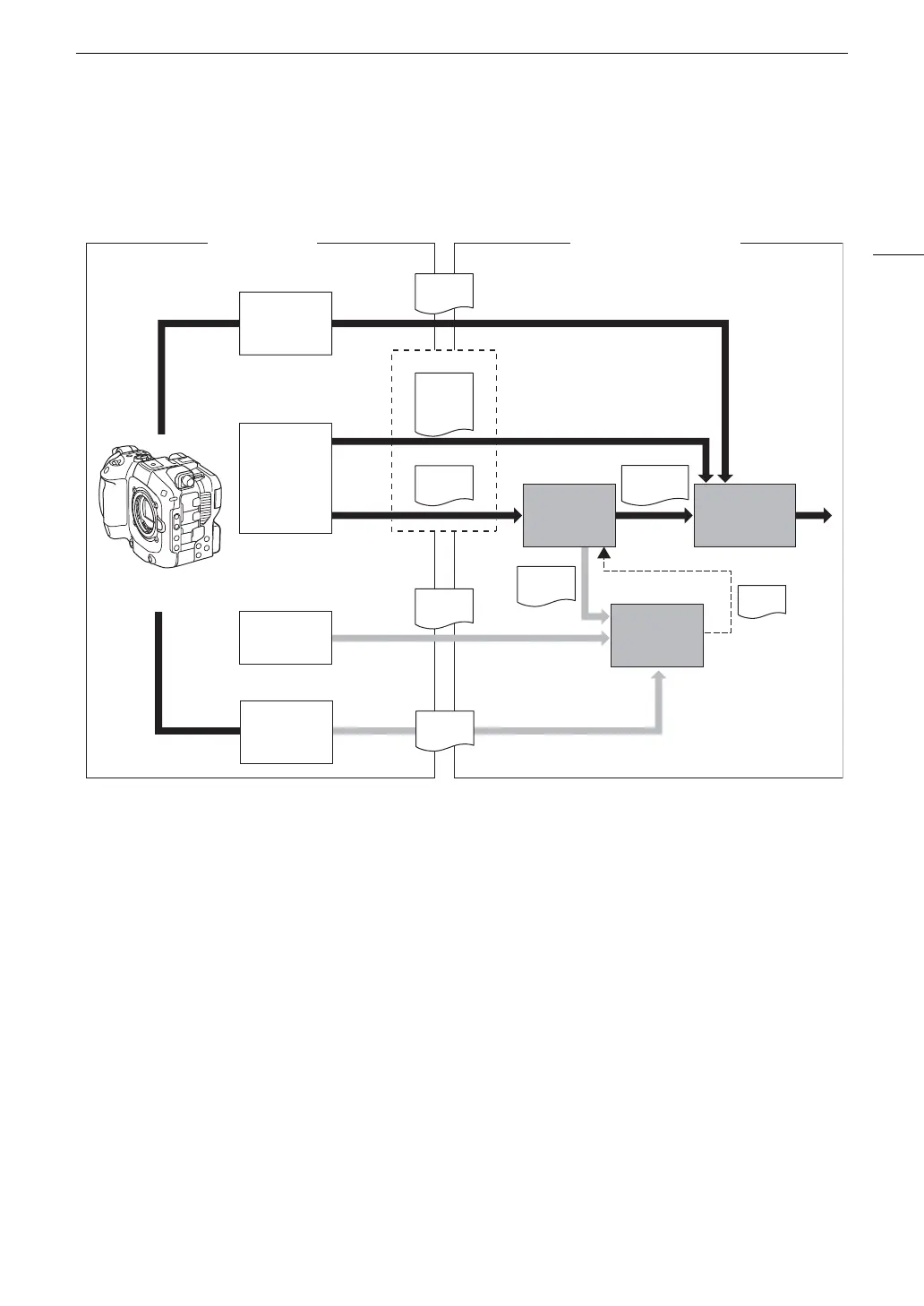
The following illustrates the typical workflow for 6K/4K recording with the camera.
1 Shoot in 6K/4K mode (A 57).
2 You can record primary clips (6K/4.3K: RAW, 4K: XF-AVC / XF-HEVC S / XF-AVC S) on an SD card in the
camera, record 6k data to an external recorder using HDMI RAW, or record 4K data using an external recorder
connected to the camera’s SDI OUT or HDMI OUT terminal (A 153).
3 While recording primary clips, you can simultaneously record 2K proxy clips on an SD card B.
• The file names of 2K proxy clips (XF-AVC / XF-HEVC S / XF-AVC S) and 4K clips are linked and identical for
the most part (A 41).
4 You can use the 2K proxy clips recorded on the SD card, proxy files generated by Cinema RAW Development
or 6k data recorded to an external recorder using HDMI RAW on NLE software to edit the video offline and
create an EDL.
5 After recording RAW data on an SD card in the camera, develop the clips using the Cinema RAW
Development software (A 160) to generate full-quality data.
• You can also generate proxy data.
6 Perform color grading based on the full-quality data.
Recording Post-production
SDI OUT/
HDMI OUT
terminal
output
SD card
XF-AVC
XF-HEVC S
XF-AVC S
data
EDL
NLE
software
2K recording (XF-AVC /
XF-HEVC S / XF-AVC S)
Cinema
RAW
Development
Color
grading
External
recorder
Full-quality
data
RAW
data
4K recording
6K/4.3K recording (RAW),
4K recording (XF-AVC /
XF-HEVC S / XF-AVC S)
SD card
Full-quality
data
Shooting
Proxy
data
Primary clips
Proxy
data
External
recorder
6K recording
Full-quality
data
HDMI
RAW



 To Next Page