47
Recording Video and Photos
Onscreen Displays
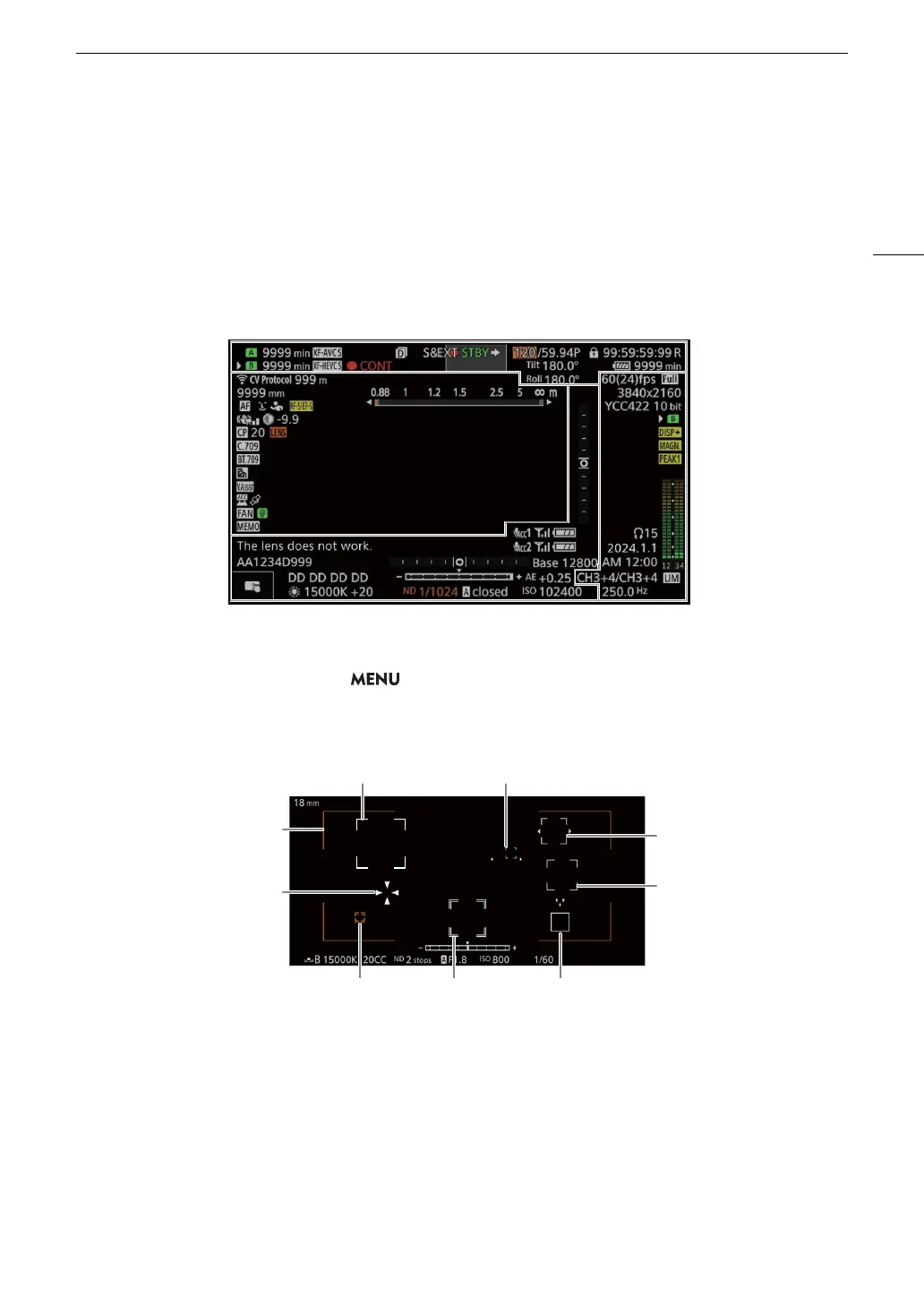
Refer to this section for an explanation of the various screen displays that appear in CAMERA mode. You can
use the custom display function (A 200) to turn off individual onscreen displays if they are not required. The
menu item that controls each display is given in the following tables (1: indicates a menu item under [Custom
Display 1] and 2: indicates a menu item under [Custom Display 2]).
The position of some icons and onscreen displays may change depending on the display level settings, which
can be set to level 1, level 2 or level 3. The following screenshot and tables describe the onscreen displays at
display level 1 with the [All Displays] setting (A 51).
AF frames
You can turn AF frames on/off with the > [
¢
Monitoring Setup] > [Custom Display 1] > [Focus Mode]
setting.
Continuous AF frame –
in white/gray/red/yellow (A 81)
One-shot frame –
in white/green/red (A 81)
Subject detection frame (main
subject): white/gray/green/red/
yellow (A 84)
Subject detection frame (subjects
other than the main subject): gray
Tracking: Subject selection
(A 85)
Tracking: During tracking
Focus frame with focus guide (A 79)
Focus adjustment frame: In red
when it is not possible to stop at
or locate the focus position
during one-shot AF, or when the
subject is out of focus (outside
the close/far range of the lens)
during continuous AF.
Eye detection: Main subject’s eyes (A 84)
Frame for trackable subjects (A 81)



 To Next Page