26
Setting a Paper Size and Type
Make sure that the Paper Settings match the size and the type of the loaded paper.
1
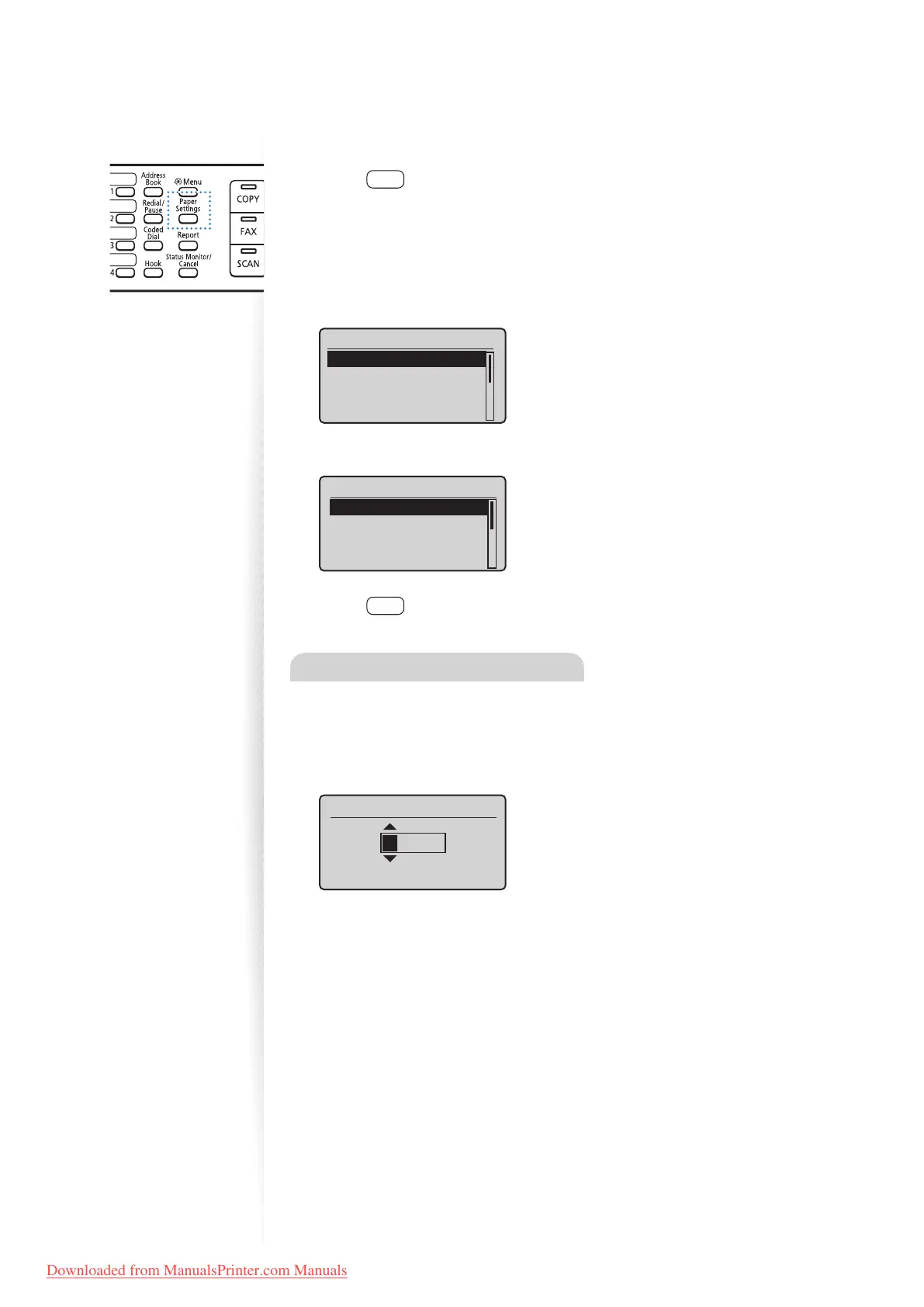
Press [ ] (Paper Settings).
2
Press [▲] or [
▼
] to highlight <MP Tray> or <Drawer 1>, and then press
[OK].
3
Press [▲] or [
▼
] to highlight the desired paper size, and then press [OK].
•
To specify the paper size manually, select <Custom Size>, and then refer to
“Specify a Paper Size Manually” at the bottom of this page to specify the size.
Paper Size
LTR
LGL
STMT
EXEC
4
Press [▲] or [
▼
] to highlight the desired paper type, and then press [OK].
Paper Type
Plain (16 lb Bond-24
Plain L (16 lb Bond
...
Recycled
Color
5
Press [ ] (Paper Settings) to close the screen.
Specify a Paper Size Manually
For paper size, specify within the possible range of length and width (<Y> ≥ <X>).
1
Press [▲] or [
▼
] to highlight <X>, and then press [OK].
2
Use the numeric keys to specify the width, and then press [OK].
Set Length for X
(3-8_1/2)
3_ 0/0 "
3
Press [▲] or [
▼
] to highlight <Y>, and then press [OK].
4
Use the numeric keys to specify the length, and then press [OK].
5
Press [▲] or [
▼
] to highlight <Apply>, and then press [OK].
Downloaded from ManualsPrinter.com Manuals











 To Next Page