40
Print a Document
1
Make sure that a computer and the machine are connected properly, and
the printer driver is installed on the computer.
2
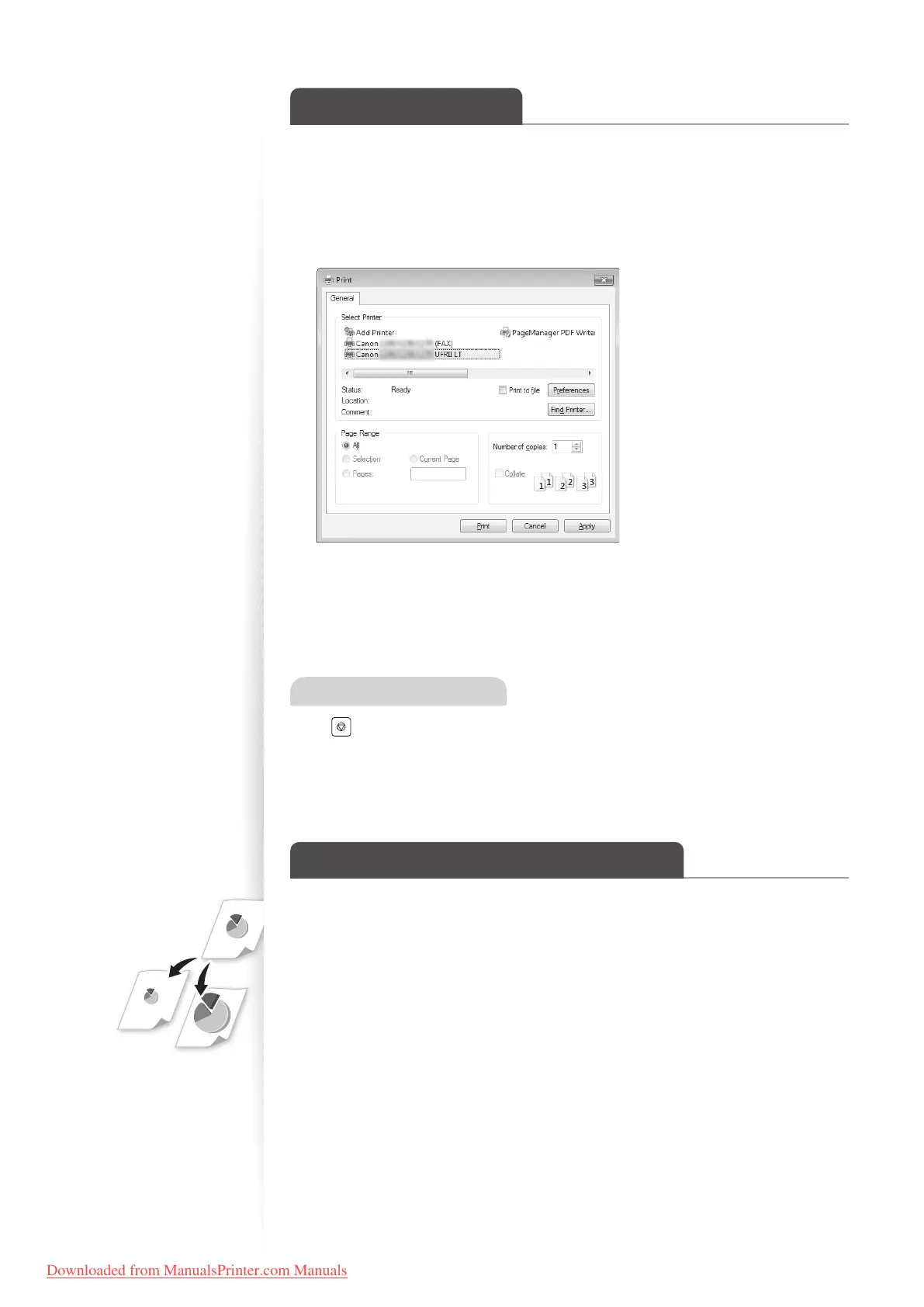
Open a document from an application, and then open the Print window.
3
Select your printer driver, and click [Preferences] (or [Properties]).
4
Specify the print settings such as the number of copies and print
orientation, and click [OK].
5
Click [Print] to start printing.
Canceling Print Jobs
Press [ ] (Stop) twice.
* It is valid when only one job is processing or waiting.
Enlarge or Reduce a Document
You can enlarge or reduce the data to t the paper size automatically, or specify a custom
ratio.
1
Open a document from an application, and then open the Print window.
2
Select your printer driver, click [Preferences] (or [Properties]), and display
the Printing Preferences window.
Downloaded from ManualsPrinter.com Manuals











 To Next Page