48
Register Numbers in the Address Book
You can register frequently-used numbers in the address book. You can register numbers to
one-touch keys or coded dialing codes for convenient dialing.
• To set an address book PIN, press [ ] (Menu) <System Settings>
<Restrict TX Function> <Address Book PIN>, and then specify
the PIN.
• If the address book is protected with a PIN, you must enter the PIN when
you press [ ] (Address Book). Enter your PIN, and then press [OK] to
use the address book.
• The address book can be saved as a le to your computer using the
Remote UI. The machine can read the le saved in your computer. For
more details about Remote UI, see the e-Manual.
• With the Address Book Import/Export Tool that is supplied on the User
Software CD-ROM, you can export address book entries that are registered
to the machine or import the entries that are created or edited from the
MF Driver.
Registering Numbers to One-Touch Keys
To send a fax to a destination registered to a one-touch key, see “Using the One-Touch Keys”
(→p.56).
1
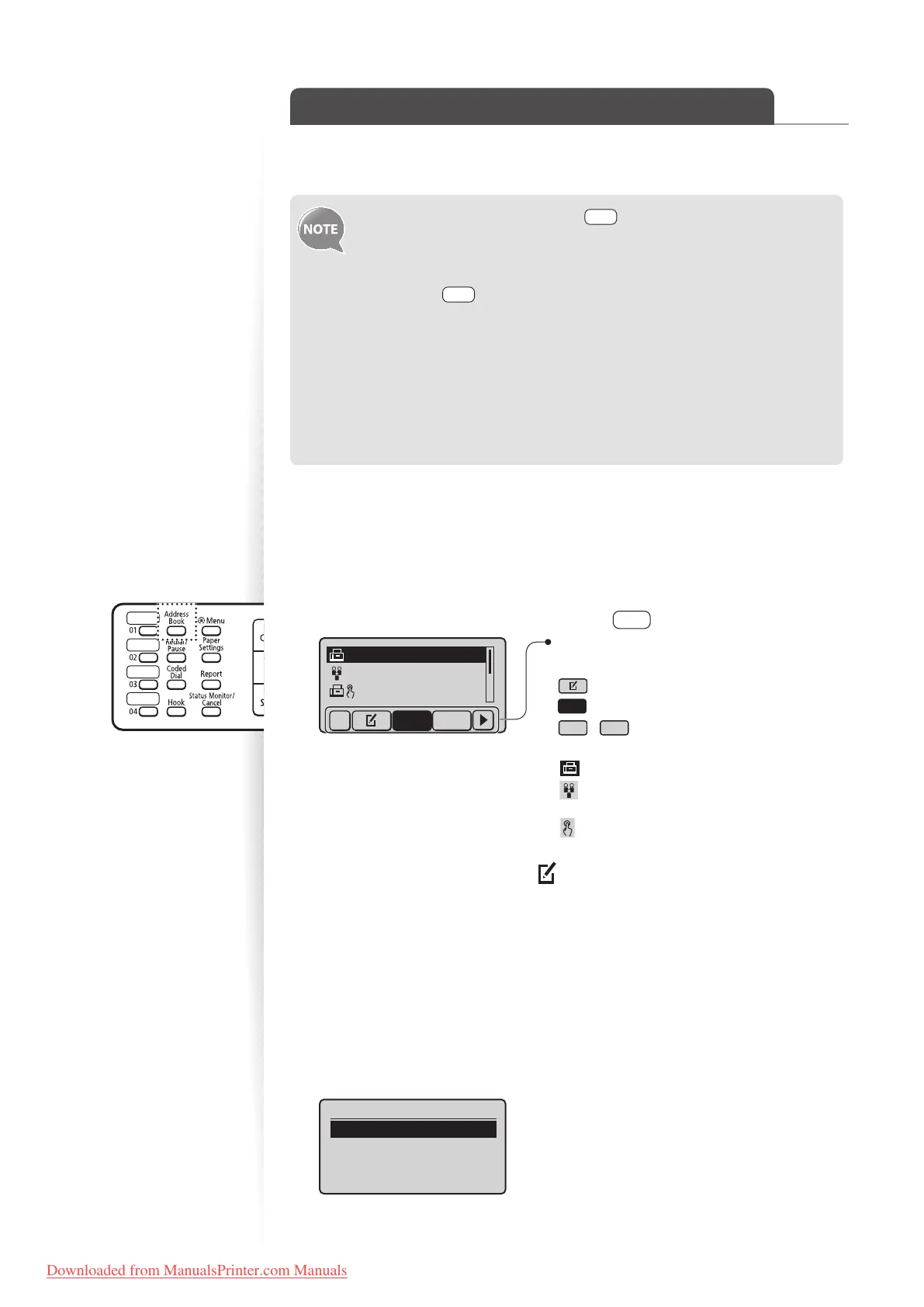
Switch to the Fax mode, and then press [ ] (Address Book).
: Display the address book menu.
All
: Display all registered destinations.
A-Z
~
YZ
: Display registered destinations
sorted by name.
: Display registered coded dialing codes.
: Display the number of registered
destinations in a group.
: Display registered one-touch keys.
Press [
◄
] or [
►
] to switch to the menu screen
or a screen for searching registered destinations.
CANON 0123456789
GroupA 2 Destin
...
User01 01234567
...
All A-Z
2
Press [
◄
] or [
►
] to highlight < > (Menu).
3
Press [▲] or [
▼
] to highlight <Register New Destination to Address
Book>, and then press [OK].
4
Press [▲] or [
▼
] to highlight <One-Touch>, and then press [OK].
5
Press [▲] or [
▼
] to highlight <Fax>, and then press [OK].
6
Press [▲] or [
▼
] to highlight the number of the one-touch key you want
to register (01 to 04), and then press [OK].
•
You can register fax numbers to each of the 4 one-touch dial keys.
Enter Registration No.
01 Not Registered
02 Not Registered
03 Not Registered
04 Not Registered
Downloaded from ManualsPrinter.com Manuals











 To Next Page