91
Maintenance and Management
Manage Using the Report and List Functions
Print out reports or lists to view communication status, address book information, or
settings, for monitoring the machine.
1
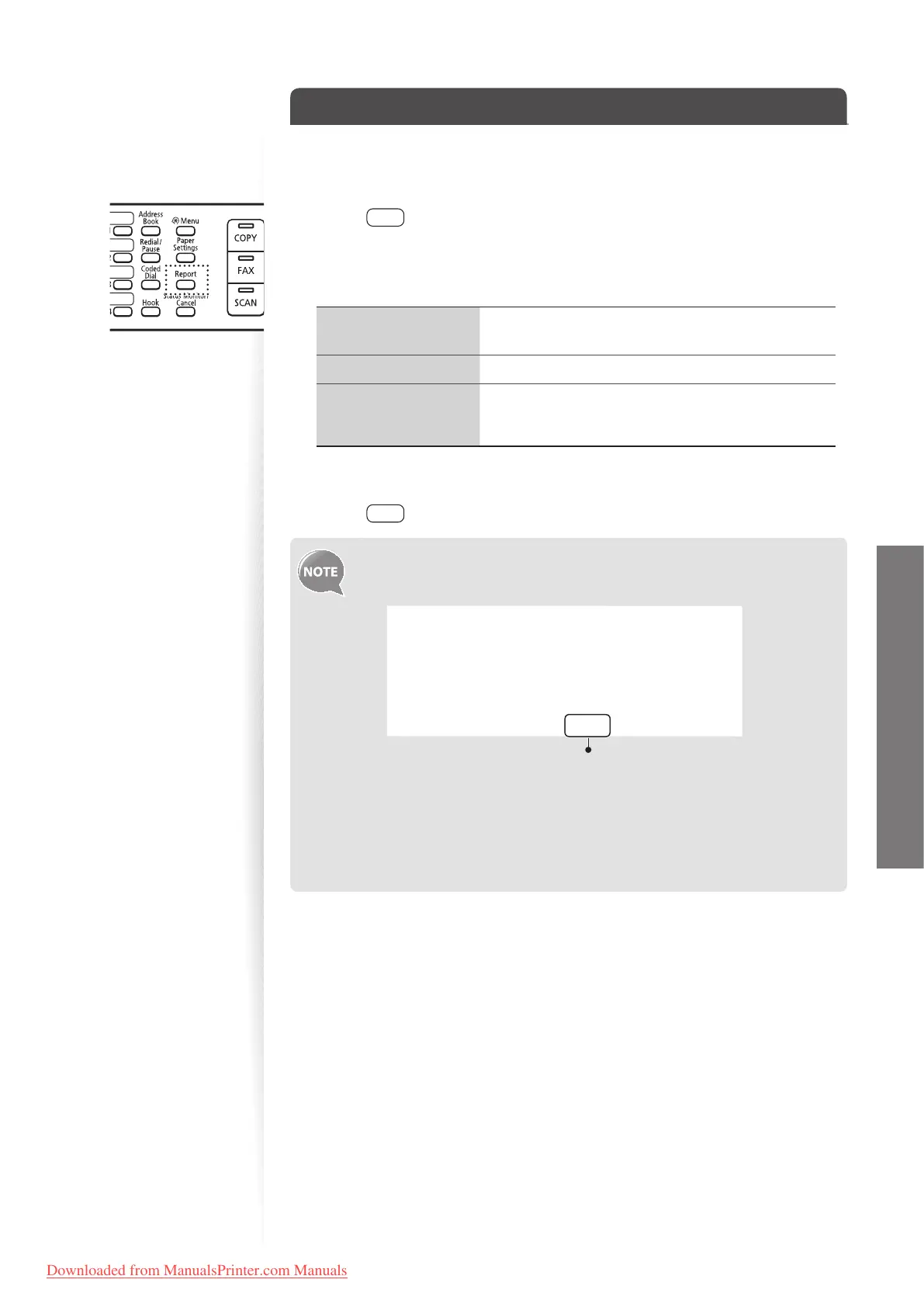
Press [ ] (Report).
2
Press [▲] or [▼] to highlight <Print Report Lists>, and then press [OK].
3
Press [▲] or [
▼
] to highlight a report or list, and then press [OK].
<Address Book List>
Numbers that are registered in the address book (coded
dialing codes, one-touch keys, and groups)
<User Data List> Information about the machine and settings
<Communication
Management
Report>
Fax communication history
4
Follow the on-screen instructions to print the report or list.
5
Press [ ] (Report) to close the screen.
• To set the report not to be printed automatically, If an error occurs while
sending or receiving faxes, report is printed automatically. Con rm the error
code printed on the report and resolve the problem (→p.101).
Job No.
Address
Name
Start Time
Call Length
Sheets
Result
0123
0123456789
name
01/01 02:07 AM
01'15
1
NG
#018 Busy/No Signal
Error code
• To change when to print the send or receive result report, or
communication management list, select <Report Settings> at the step
2 above. For details, see [Basic Operation] [Printing the Report
Automatically] in the e-Manual.
• Report and list printouts are limited to 10 pages.
Downloaded from ManualsPrinter.com Manuals











 To Next Page