32
Adjust the Image Quality for Copy
Relation between the density and document type:
If <Density> i
s set to <Auto Density>, <Original Type> will be changed
to <Text>.
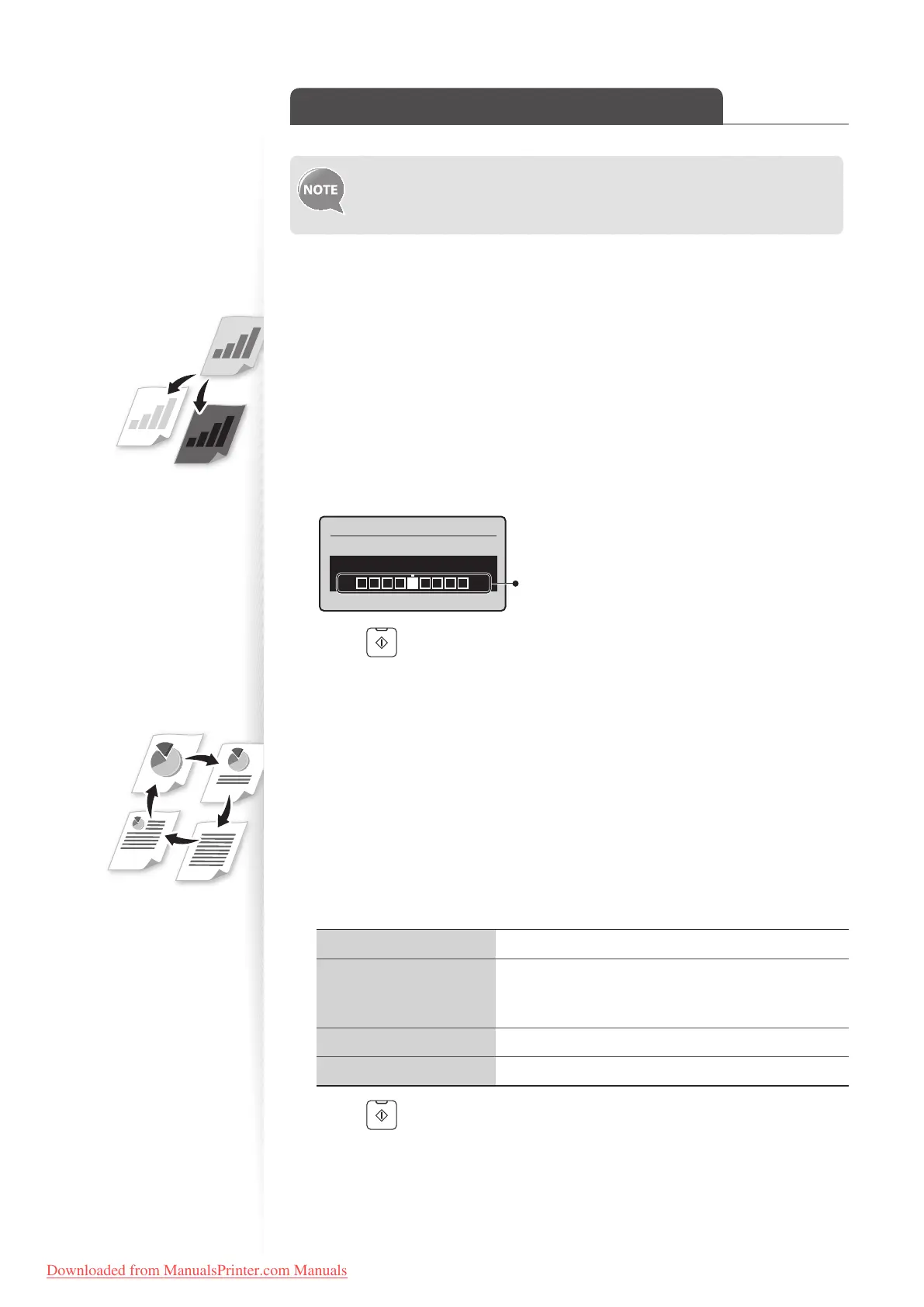
Adjusting the density
You can make the density brighter or darker than the original documents.
1
Place your documents (→p.19).
2
Switch to the Copy mode (→p.16).
3
Press [▲] or [▼] to highlight <Density>, and then press [OK].
4
Press [◄] or [►] to adjust the density , and then press [OK].
•
Select <Auto Density> to use the density that is most suitable for the document.
Density
Auto Density
Manual Density
- +
– : Less density (lighter)
+ : More density (darker)
5
Press [ ] (Start).
Selecting the Document Type
Select the appropriate document type.
1
Place your documents (→p.19).
2
Switch to the Copy mode (→ p.16).
3
Press [▲] or [▼] to highlight <Original Type>, and then press [OK].
4
Press [▲] or [▼] to highlight the appropriate document type, and then
press [OK].
<Text> Best suited for text-only documents.
<Text/Photo (High
Spe
ed)>
Suitable for documents that contain text and photos.
(Sca
nned documents are at a low resolution at high
speed.)
<Text /Photo> Suitable for documents that contain text and photos.
<Photo> Suitable for documents that contain large photos.
5
Press [ ] (Start).
Downloaded from ManualsPrinter.com Manuals











 To Next Page