37
Copy
View and Cancel Copy Jobs
You can view or cancel copy jobs while the jobs are in progress.
1
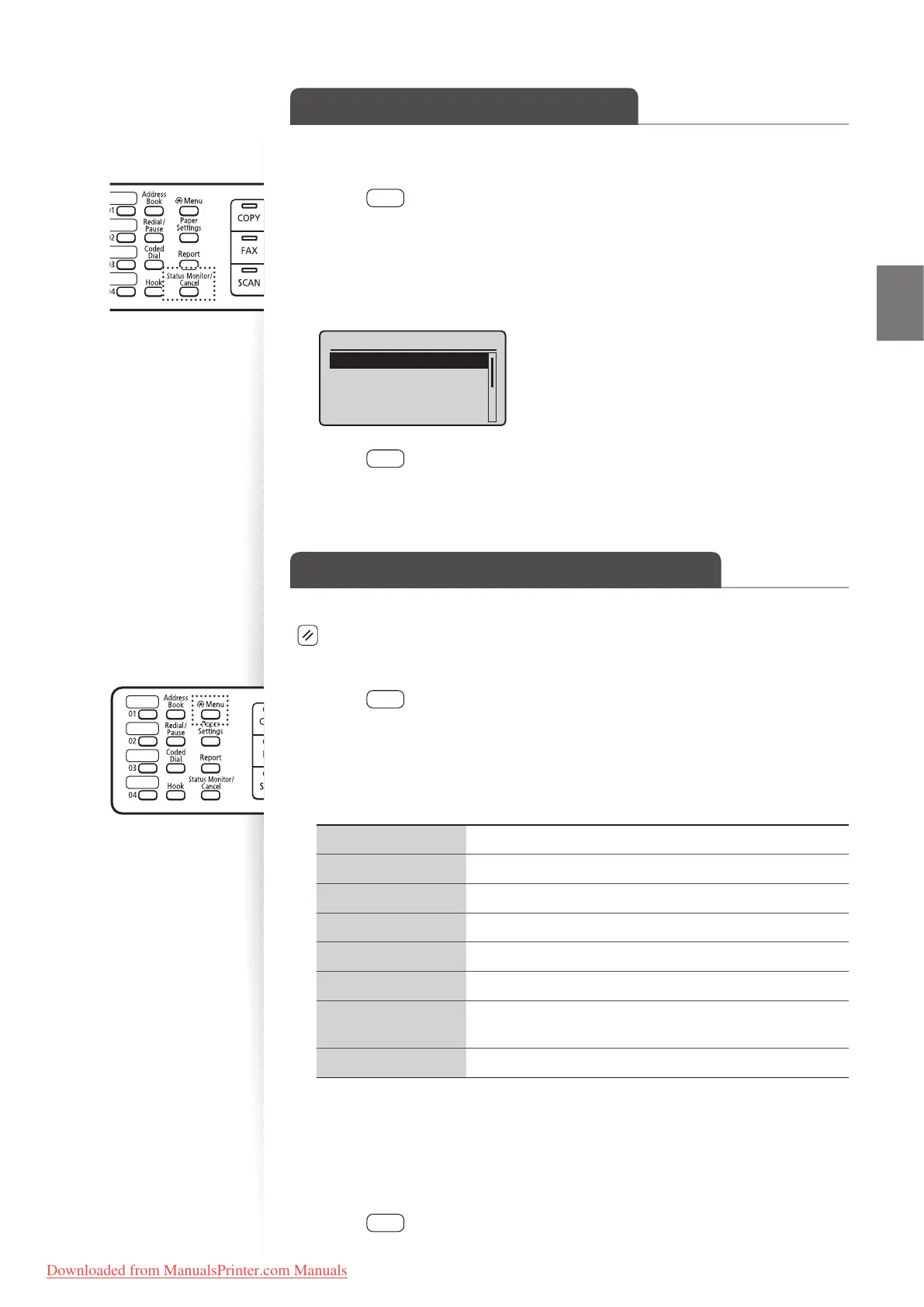
Press [ ] (Status Monitor/Cancel).
2
Press [▲] or [▼] to highlight <Copy Job Status>, and then press [OK].
3
View the details of a copy job or cancel the job.
•
To view the details, press [▲] or [▼].
• To cancel the job, press [▲] or [▼] to highlight <Cancel>, and then press [OK].
Copy Job Status
<Cancel>
Job Number: 0001
Status: Copying
Time: 01/01 12:52 AM
4
Press [ ] (Status Monitor/Cancel) to close the screen.
Change the Default Copy Settings
You can change the default copy settings that are applied when the machine is restarted,
[ ] (Reset) is pressed or the screen is returned to the default screen after auto reset is
performed.
1
Press [ ] (Menu).
2
Press [▲] or [▼] to highlight <Copy Settings>, and then press [OK].
3
Press [▲] or [▼] to highlight <Change Defaults>, and then press [OK].
4
Press [▲] or [▼] to highlight the desired option, and then press [OK].
<No. of Copies> Select the copy quantity.
<Density> Make the density lighter or darker.
<Original Type> Select the image quality.
<2-Sided>* Copy 1-sided document to 2 sides.
<Copy Ratio> Select the copy ratio.
<N on 1> Copy multiple documents onto one sheet.
<Collate>
Collate copies of a complete copy job arranged in page
se
q
uential order or by page.
<Sharpness> Emphasize the outline of the image or decrease the contrast.
* MF4890dw/MF4880dw only
5
Specify the desired setting.
6
After you have speci ed the setting, press [▲] or [▼] to highlight
<Apply>, and then press [OK].
7
Press [ ] (Menu) to close the screen.
Downloaded from ManualsPrinter.com Manuals











 To Next Page