54
Specifying the Double-Sided Document Format
(MF4890dw Only)
You can set the document format to scan double-sided documents automatically.
1
Place your documents in the feeder (→p.20).
2
Switch to the Fax mode (→p.16).
3
Press [▲] or [
▼
] to highlight <2-Sided Original>, and then press [OK].
4
Press [▲] or [
▼
] to highlight the desired option, and then press [OK].
<O > Read only one side of documents.
<Book Type>
• Read both sides of documents.
• Select when the document is
book type.
<Calendar Type>
• Read both sides of documents.
• Select when the document is
calendar type.
5
Send a fax to the desired destination (→p.55).
Changing the Default Settings
You can change the default settings that is applied when the machine is restarted, [ ]
(Reset) is pressed or the screen is returned to the default screen after auto screen is
performed.
1
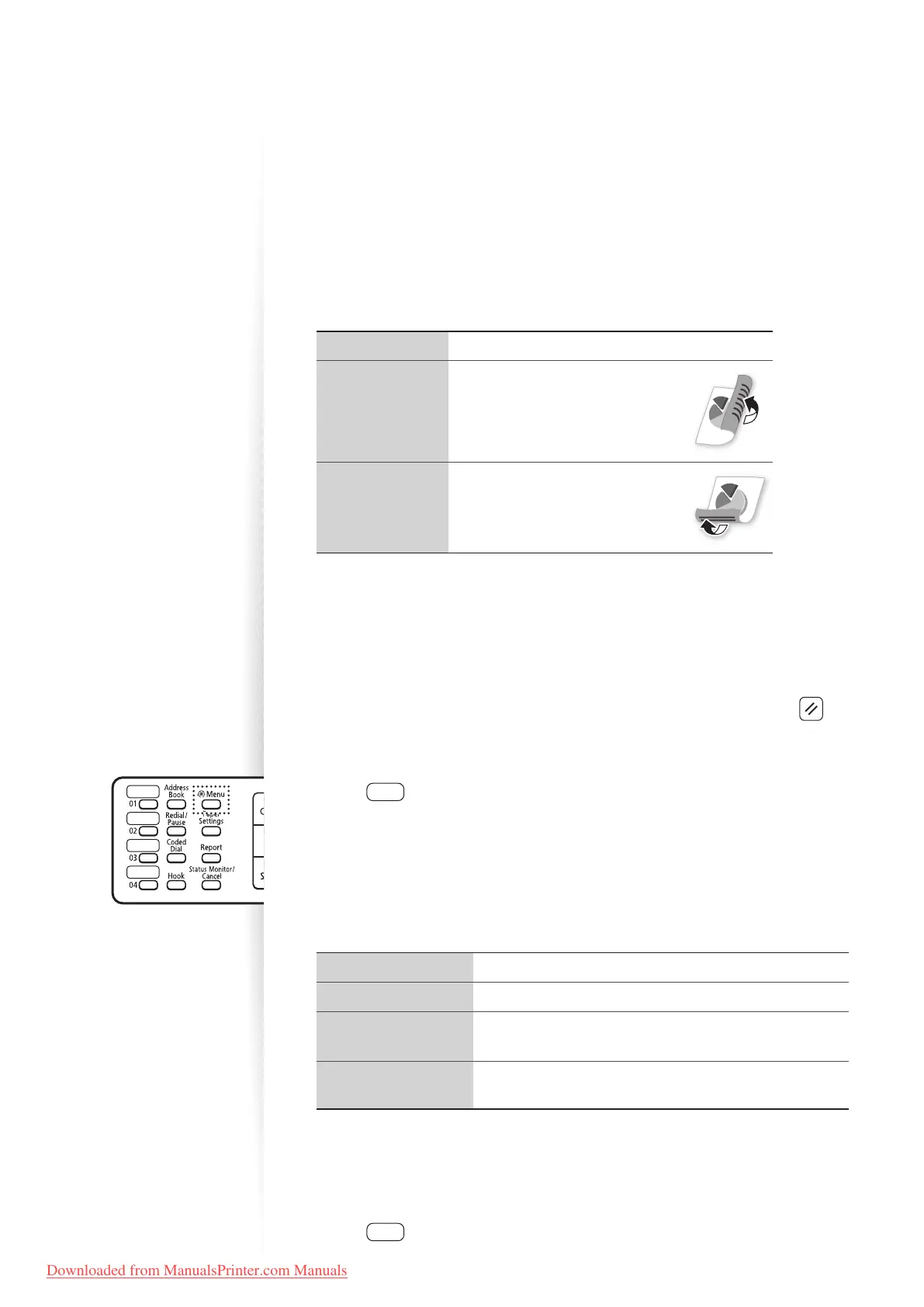
Press [ ] (Menu).
2
Press [▲] or [
▼
] to highlight <Fax TX Settings>, and then press [OK].
3
Press [▲] or [
▼
] to highlight <TX Function Settings>, and then press [OK].
4
Press [▲] or [
▼
] to highlight <Change Defaults>, and then press [OK].
5
Press [▲] or [
▼
] to highlight the desired option, and then press [OK].
<Resolution> Make the resolution higher or lower.
<Density> Make the density lighter or darker.
<2-Sided Original>
(MF4
890dw only)
Set whether to read one side of documents or both sides of
do
c
uments automatically.
<Sharpness>
Emphasize the outline of the image or decrease the
cont
rast.
6
Specify the desired setting.
7
After you have speci ed the setting, press [▲] or [
▼
] to highlight
<Apply>, and then press [OK].
8
Press [ ] (Menu) to close the screen.
Downloaded from ManualsPrinter.com Manuals











 To Next Page