70
Settings
Options
Bold: Default settings
Details
<Reduce RX Size>
O
On
- Reduction Ratio: Auto, 97%,
95%, 90%, 75%
- Reduction Direction: Vertical/
Horizontal, Vertical Only
Set to scale images automatically so they t the selected paper
size or to reduce the image according to the speci ed ratio.
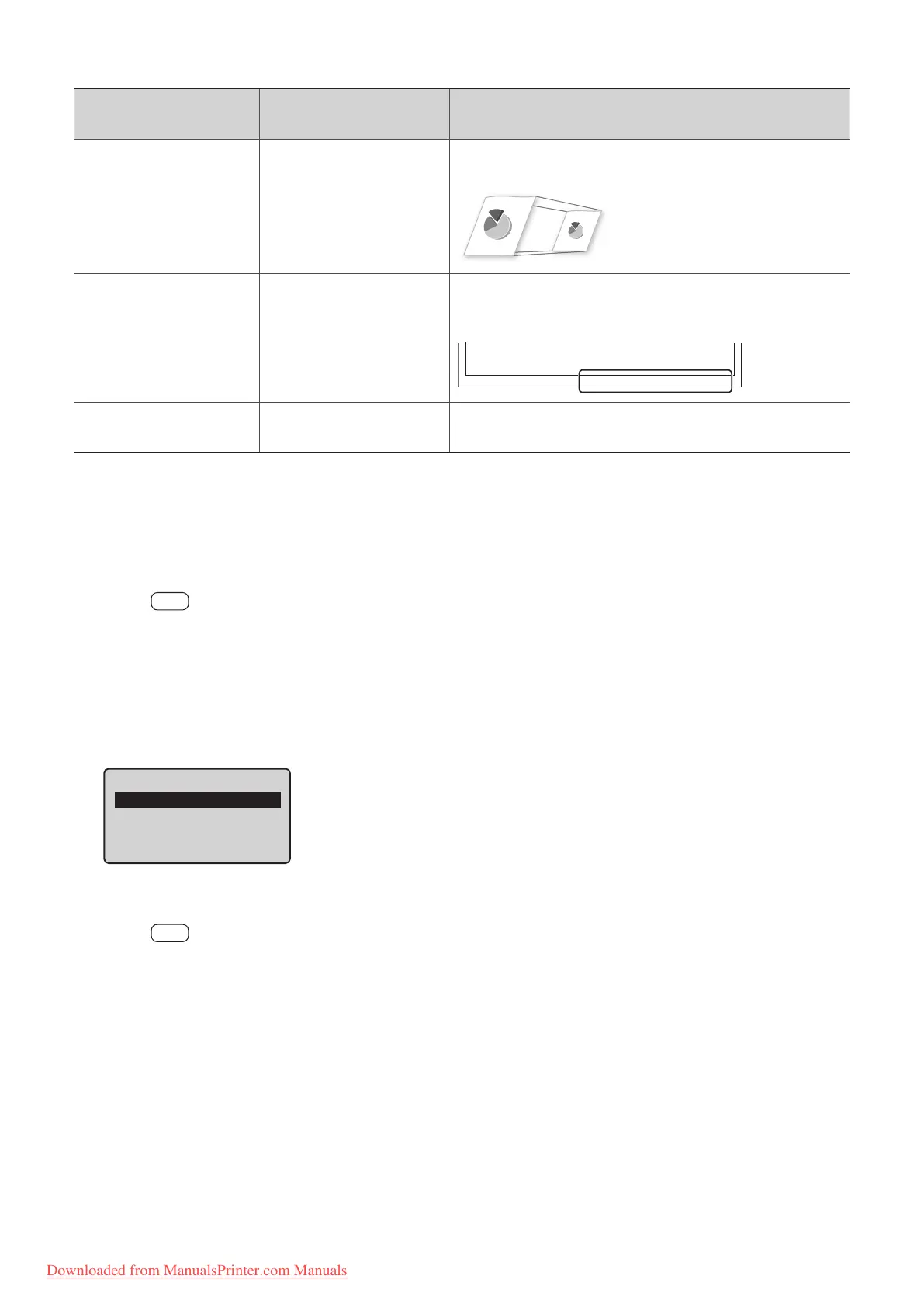
<RX Page Footer>
O
On
Sp
ecify whether or not to print a received date, day of the
week, time, number, and page number at the bottom of the
page when printing received faxes.
01/01/2012 SAT 02:07 PM [TX/RX NO 5001] P.0001
<Continue Print. When
Toner Is Nearly Out>
O
On
Sp
ecify whether or not to continue printing received faxes
when the toner is nearly out.
* MF4890dw/MF4880dw only
Changing Communication Management Settings
1
Press [ ] (Menu).
2
Press [▲] or [
▼
] to highlight <System Settings>, and then press [OK].
3
Press [▲] or [
▼
] to highlight <Communication Management Settings>, and then press [OK].
4
Press [▲] or [
▼
] to highlight the desired item, and then press [OK].
•
If you select <Fax Settings>, you can select a sub-item.
• See “Communication Management Settings.”
Communication Mgt. Set
Fax Settings
Memory Lock Settings
5
Specify the setting values, and then press [OK].
6
Press [ ] (Menu) to close the screen.
Downloaded from ManualsPrinter.com Manuals











 To Next Page