41
Print
3
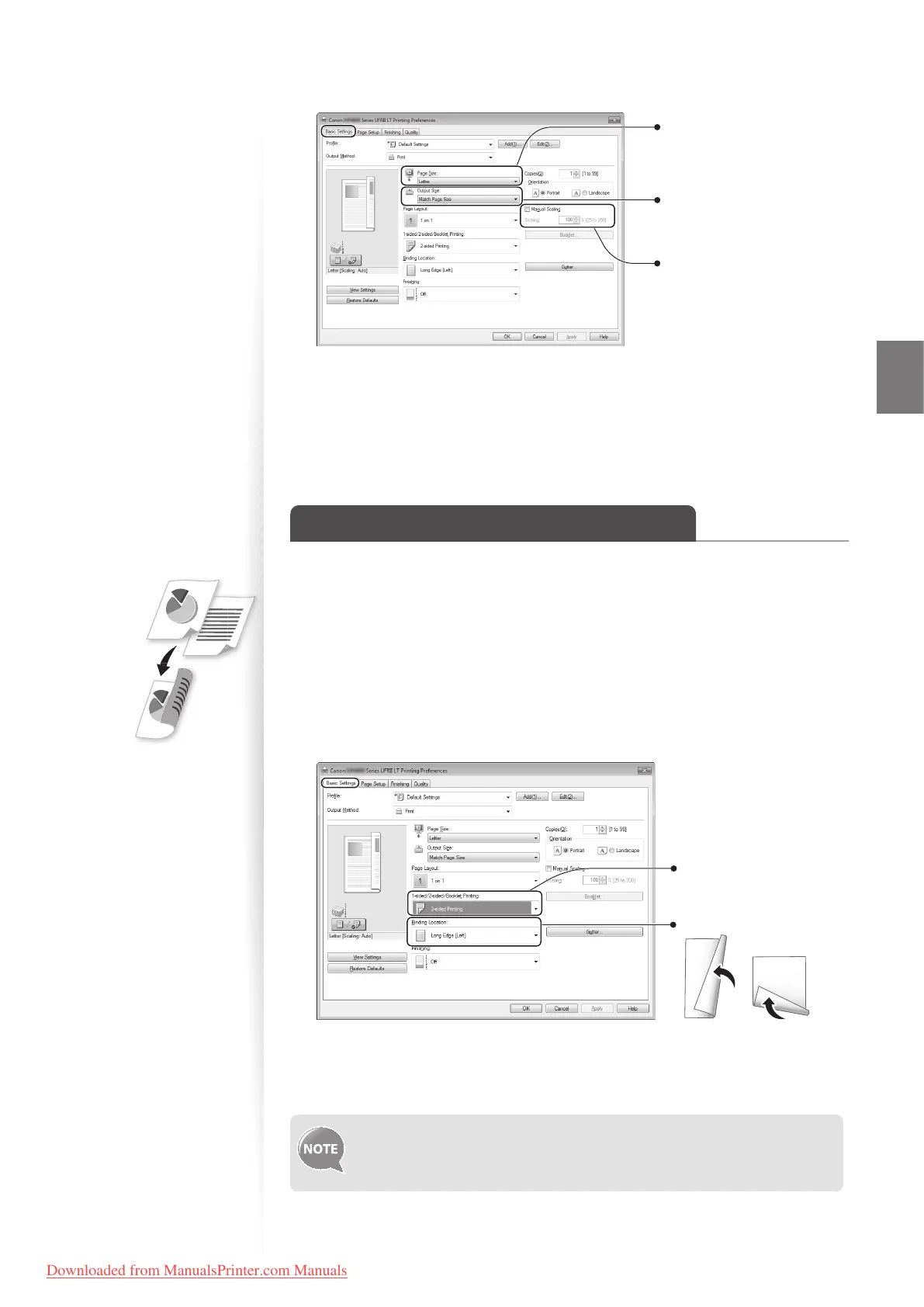
Click the [Basic Settings] tab, and then specify the print ratio.
Select the paper size of
the document.
To automatically scale
the document to t the
loaded paper, select an
output size.
To specify the print ratio
manually, select [Manual
Scaling], and then specify
the scaling ratio.
4
Click [OK] to return to the Print window.
5
Click [OK] to start printing.
Print a Double-Sided Document
(MF4890dw/MF4880dw Only)
You can print on both sides of paper.
1
Open a document from an application, and then open the Print window.
2
Select your printer driver, click [Preferences] (or [Properties]), and display
the Printing Preferences window.
3
Click the [Basic Settings] tab, and then specify the settings for double-
sided printing.
Select [2-sided Printing].
Select the binding edge.
4
Click [OK] to return to the Print window.
5
Click [OK] to start printing.
Supported document sizes for double-sided printing varies depending on
the models. For details, see [Speci cations] [Supported Paper Types]
in the e-Manual..
Downloaded from ManualsPrinter.com Manuals











 To Next Page