34
Make Double-Sided Copies
(MF4890dw/MF4880dw Only)
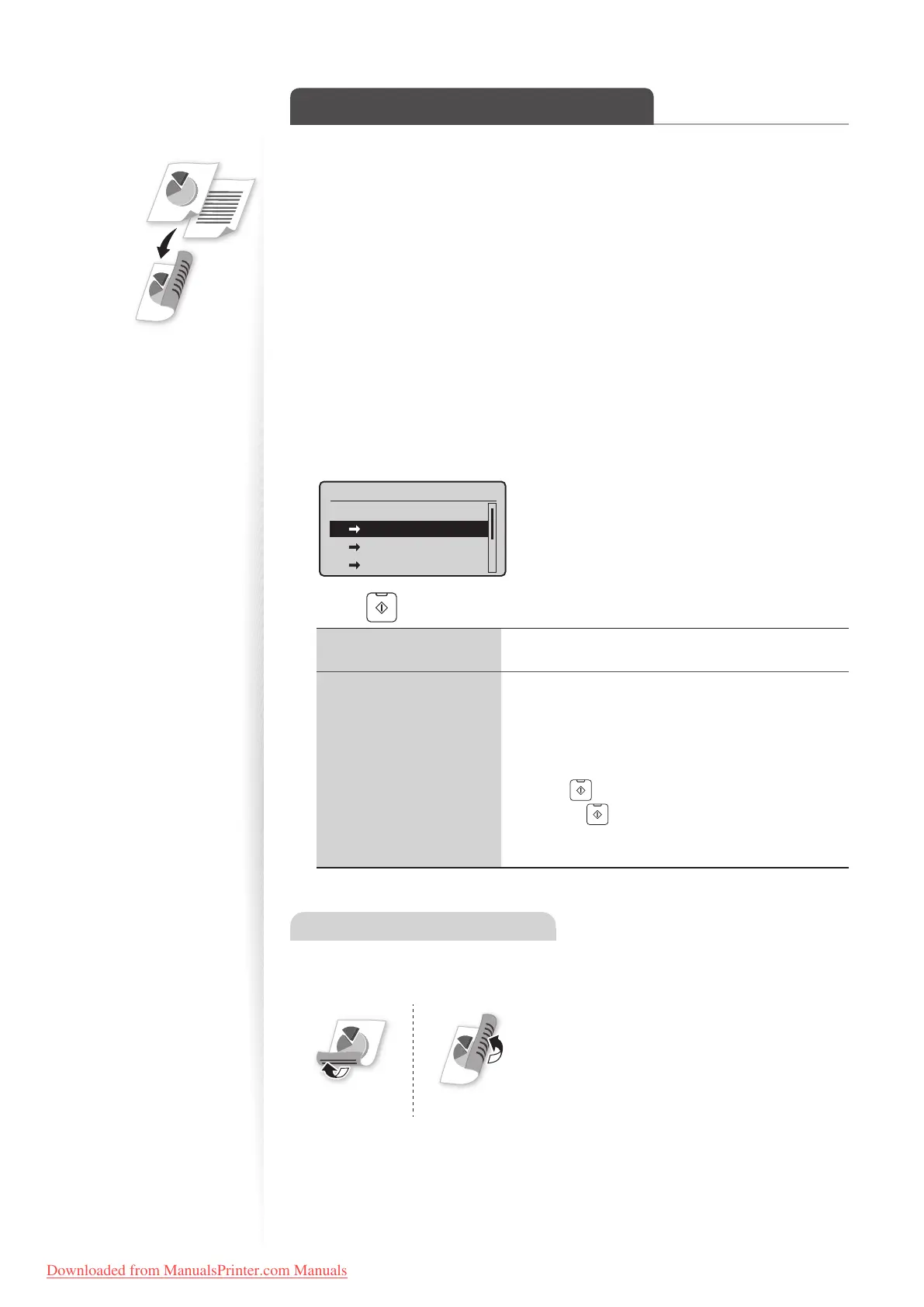
You can make double-sided copies from single-sided documents. When using the
MF4
890dw, you can also make double-sided or single-sided copies from double-sided
documents.
1
Place your documents (→p.19).
•
To make double-sided copies from single-sided documents, place the documents in
the feeder or on the platen glass.
• To make double-sided or single-sided copies from double-sided documents, place
documents in the feeder.
2
Switch to the Copy mode (→p.16).
3
Press [▲] or [▼] to higlight <2-Sided>, and then press [OK].
4
Press [▲] or [▼] to highlight the 2-sided copy format, and then press
[OK].
2-Sided
Off
1 2-Sided
2 2-Sided
2 1-Sided
5
Press [ ] (Start).
When placing your
documents in the feeder
Copying starts automatically.
When placing your
documents on the
platen glass
1. Press [
▲] or [▼] to highlight the size of the original
document, and then press [OK].
• You may specify the scan size as <LGL> size, but
the actual size is <A4> size.
2. Place the next page on the platen glass, and then
press [
] (Start).
• Press [ ] (Start) for every scanning.
3. After scanning all your documents, press [
▲] or [▼]
to highlight <Start Copying>, and then press [OK].
Specifying the orientation
If you select <Format Settings> at step 4 above, you may specify the orientation of your
documents and the desired nishing format.
<Calendar Type> <Book Type>
Downloaded from ManualsPrinter.com Manuals











 To Next Page