77
Scan
Scanning a Document Using a Shortcut Key
You can perform a scan easily by registering destinations and frequently used settings in
shortcut keys in advance.
Registering a Shortcut Key
1
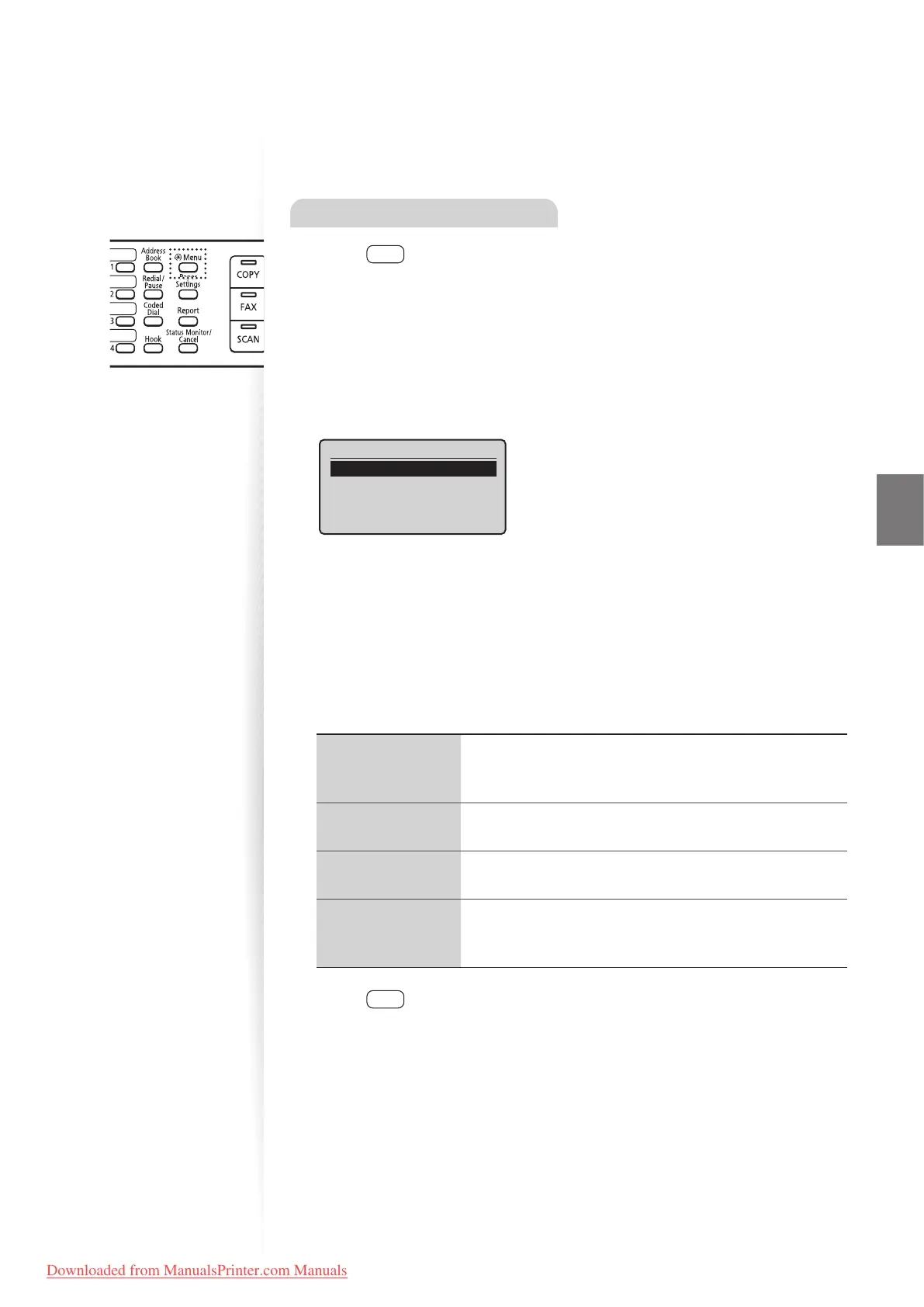
Press [ ] (Menu).
2
Press [▲] or [
▼
] to highlight <Scan Settings>, and then press [OK].
3
Press [▲] or [
▼
] to highlight <Shortcut Key Settings>, and then press
[OK].
4
Press [▲] or [
▼
] to highlight <Register>, and then press [OK].
•
To con rm the destination registered in the shortcut key, select
<Con rm Destination>.
Shortcut Key Settings
Register
Confirm Destination
5
Press [▲] or [
▼
] to highlight the shortcut key that you want to register,
and then press [OK].
6
Press [▲] or [
▼
] to highlight the connection method, and then press [OK].
7
Press [▲] or [
▼
] to highlight the destination, and then press [OK].
•
When a computer is connected by a USB cable, proceed to step 8.
8
Press [▲] or [
▼
] to highlight the scan settings, and then press [OK].
<Color Scan>
• Scan the document in color (300 dpi), and then save as a
PDF le.
• PDF settings: Searchable/Compact
<B&W Scan>
Scan the document in black and white (300 dpi), and then
sa
ve as a TIFF le.
<Custom 1>
Scan the document in color (300 dpi), and then save as a
JPE
G/Exif le.
<Custom 2>
• Scan the document in color (300 dpi), and then save as a
PDF le.
• PDF settings: Searchable/Compact
9
Press [ ] (Menu) to close the screen.
Downloaded from ManualsPrinter.com Manuals











 To Next Page